Every location on the map — with opening hours and tap-to-call
A client opens the page, sees the nearest office or store, today’s hours and whether it is open right now. They call with one tap on their phone — no copying numbers, no asking for directions by email.
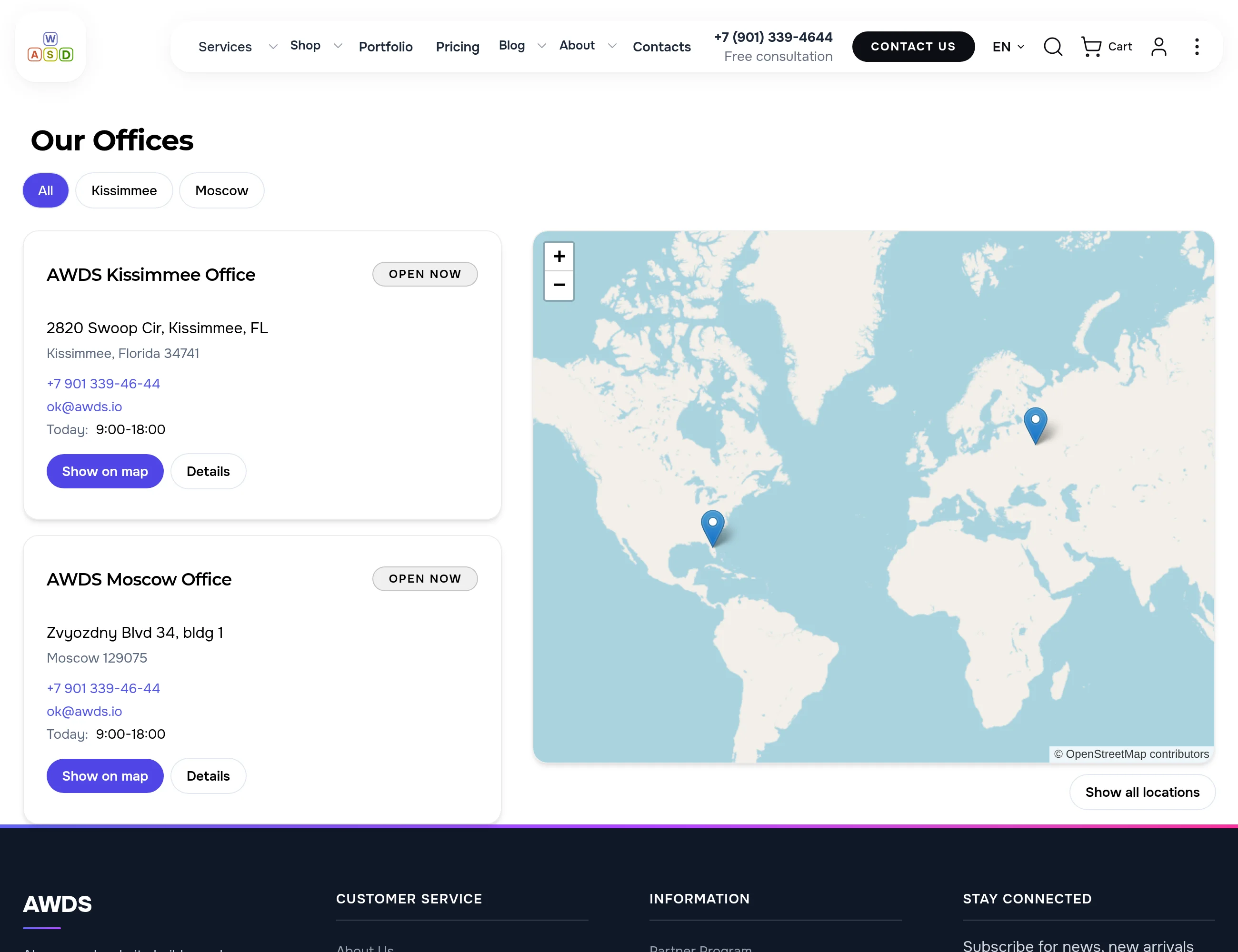
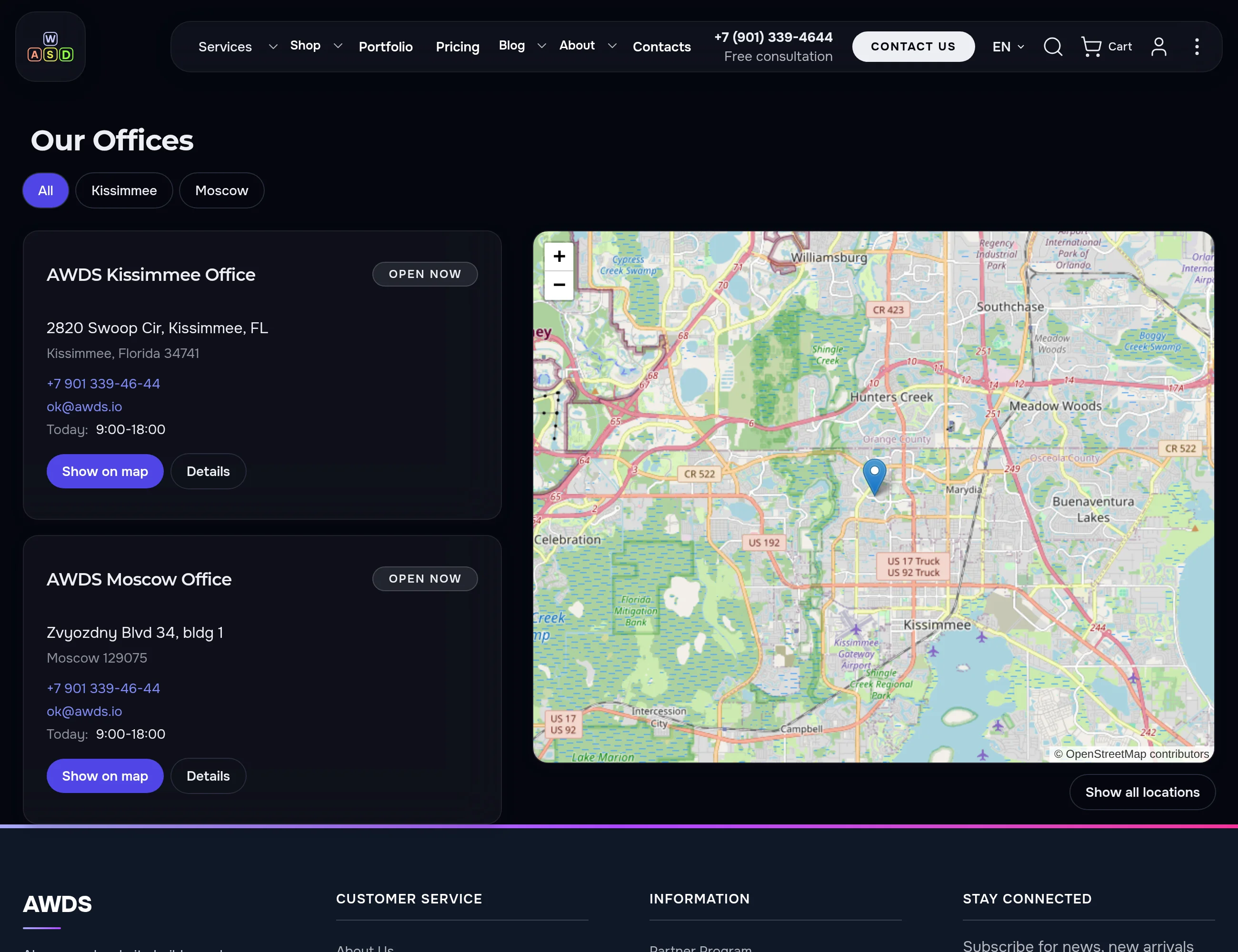
Below are real screens from our own website: the “Our Offices” page, a single office page, the phone view, the dark theme and the admin panel.
If clients come to you in person, this is for you
Anyone with an address clients visit: help them find the nearest location without calling to ask for directions or opening hours.
Store chains and showrooms
Shoppers pick their city and see every location nearby: address, phone and today’s hours.
Services with offices
Clinics, salons, agencies, law firms. Clients see in advance whether the office is open and call with one tap.
Pickup points and dealers
A partner network on one map — every location gets its own page with a map and contacts.
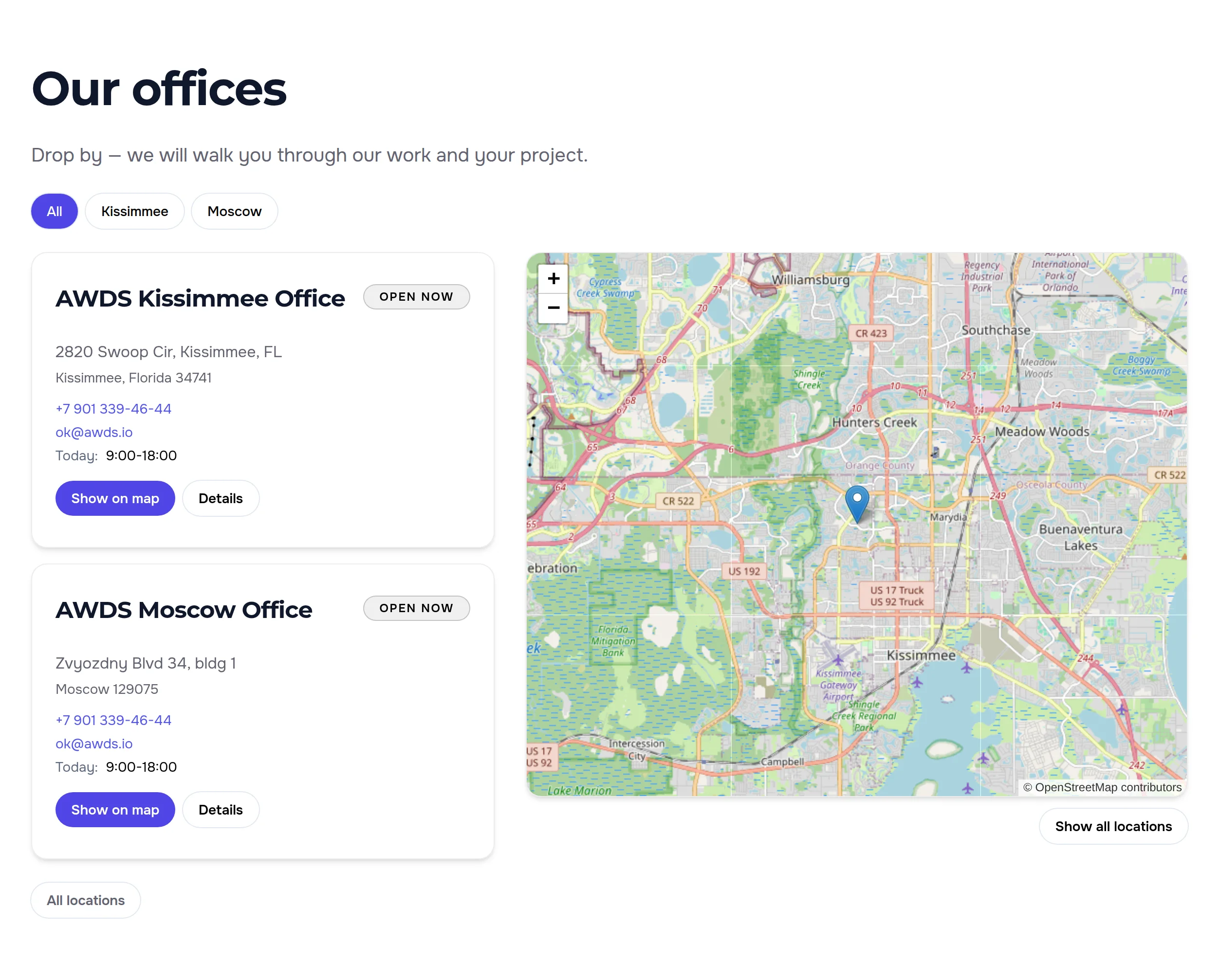
Cards on the left, map on the right
Each card shows address, phone, email and today’s hours, with an “Open now” or “Closed now” label on top. The map opens on the first location at street level instead of a world map dotted with pins.
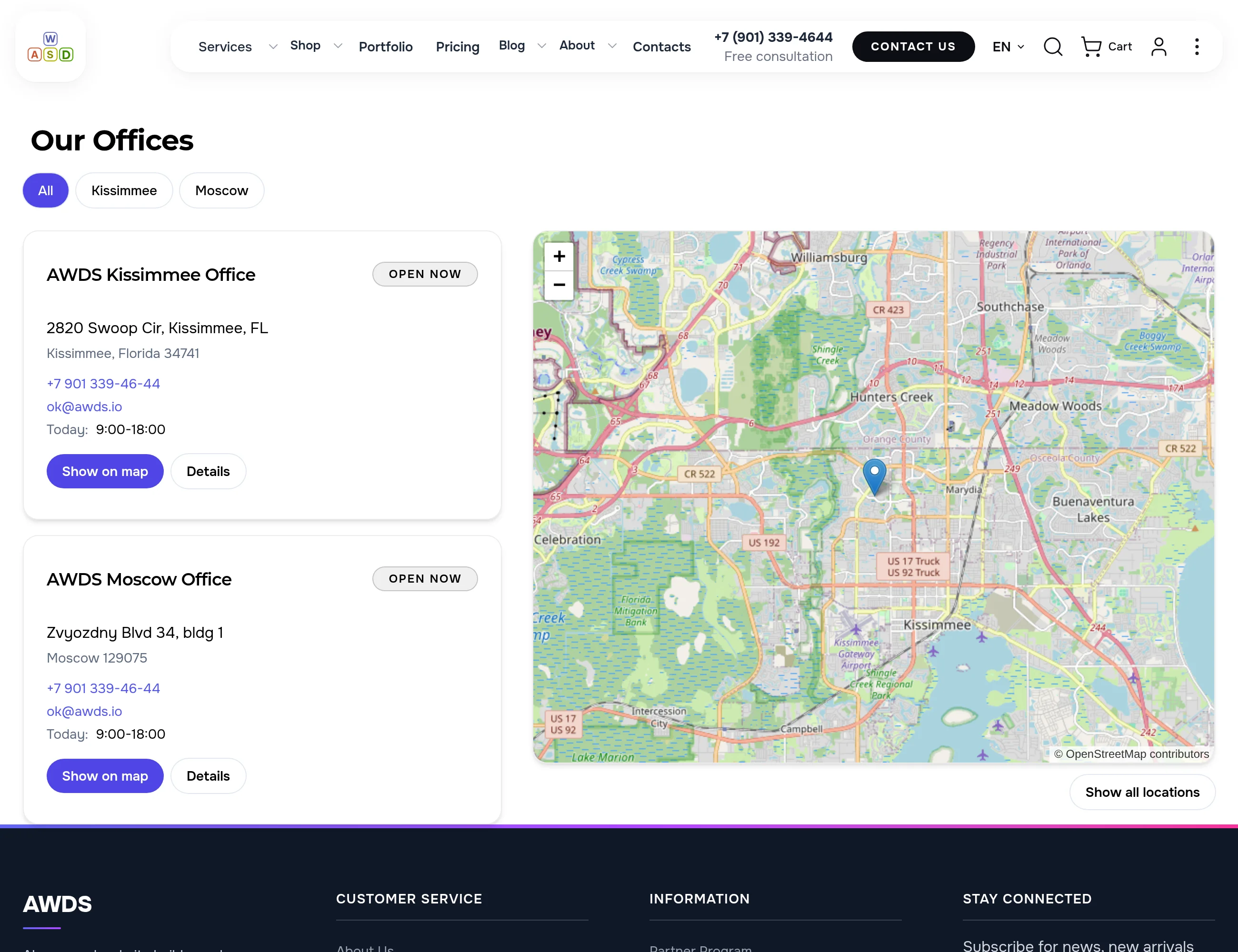
The map follows the card
- “Show on map” moves the map to that location.
- “Show all locations” fits every location at once.
- “Details” opens the location’s own page.
- Phone and email are links: on a phone, a call starts with one tap.
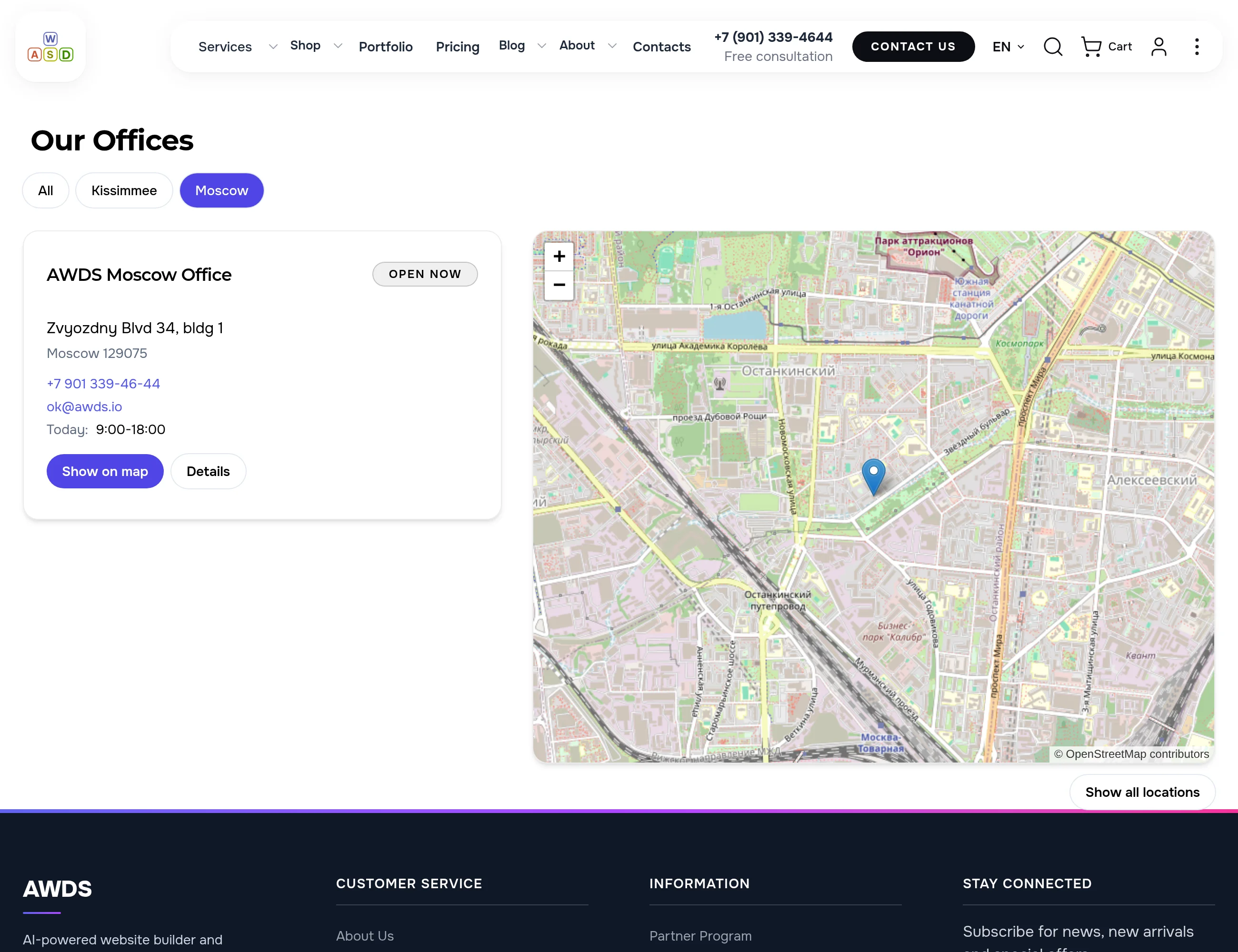
All locations at once, or just your city
When there are many locations, visitors tap their city — only the nearby ones stay and the map moves to them. The city list builds itself from the addresses; nothing to maintain by hand.
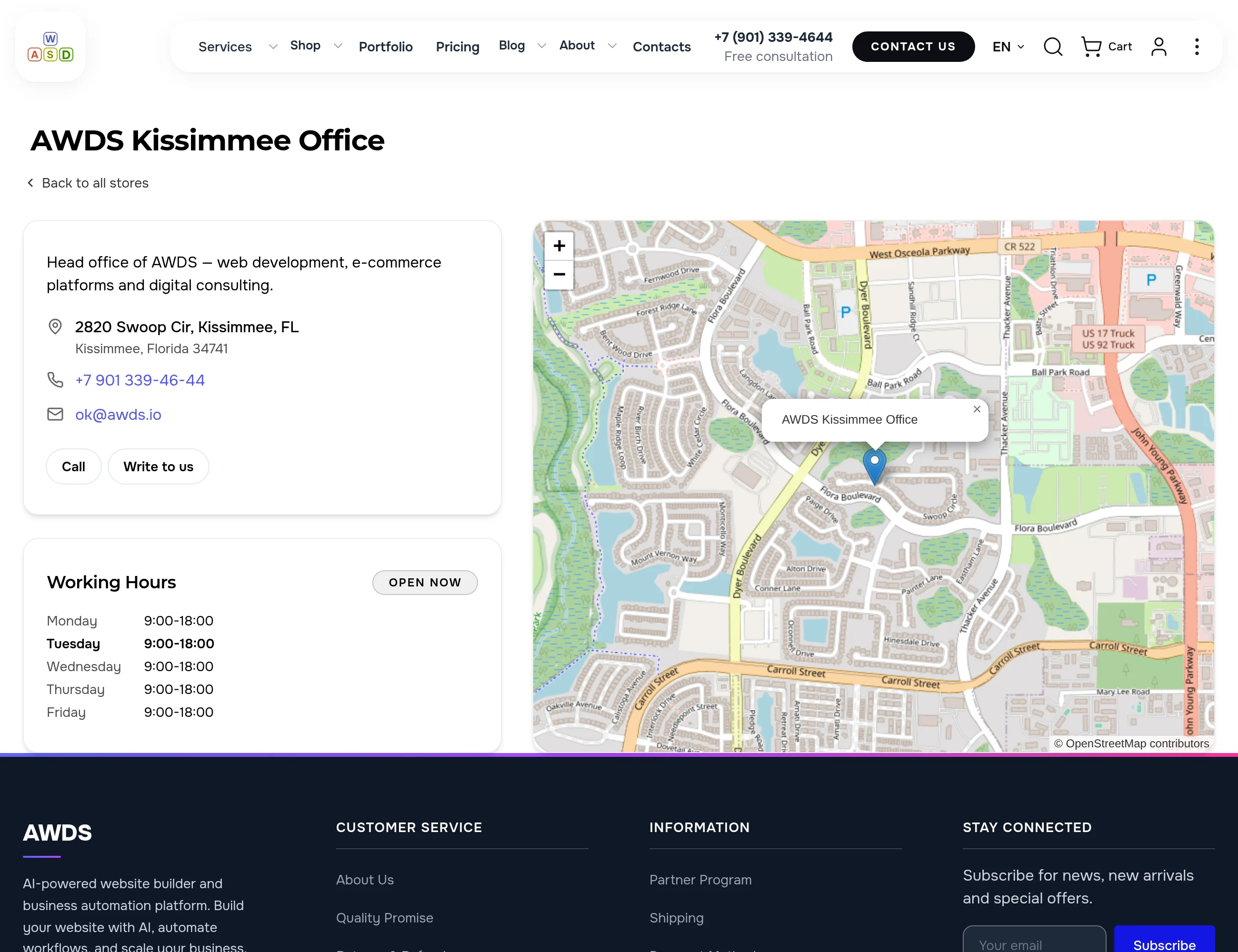
Every location gets its own page
Description, address, phone, email, “Call” and “Write to us” buttons, opening hours by weekday with today highlighted, and a labelled map. A handy landing page for ads about a specific office.
What search engines get
- Its own address. every location has a separate page that can rank for searches with a neighbourhood name
- “Store” markup. address, coordinates, phone and opening hours are described on every page in the format search engines read
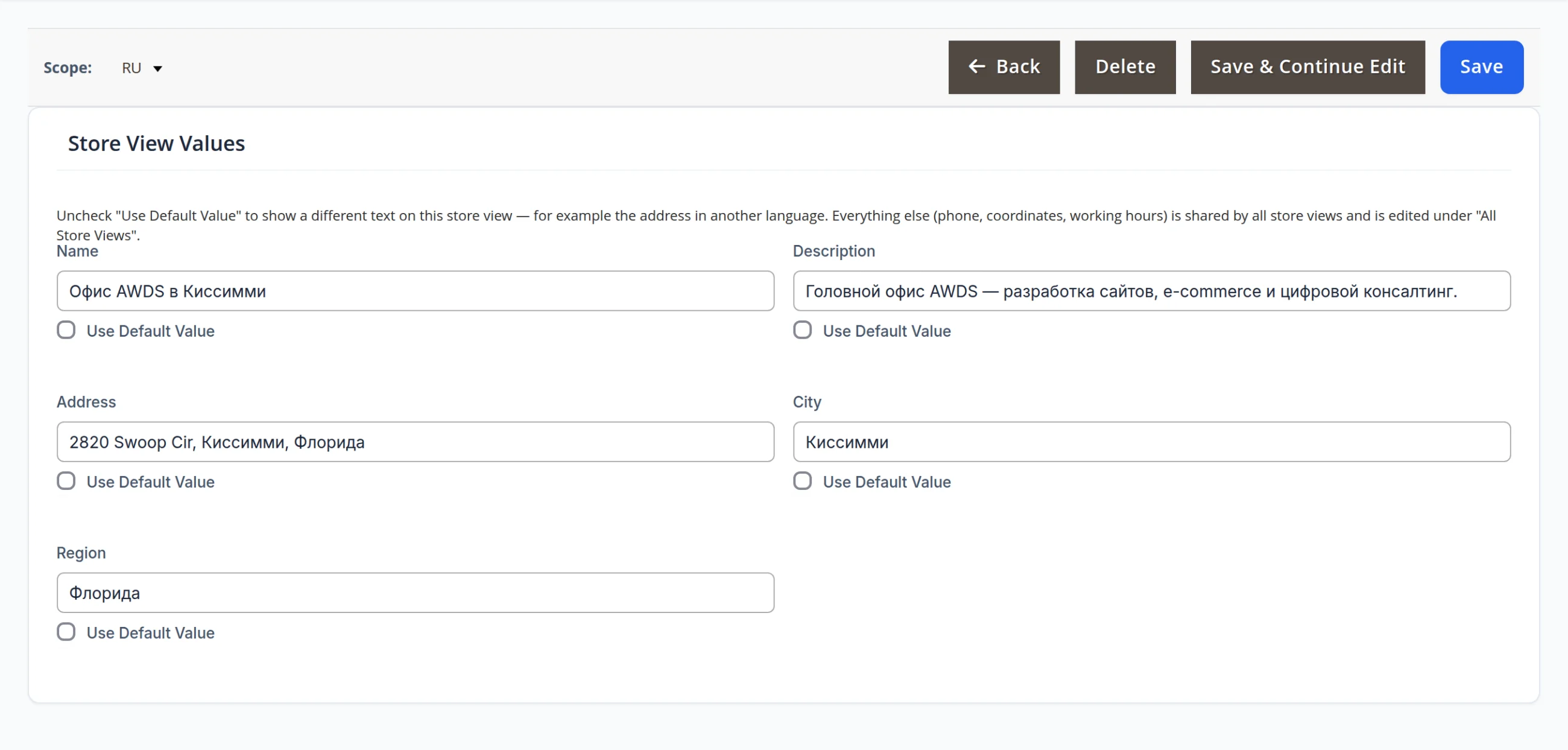
- Its own language. the English and Russian versions of the page each carry their own name, description and address
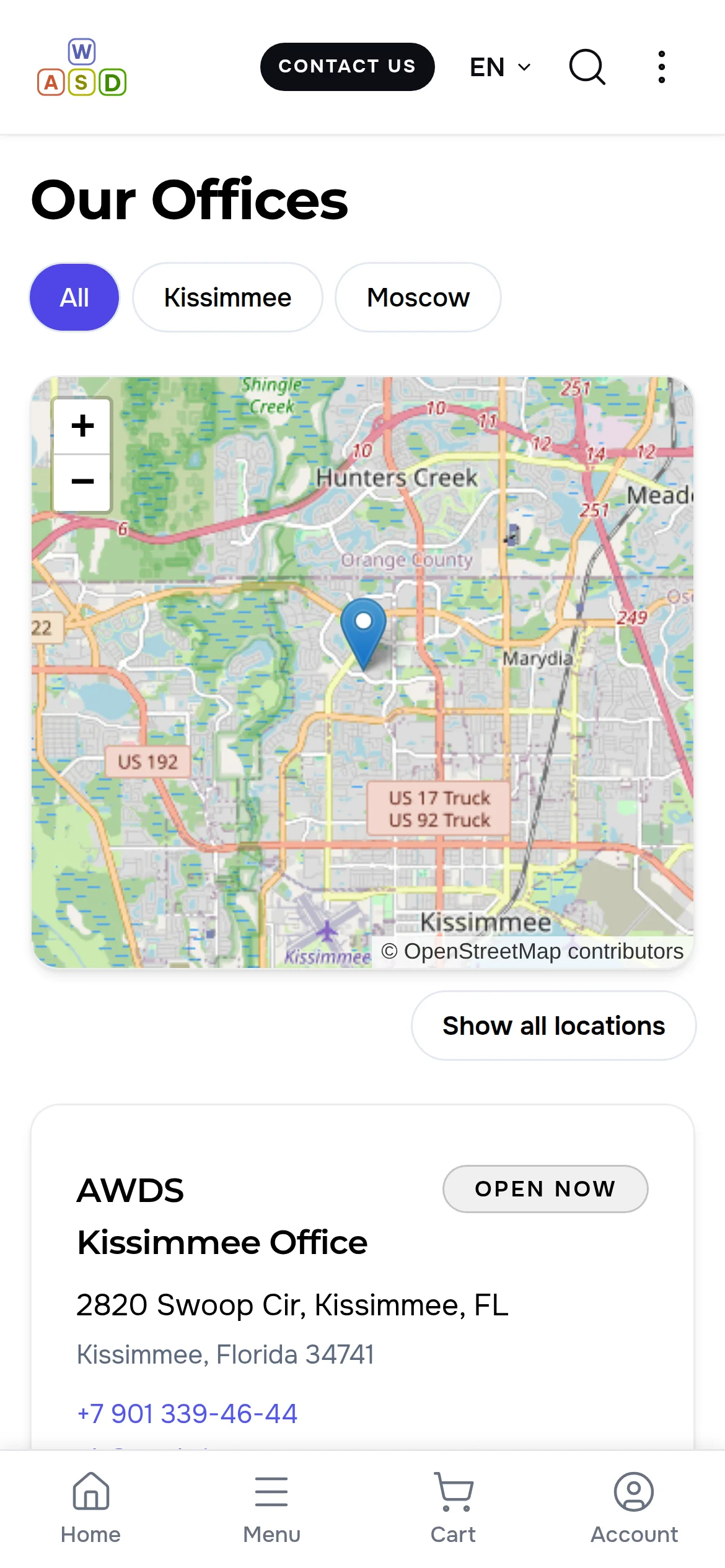
Easy on a phone, readable in the dark theme
On a phone the map sits above the list and buttons are thumb-sized. In the dark theme cards and buttons follow the site colours while the map stays light and legible.
The same block on Contacts, the home page or a landing page
The map with its cards drops into any page as one block; the heading, subheading and “All locations” link are set right there. Locations come from one shared list — change an address once and it updates everywhere.
One list, many places
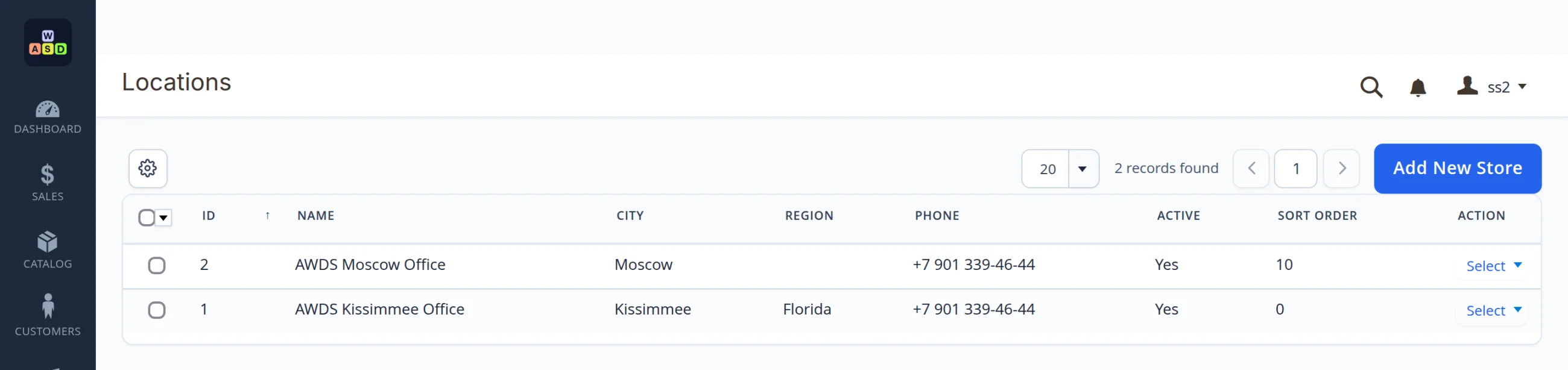
The locations page, each location page and blocks on other pages all read the same list. Closed a location? Untick “Active” and it disappears from every page at once.
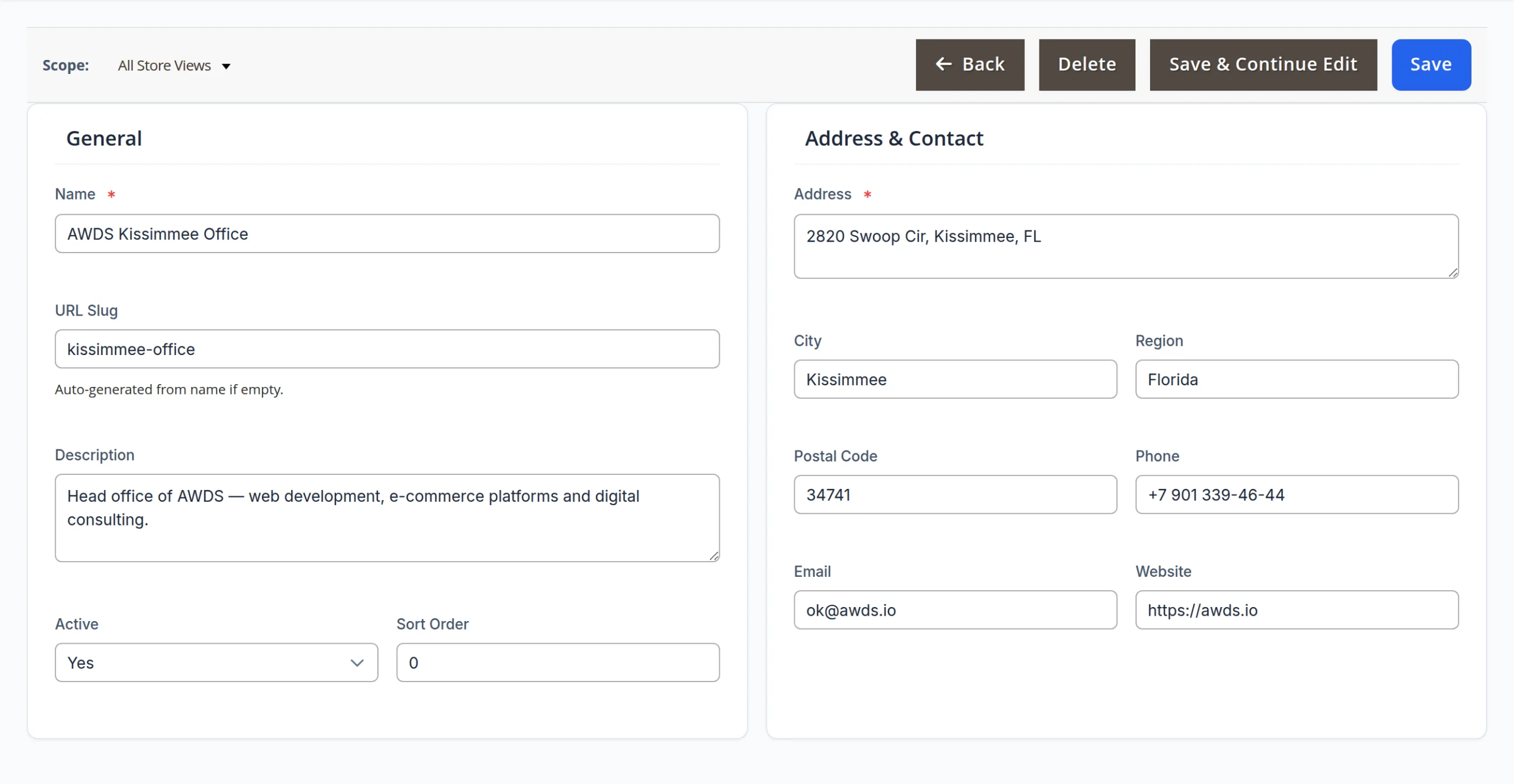
Locations are managed in the admin panel, no developer needed
Name, address, phone, email, coordinates and opening hours live in one card. List order is a number, and a location can be switched off without deleting it. Each language version of the site gets its own name, description and address, while phone, coordinates and hours are shared, so you never repeat them.
What you can set
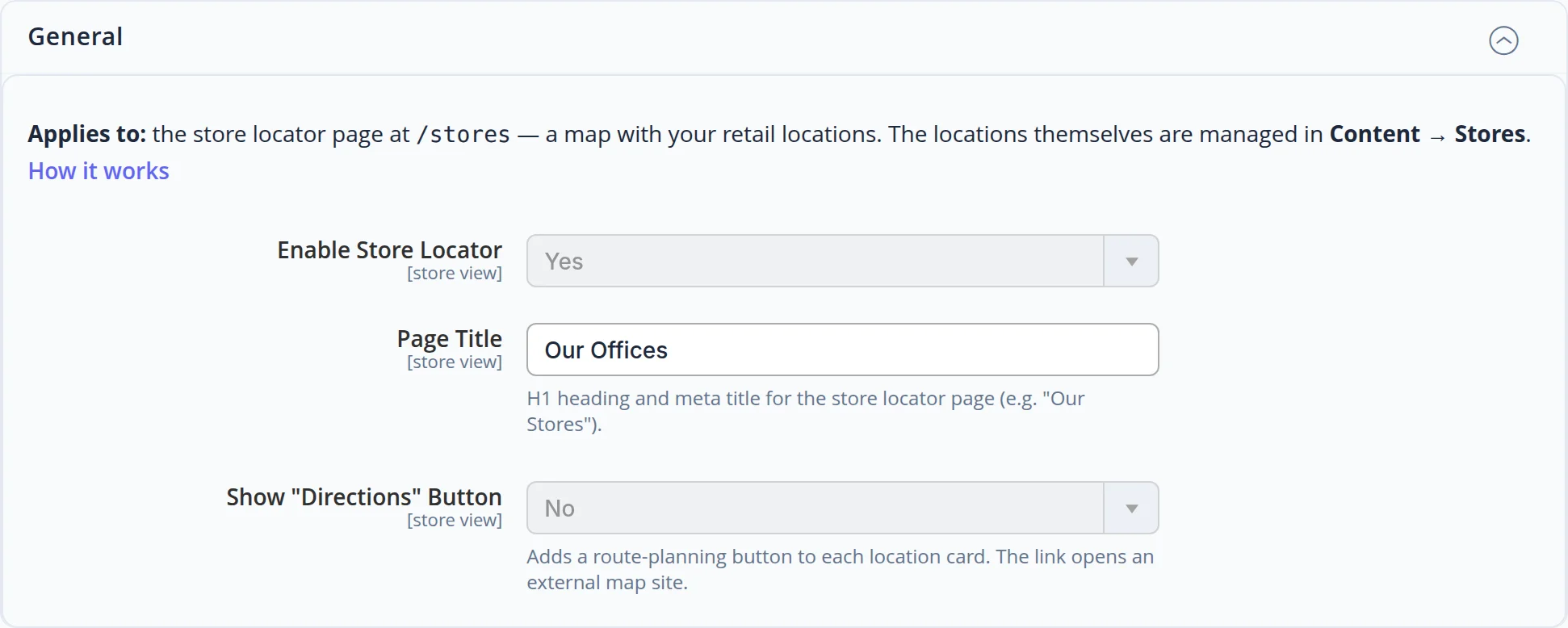
- Page title. per language version — “Our Offices”, “Stores”, “Pickup Points”
- “Directions” button. optional — opens route planning to the location on a map site
- On or off. the section is switched separately for each site version
The map never slows the page down
The map loads when you scroll to it
Text and cards show first; the map switches on when it appears on screen. The page opens fast even on mobile data.
Hours are always fresh
The “Open now” label and today’s hours are worked out in the visitor’s browser at viewing time, so they never freeze in the page cache.
No paid map subscription
The map is built on open map data — no API key and no monthly fee to a map provider.
Let’s put your locations on the map
We will move over the addresses, phones and hours of your offices or stores and build a locations page plus a page for each location, in two languages. Need a whole website? See our web design service.
Another case: your site explains its own jargon, right in the text →