Answer the client’s question before they ask it
Price, timeline, what is included, what happens after launch — the answers sit right on the page, grouped into tabs and highlighted with numbers. Clients stop emailing the same questions and reach the enquiry form already informed.
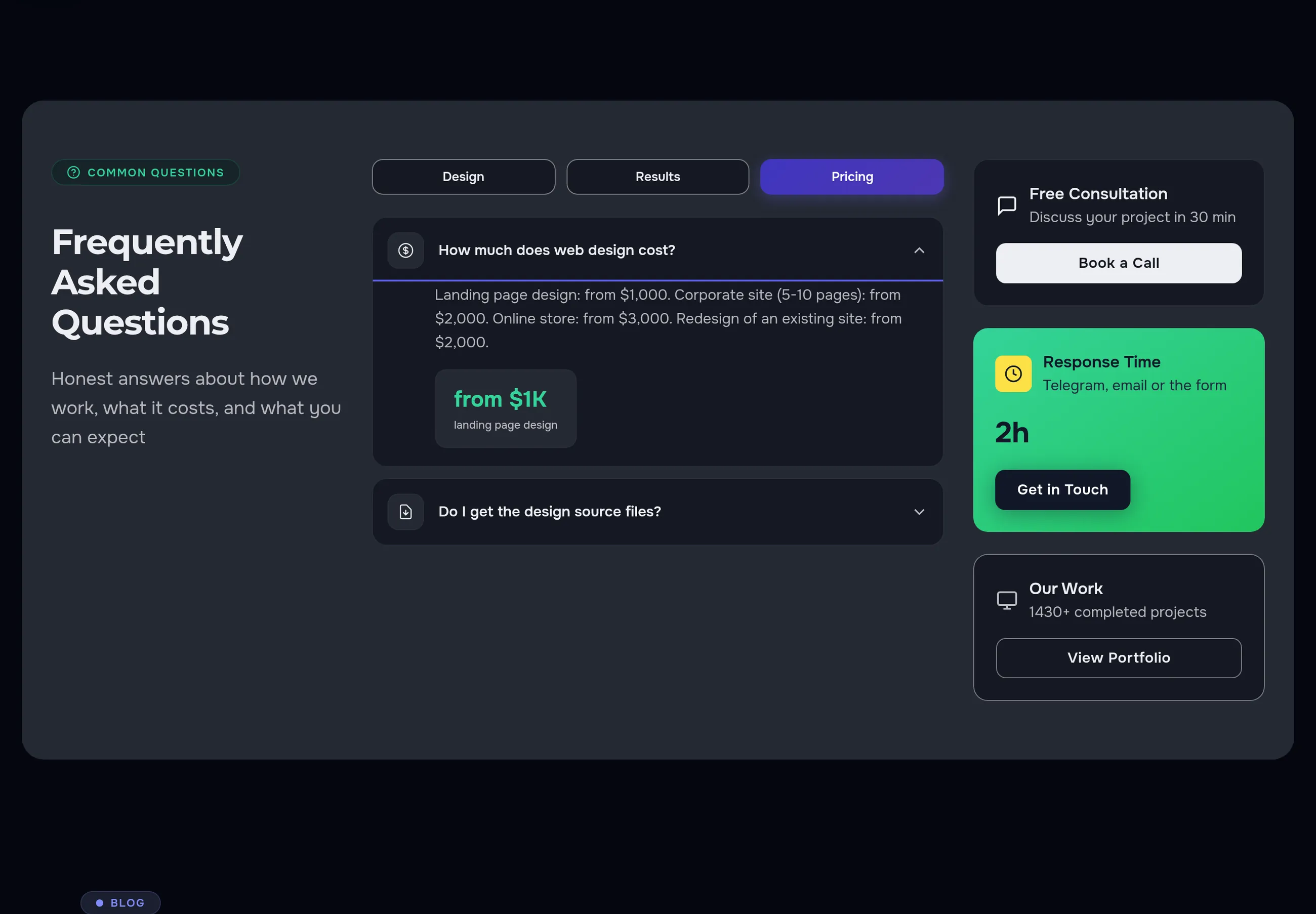
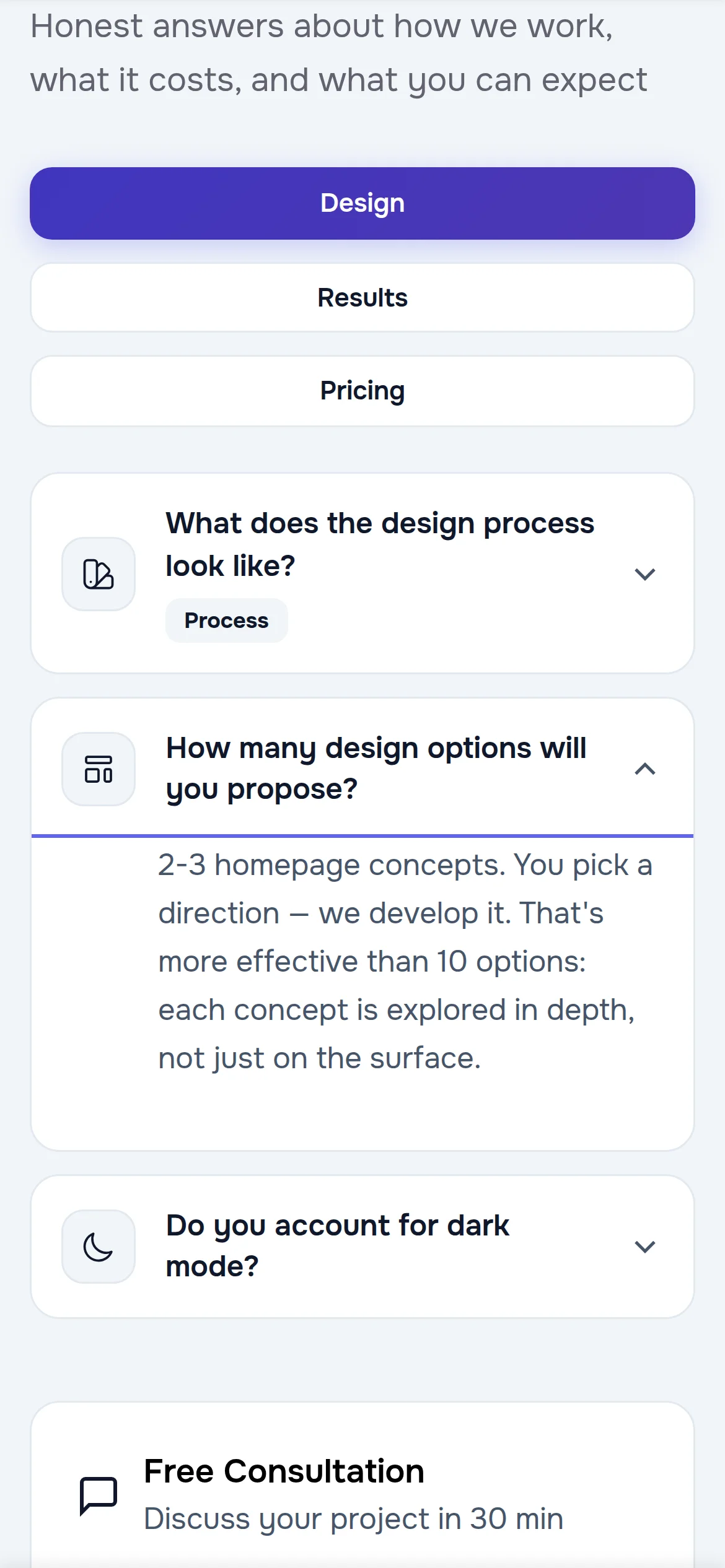
Below are real screens from our own website: a service page, the home page, a product card, the dark theme, the phone view and the admin panel.
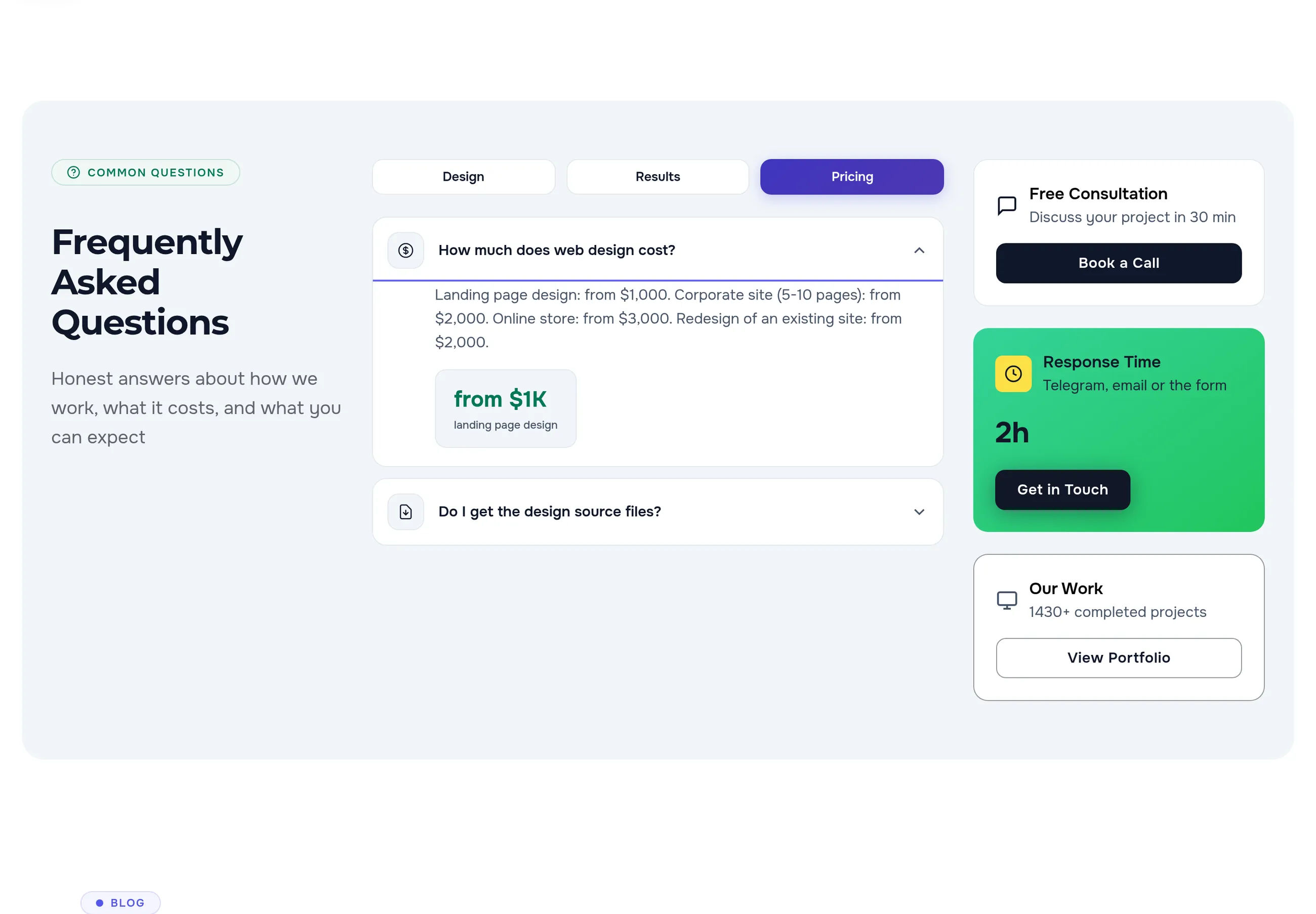
If clients keep asking the same questions, this is for you
Services priced “on request”, complex products, a long road to purchase — anywhere clients hesitate and leave to ask you or to look for answers elsewhere.
Services
What it costs, how long it takes, what you need from the client, what happens after delivery. An answer on the page removes the doubt before the call.
Online stores
Delivery, warranty, compatibility, returns — each product has its own questions, each category shares common ones.
Blog and expert articles
Short answers at the end of an article cover what the reader wanted to ask — and they show up in search.
Questions grouped by topic
Questions split into tabs: “Design”, “Results”, “Pricing”. Visitors jump straight to their topic instead of scrolling a long list. Every question gets an icon and a short label such as “Process”.
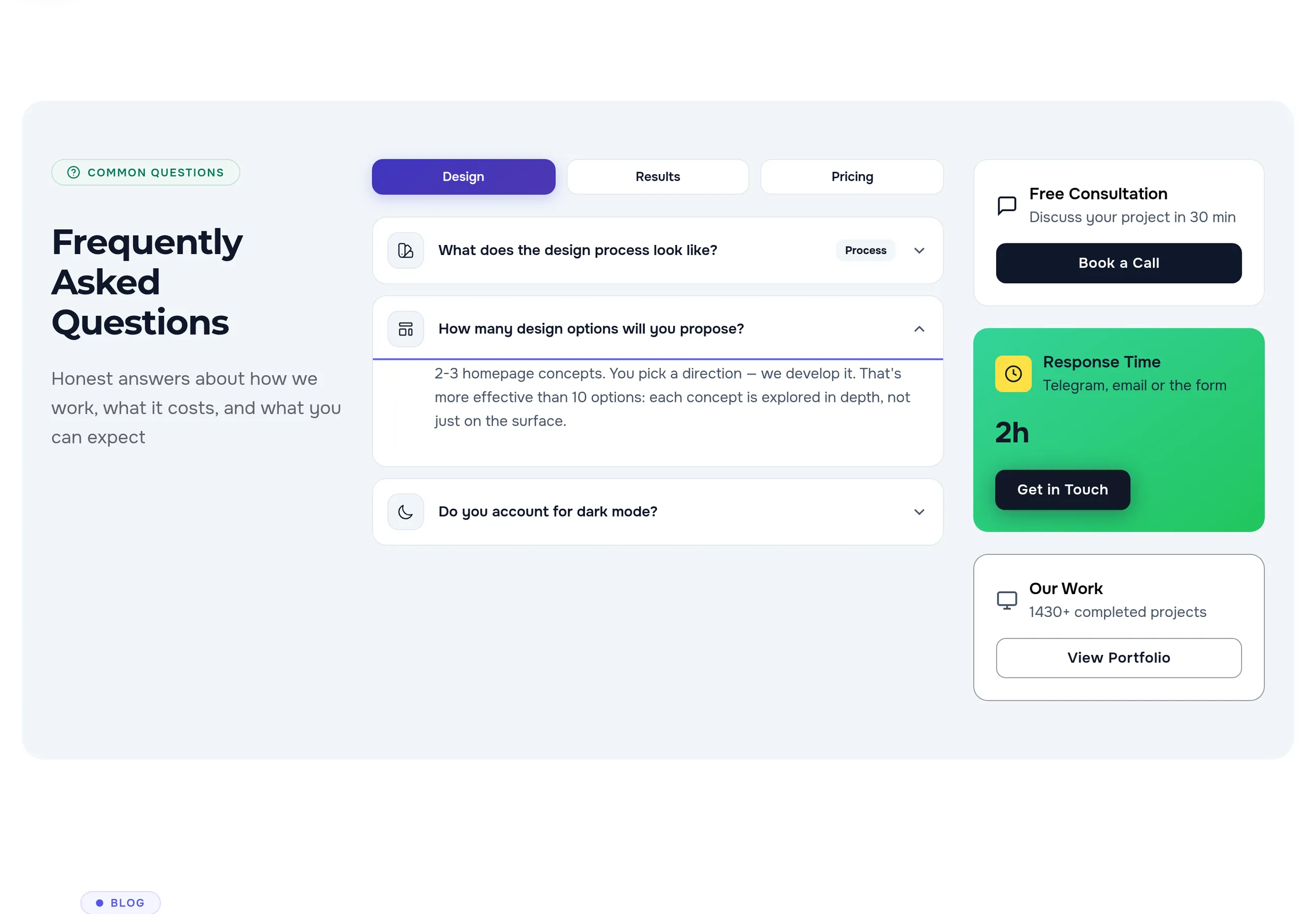
Tabs build themselves
- A question’s topic is one field: questions sharing a topic form one tab.
- A question without a topic goes to the default tab.
- No topics at all — no tabs, the block becomes a simple list.
- On the right: call-to-action cards — consultation, response time, portfolio.
The key point of an answer is visible at a glance
An answer can carry a large figure with a caption — a price, a timeline, a count — and the question can carry a label. Clients get the gist before reading the text.
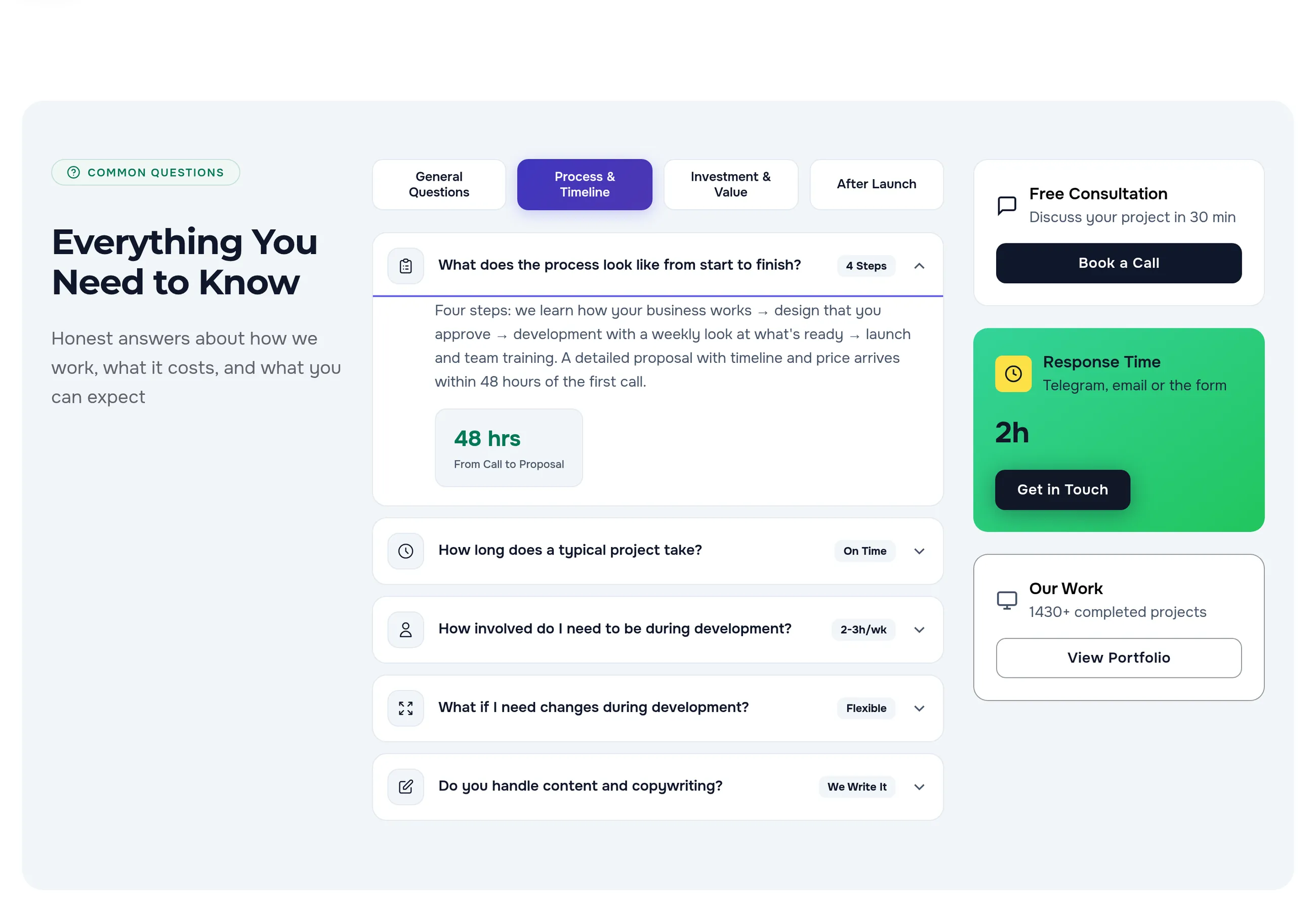
One block on any page of the site
The same block appears on a product card, a catalog category, a blog article and a regular page. Each record has its own questions while the look stays the same, so the site feels consistent.
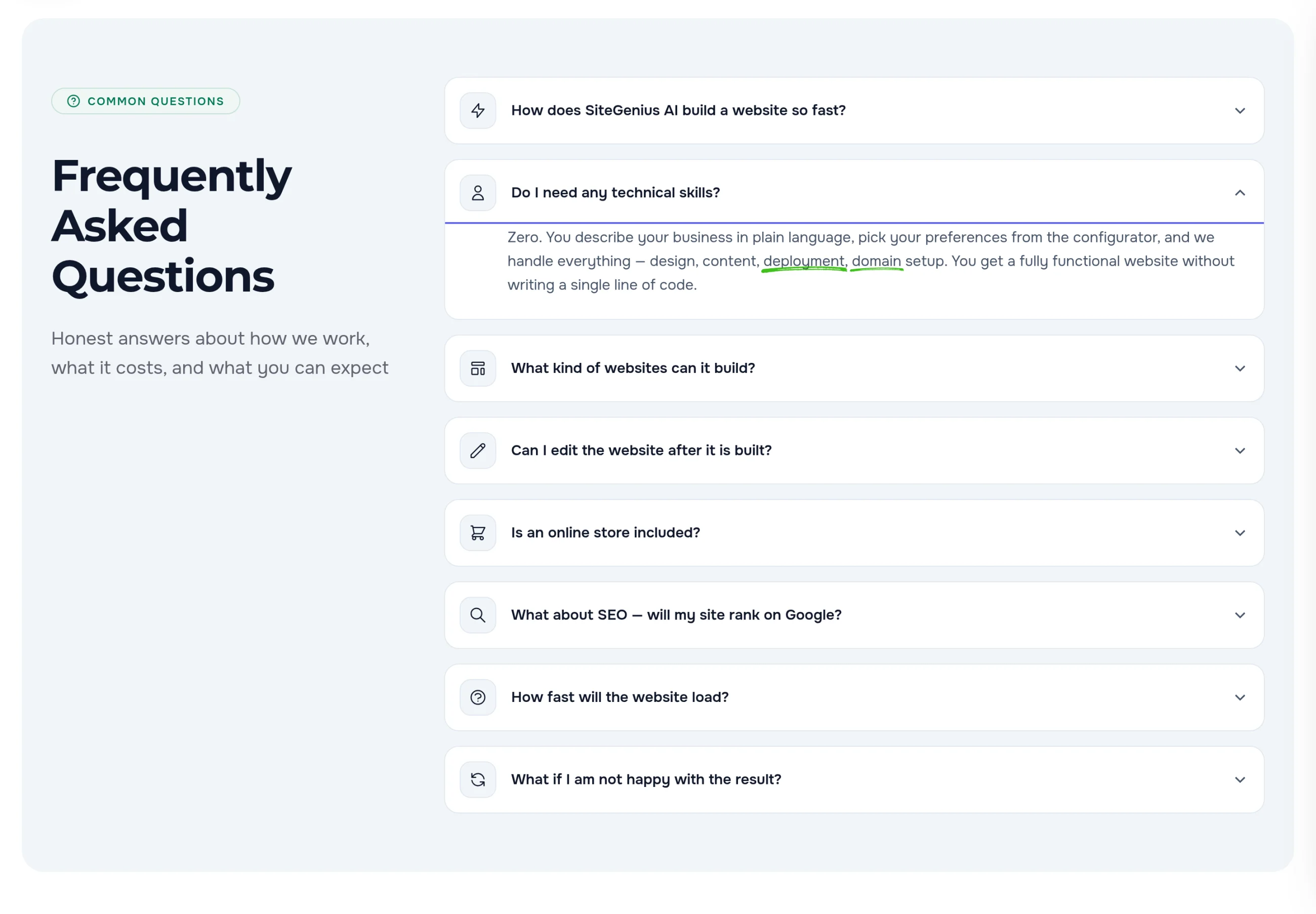
What search engines get
- Question-and-answer markup. on every page with the block, questions are described in the format search engines read
- Every answer in the page text. answers of hidden tabs arrive with the page too, so search sees them in full
- Own questions per language. the English and Russian versions of a page carry questions in their own language
Easy on a phone, readable in the dark theme
On a phone the tabs stack up and a question opens with one tap. In the dark theme cards, tabs and figures follow the site colours.
Questions are edited in the record itself, no developer needed
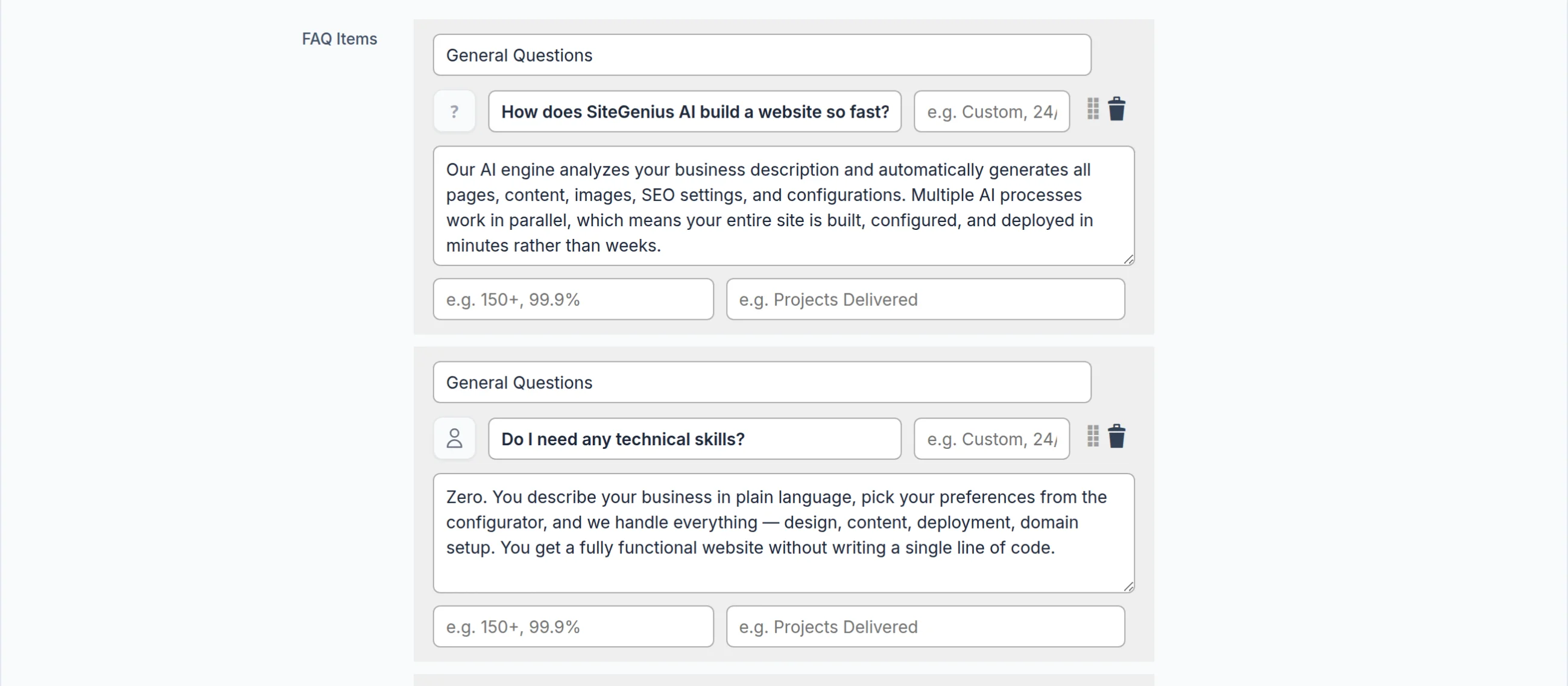
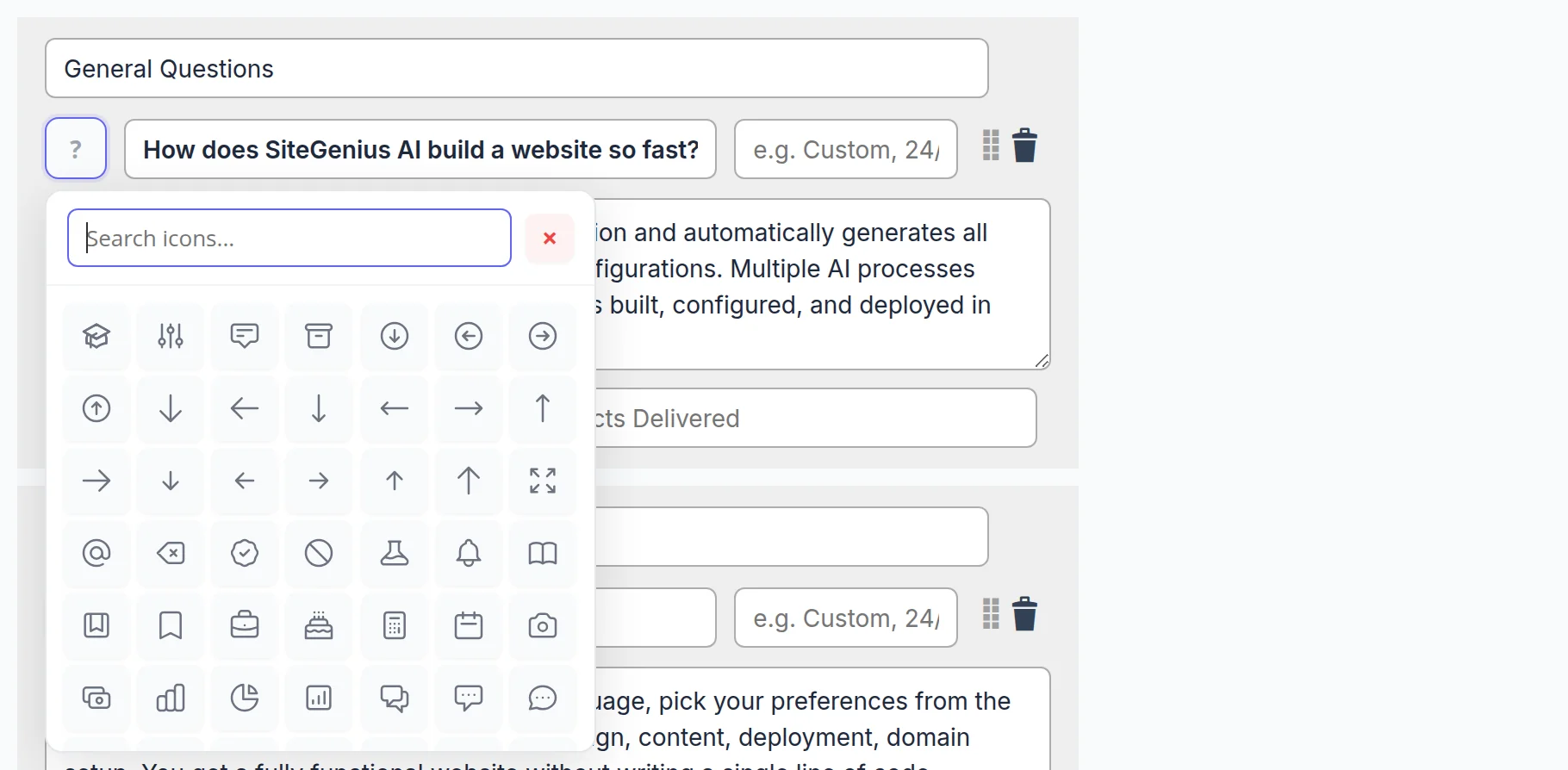
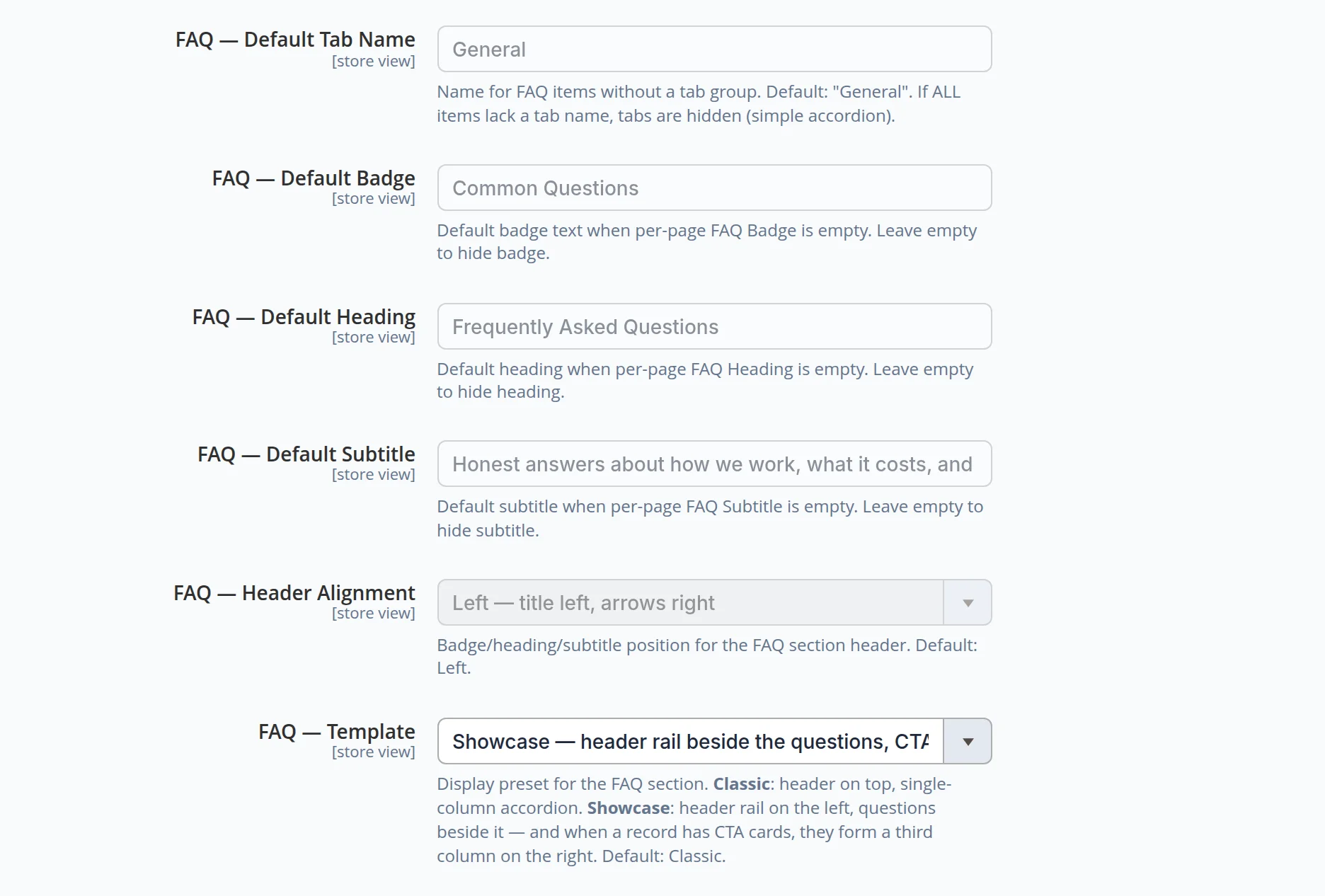
Product, category, article and page cards all have a questions section: topic, question, answer, label, a figure with caption and an icon from a ready set. Reorder by drag and drop. The block’s default heading and subtitle are set once per language version of the site.
The block gets in the way of neither the page nor the reader
No waiting
All questions and answers arrive with the page; tabs and expanding work instantly, with nothing to load.
Keyboard and screen readers
Tabs and questions are real buttons: reachable with Tab, opened with Enter, and screen readers announce whether an answer is open.
A calm look
One answer is open at a time and the rest stay folded — the page never turns into a wall of text.
Let’s answer your clients’ questions right on your site
We will collect frequent questions from your emails and calls, group them by topic and highlight the key figures — for services, products and articles. Need a full search strategy? See our SEO service.
Another case: every location on the map, with opening hours and tap-to-call →