Photos worth a closer look — full screen in one click
A visitor sees a screenshot, a product photo or a property shot on the page — and wants to see the details. Here any image opens full screen: large, captioned, with arrows to the next shots and zoom. Close it, and they are right where they were.
Try it on this very page: click any shot below.
When a picture on the page is your argument
Portfolios and case studies, online stores, real estate and renovation, furniture and interiors, restaurants and hotels — anywhere people decide by looking at photos.
Portfolios and case studies
Screenshots of your work open large — visitors read the small print on a layout without leaving the page.
Properties and interiors
A series of photos is browsed with arrows or a swipe, like an album, with a “3 of 12” counter.
Products and details
A double click zooms in on texture, stitching, labels — what a preview cannot show.
Every image in the page text is already a gallery
Nothing to tag: images in the page text become clickable on their own. Photos from one section of the page open together — visitors browse a set, not a random pile.
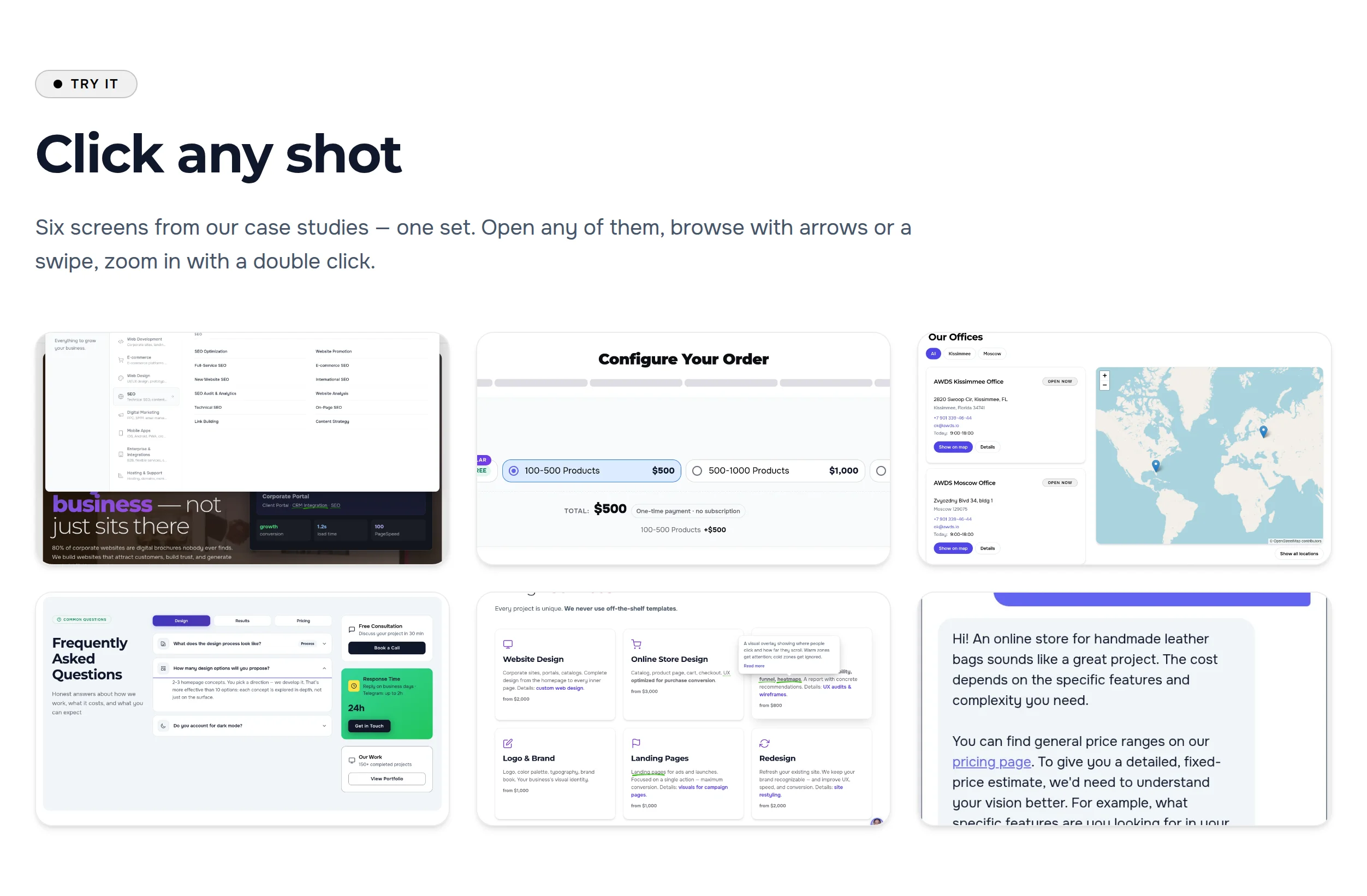
What visitors see
- The shot, large, on a dark background — nothing distracts.
- A counter: which shot this is and how many there are.
- A caption under the shot — taken from the image description, the same one search engines read.
- Close with the cross, the Esc key or a click on the background.
Browse the set with arrows, keys and thumbnails
Arrows at the edges, ← and → on the keyboard, a thumbnail strip at the bottom — any shot is one click away. After the last shot comes the first one again.
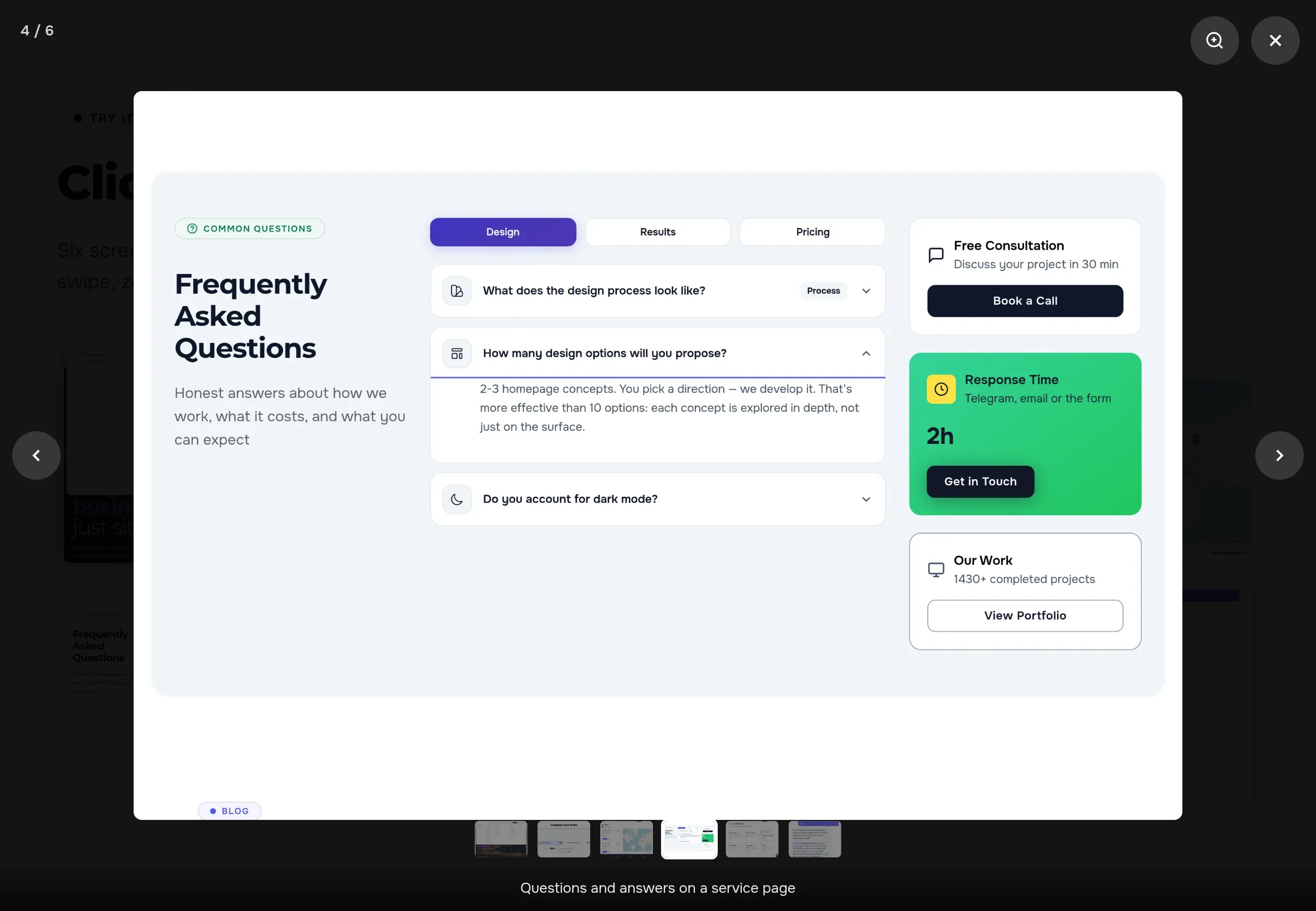
Navigation
- Arrows and keys. ← and → browse, Esc closes
- In a loop. after the last shot comes the first
- Thumbnails. the strip appears when a set has four shots or more
- Same spot. after closing, the page stays where it was
A double click shows every detail
A double click or the magnifier button zooms the shot in two times. Drag the zoomed shot with the mouse to look at the right corner. One more click on the magnifier — and you are back.

On a phone — swipes, like the phone’s own gallery
Swipe sideways — the next shot. Pull down — the viewer closes. A short accidental move does not close it: you have to pull noticeably.

A photo strip right on the page
When there are many shots, a strip shows them well: cards in a row with arrows and dots below. Any card opens full screen — and from there the whole strip can be browsed. Below is a live strip: the dark theme from our case studies.

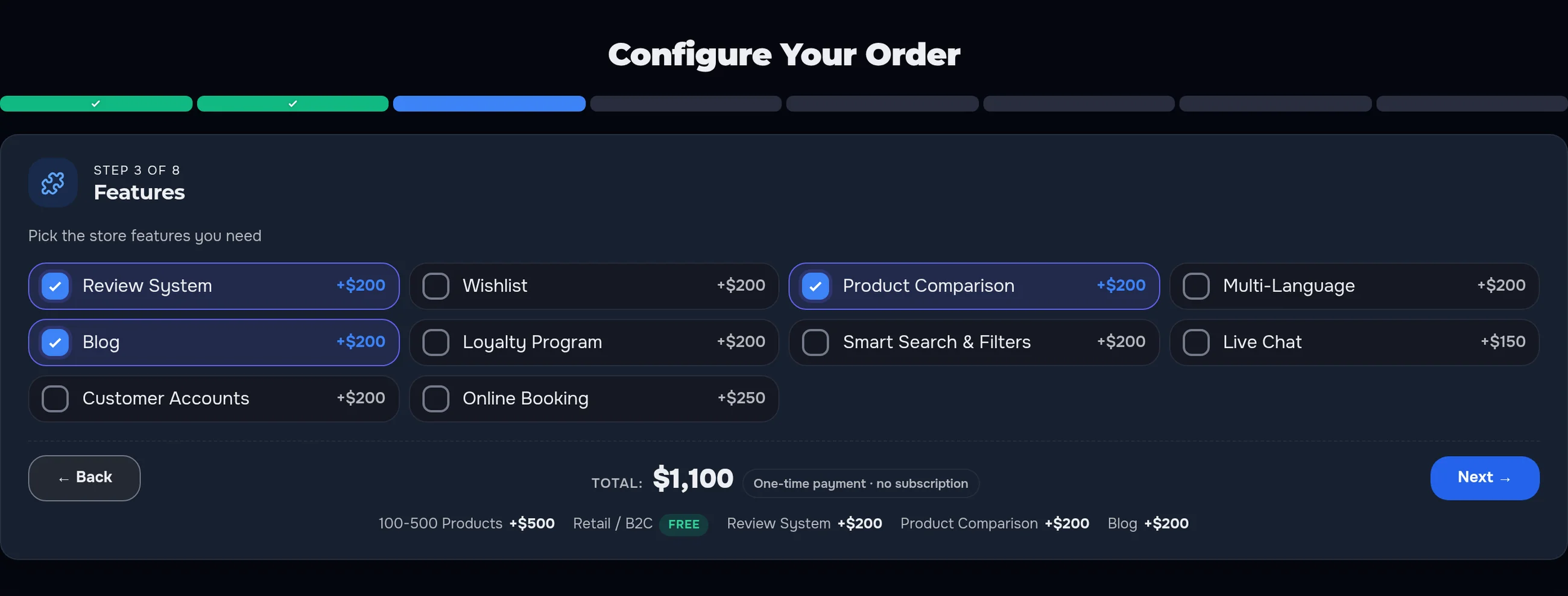
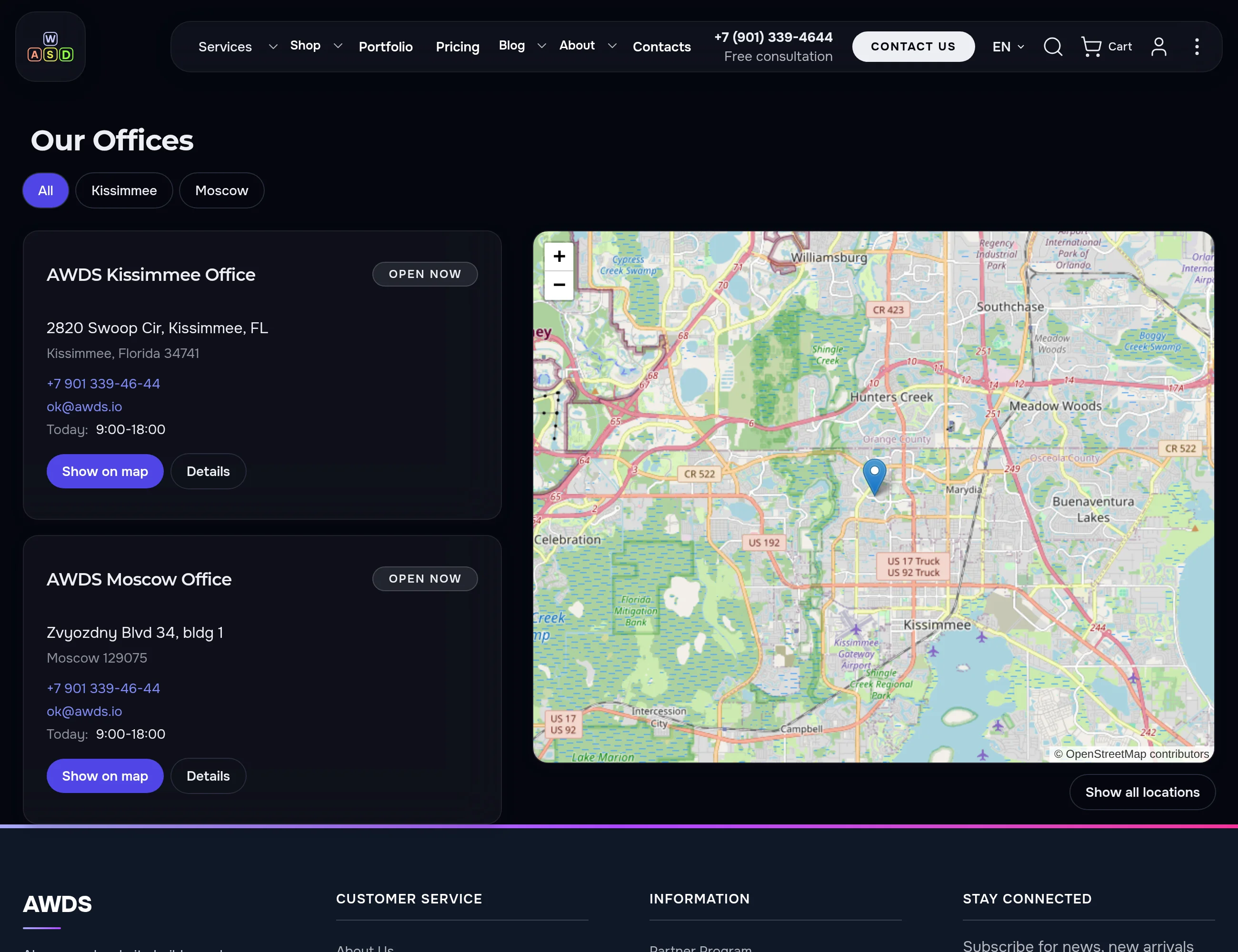
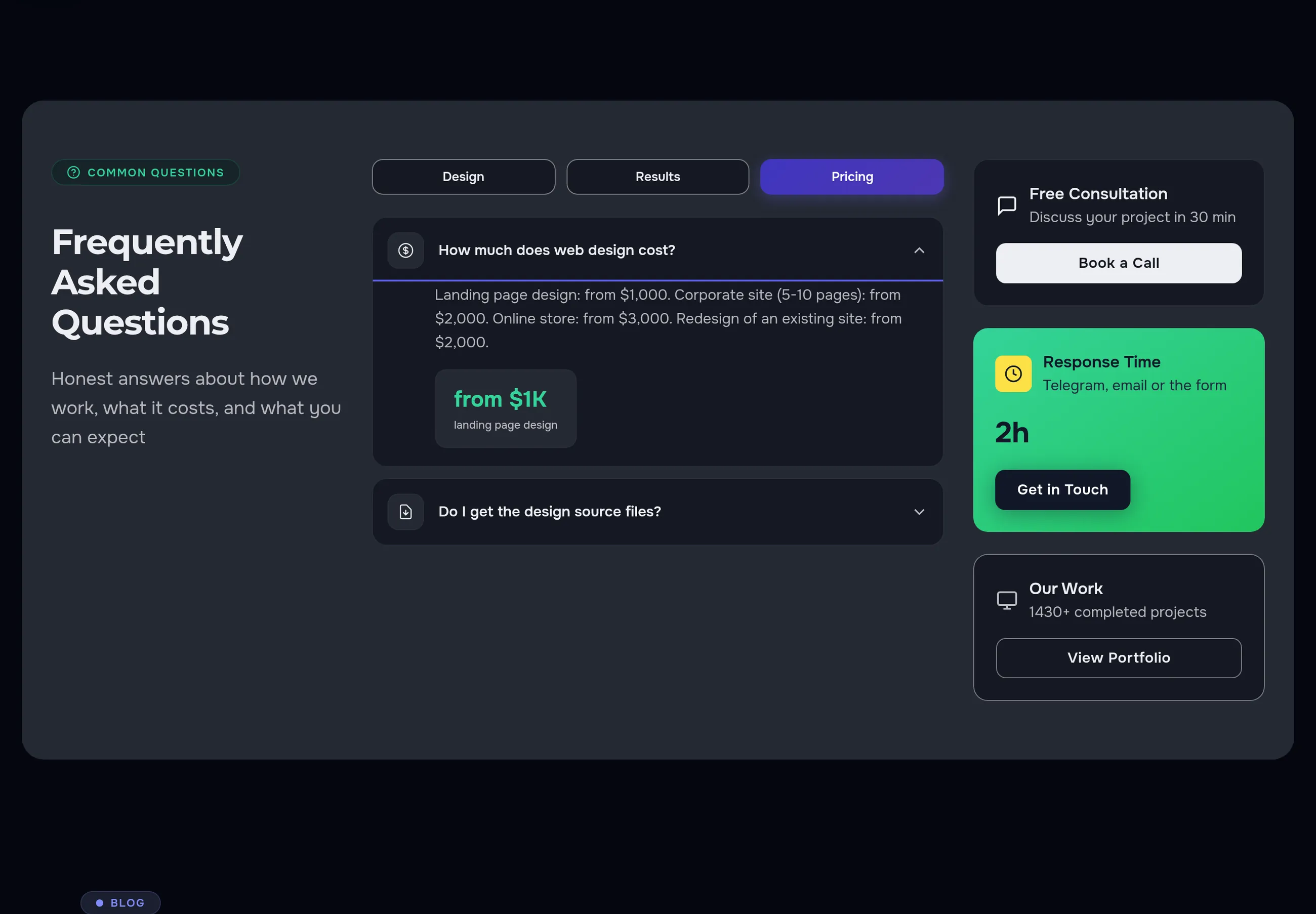


In the site’s dark theme the strip and the viewer look just as neat:
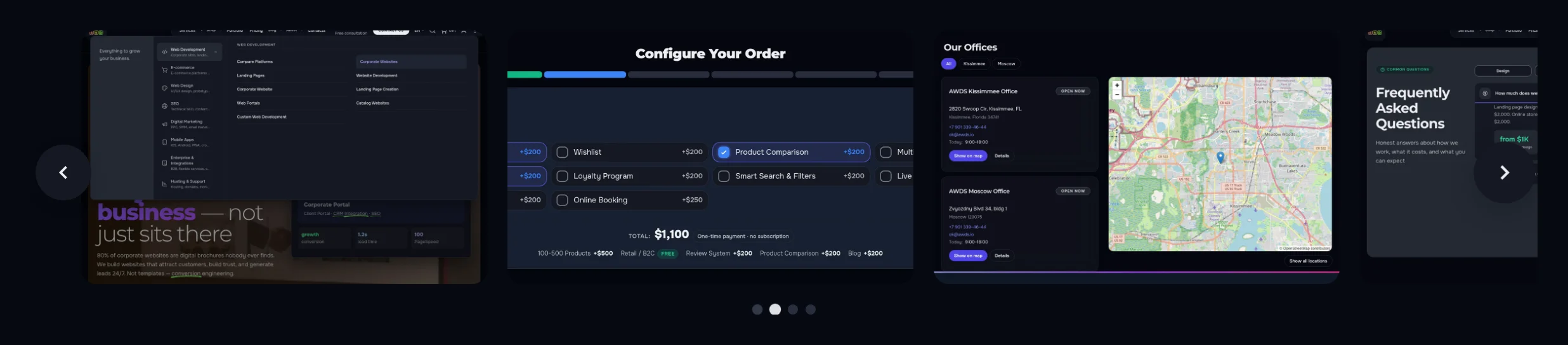
Set up once — for the whole site
The key things visitors see are switched on and off in the admin panel. New pages and posts get the photo viewer on their own, with no editing of each one.
- What to show. the shot counter, captions, the zoom button and double-click zoom
- How to browse. in a loop or up to the last shot, swipes on phones, closing with a click on the background
- Which images. every image in the page text or only marked ones; small icons can be left out by width
- Thumbnails and zoom. from how many shots to show the thumbnail strip, how far to zoom in
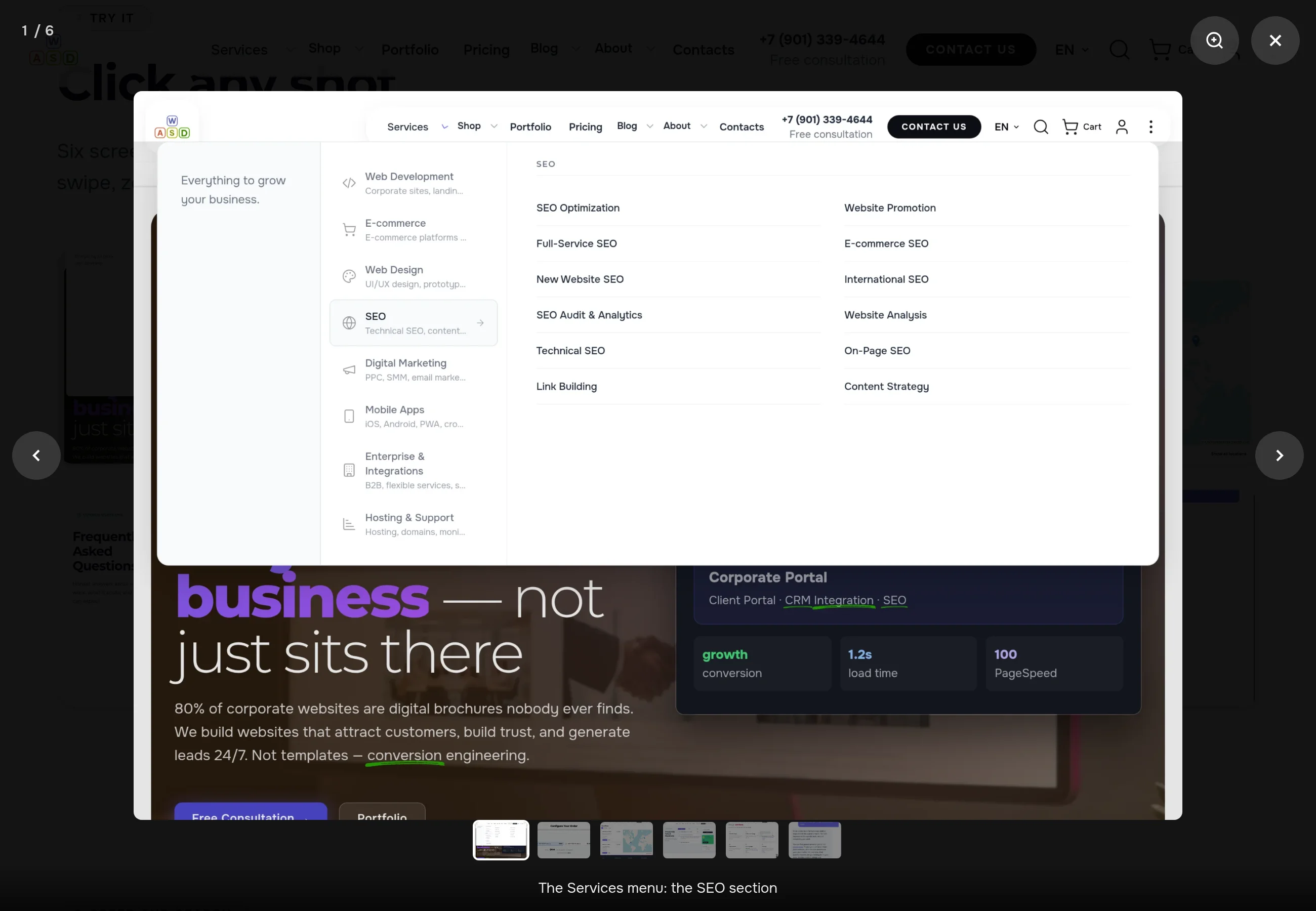
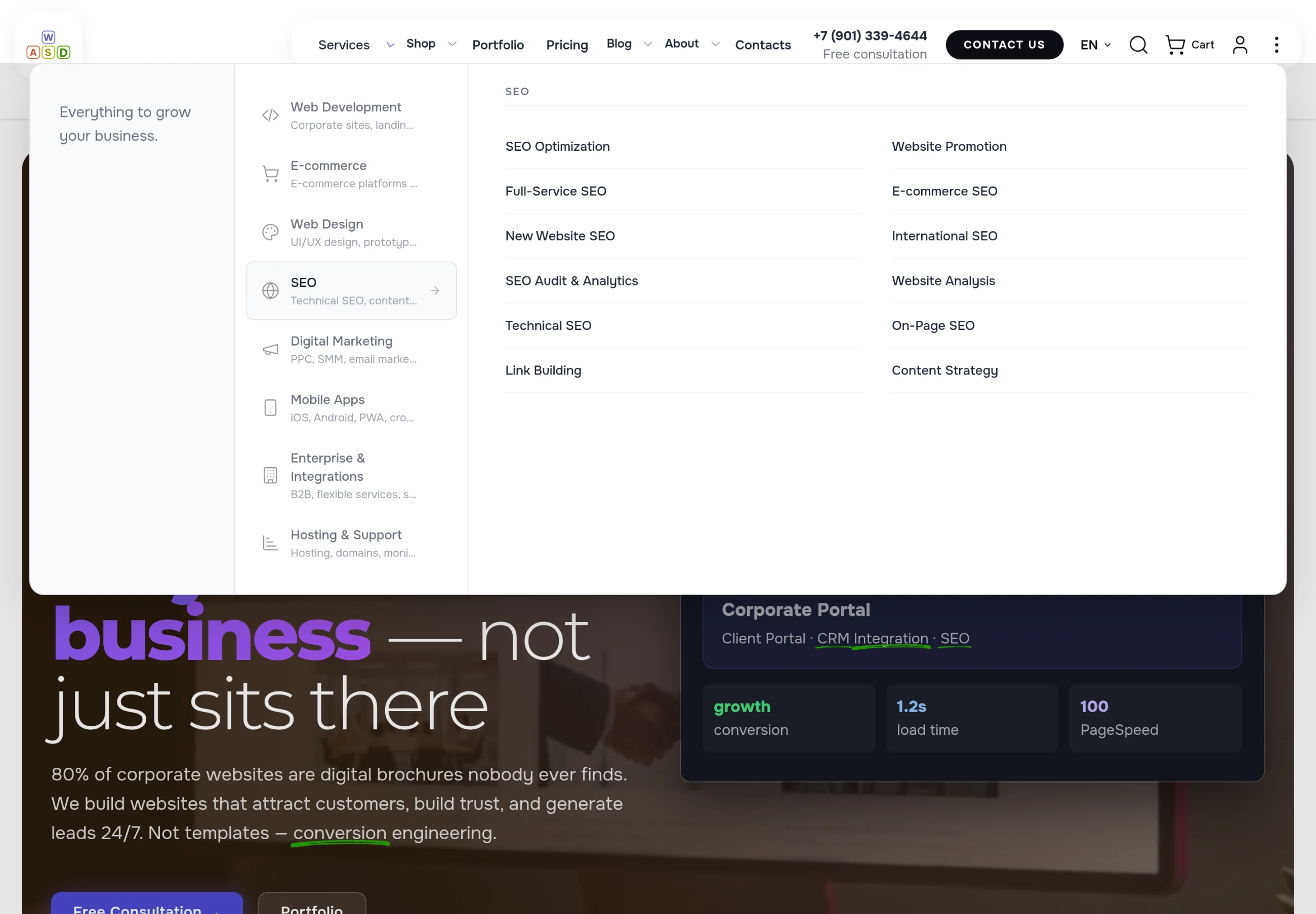
Click any shot
Six screens from our case studies — one set. Open any of them, browse with arrows or a swipe, zoom in with a double click.



Looks great — without slowing the page
The page does not wait for the gallery
The viewer’s styles load without holding up the page; a strip starts only when the visitor scrolls near it.
Images stay images
In the page code these are ordinary images with descriptions — search engines see them and their captions as before.
No extra back-clicks
The viewer opens over the page: the address does not change, and after closing the visitor is in the same spot.
Let’s show your photos so people look closer
We will set up the photo viewer on your site and build sets and strips for your portfolio, properties or products. Need a whole website? See our development service.
Another case: a menu where visitors find what they need at a glance →