A sale deadline shoppers can trust — and a buy button that stays in reach
A timer that starts over on every visit teaches shoppers to ignore deadlines. A sale with no visible end gives them no reason to decide today.
Here the deadline is the sale itself: the date comes from the product's sale price, a discount badge counts itself from the two prices, and in the last days the date turns into a live countdown. When the countdown reaches zero, the sale price is gone from the cart too.
Stores that run sales with an end date
Seasonal sales, clearance of last season's stock, launch prices for a new product — any discount that should end on a set day.
Shopper
Sees the old price, the new one and the last day of the sale in one glance — and knows the deadline is real.
Owner
Sets the sale price and its dates once. The badge, the date and the countdown appear and disappear by themselves.
Manager
Has no separate timer to start and stop, and no complaints that the "last day" price was not there at checkout.
The price, the discount and the deadline in one glance
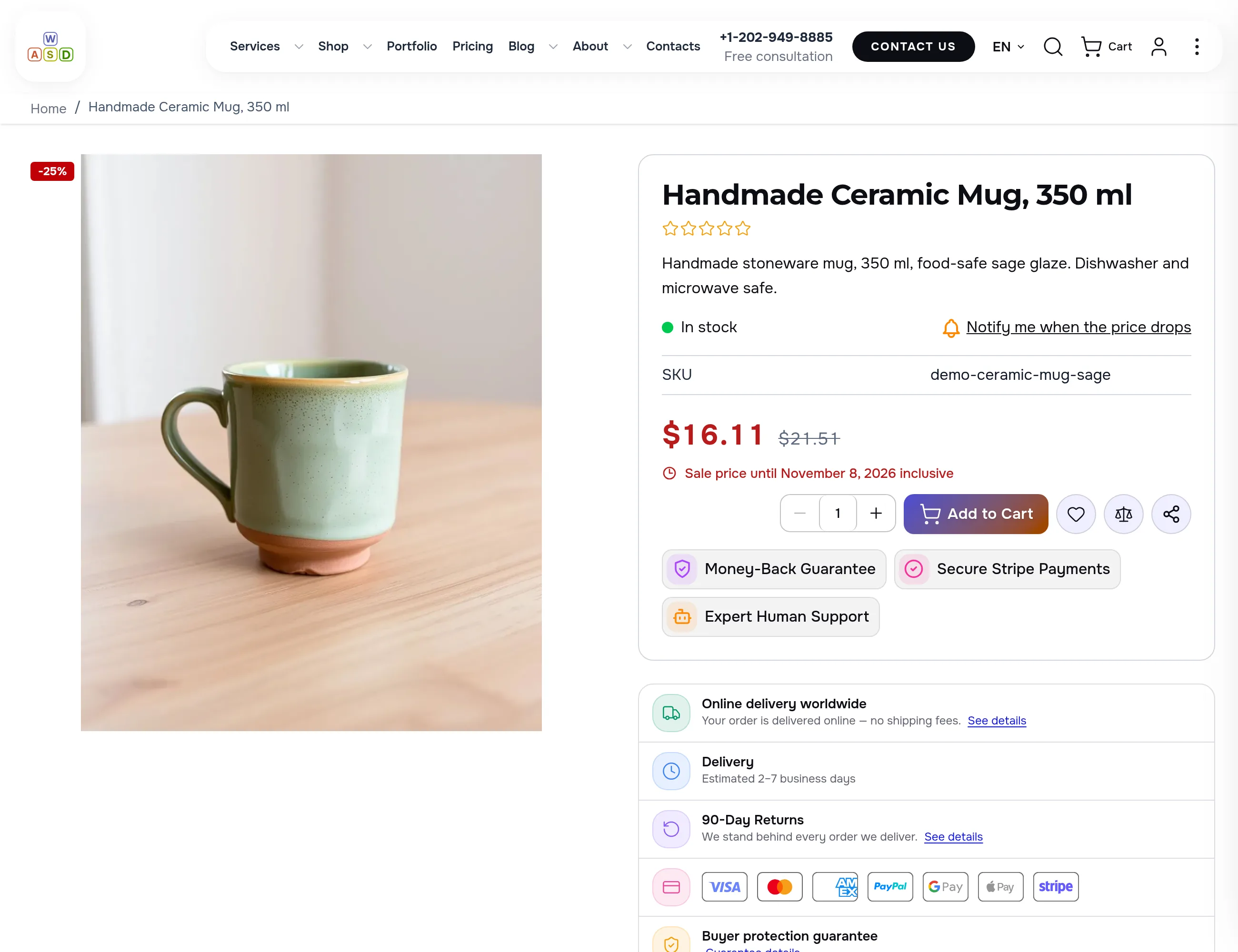
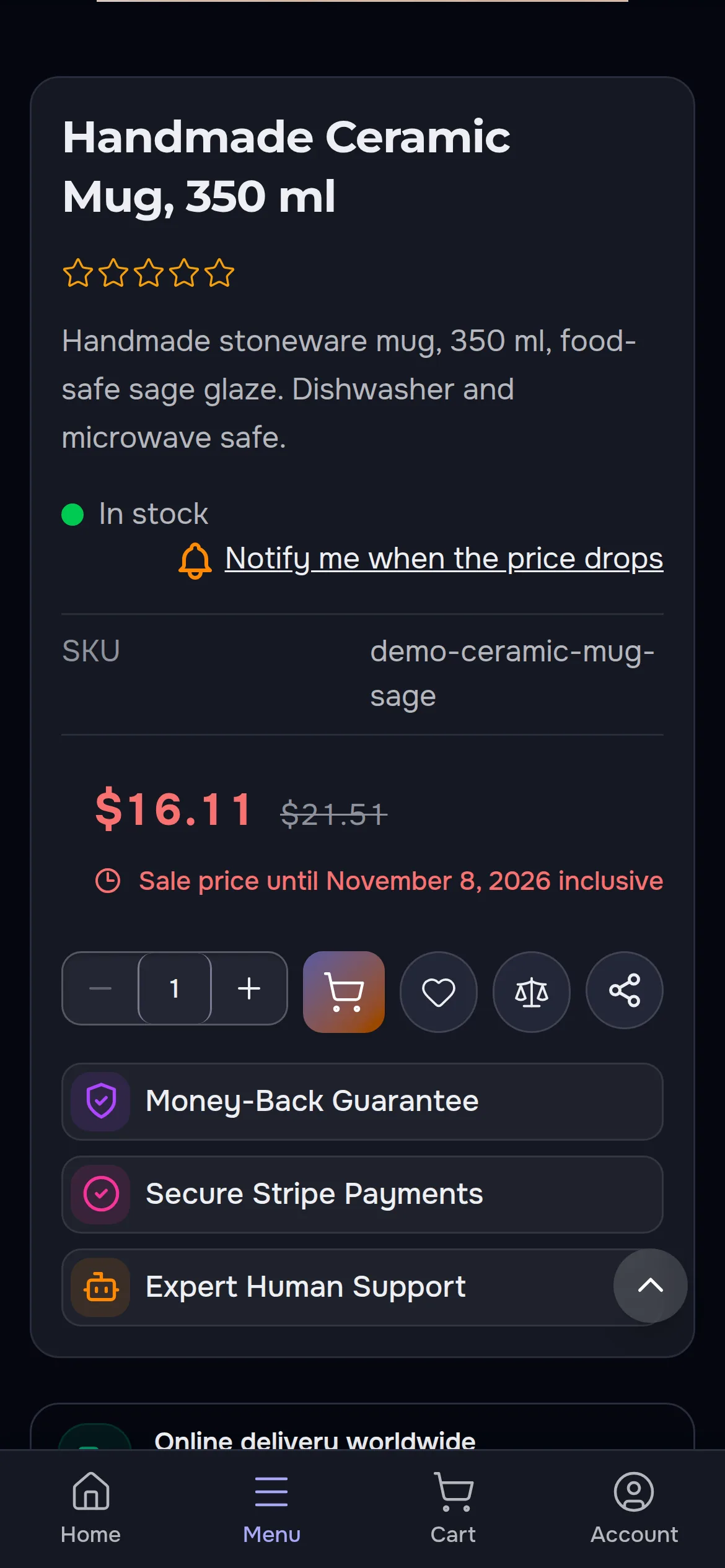
The −25% badge on the photo is counted from the regular and the sale price, so it always matches them. Right under the price the shopper reads the last day of the sale. The date is printed by the server: it is there even before scripts load.
Close to the end, the date becomes a countdown
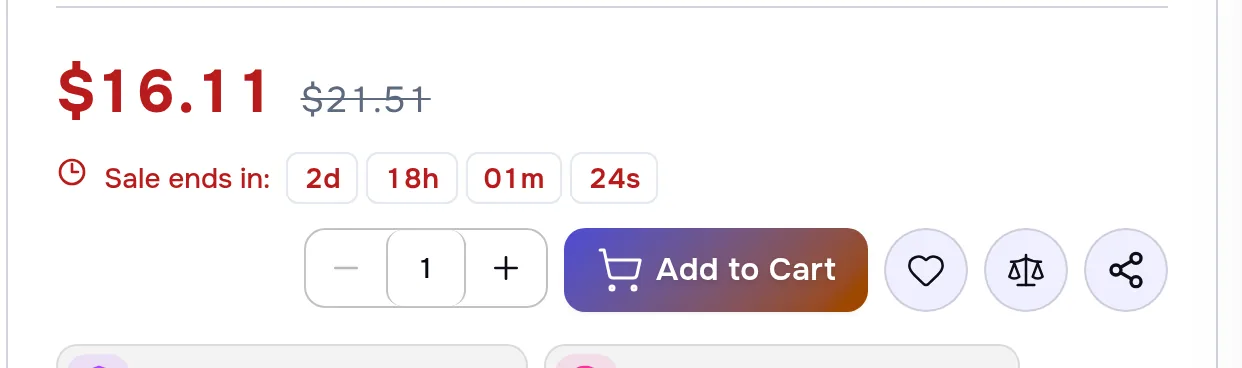
Within the last days of the sale — seven by default, you choose — the date gives way to days, hours, minutes and seconds. The countdown runs to midnight after the last day by the storefront's own clock: our Russian storefront counts in Moscow time, the English one in UTC, and each ends exactly when its sale price ends.
No ticking for those who asked for calm
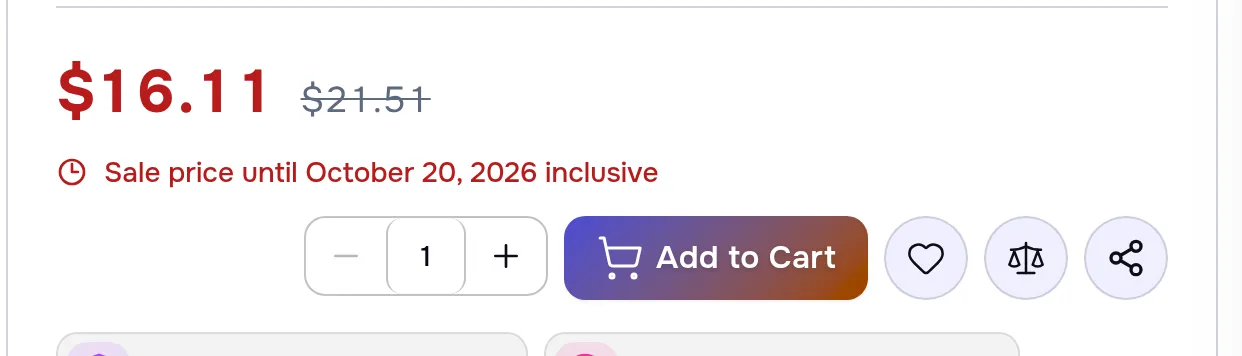
If a visitor paused animation on the site or asked their device for less motion, they see the date instead of running digits — a frozen countdown would lie, the date does not. Screen readers always read the date, not every passing second.
Add to Cart follows the shopper down the page
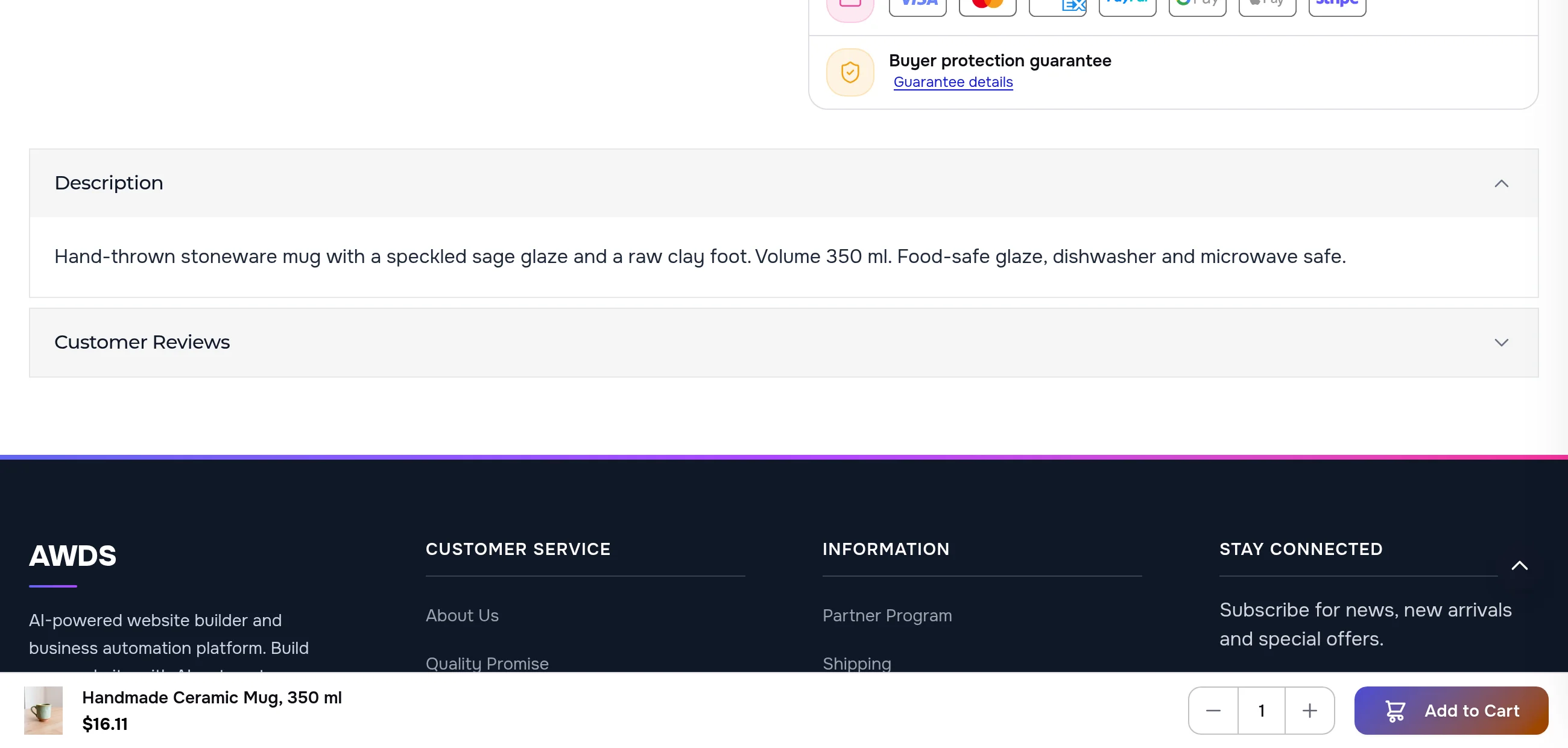
As soon as the main button scrolls out of view, a slim bar slides in at the bottom: the photo, the name, the sale price, the quantity and the button. Reading the description or the reviews no longer means scrolling back up to buy.
On a phone the button is there from the first screen
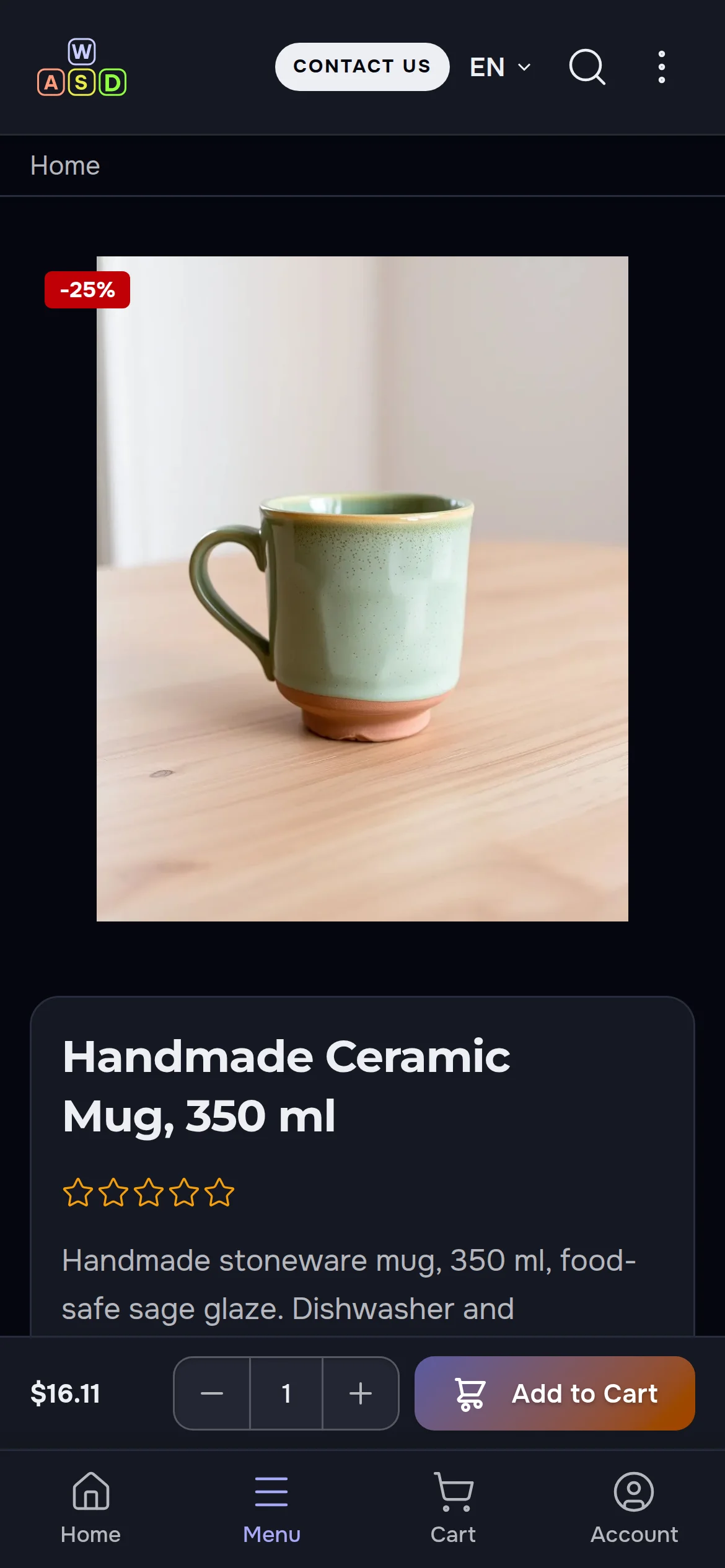
A phone screen fits the photo and the title, not the button. The bar shows the sale price and Add to Cart above the bottom menu right away and steps aside when the shopper reaches the main button and the sale date.
Two settings for each version of the store
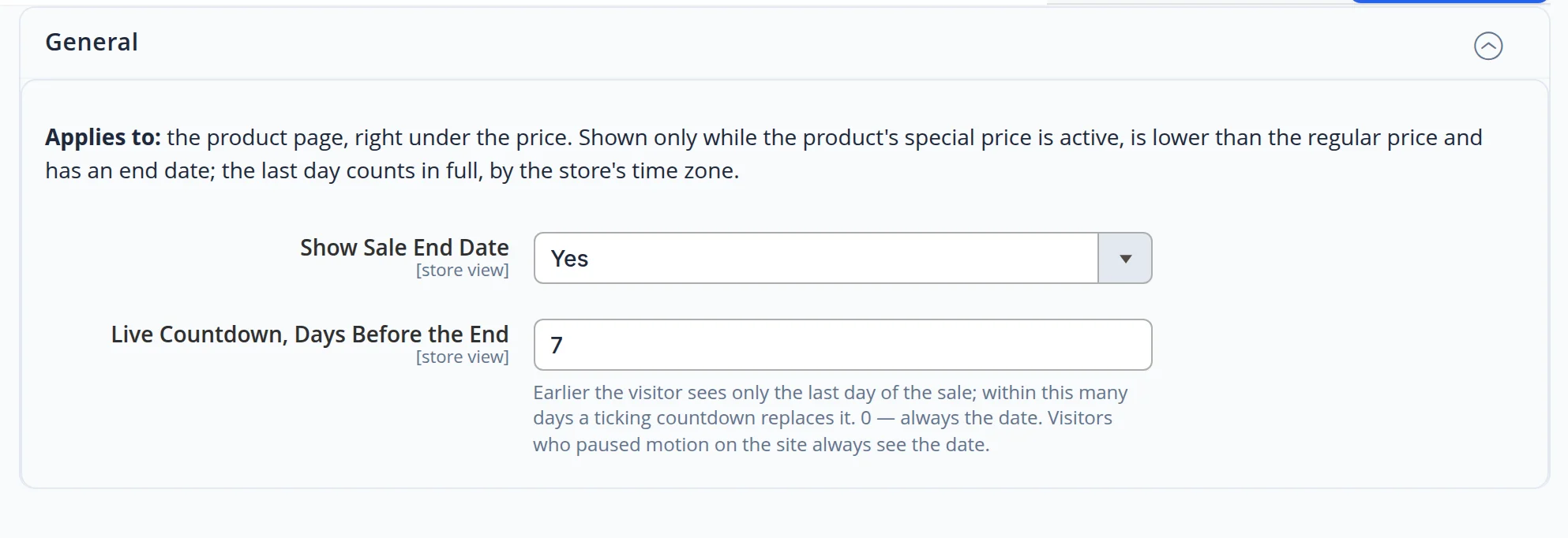
Turn the sale date on or off and choose how many days before the end the countdown starts; 0 keeps the date to the very end. The sale itself is the product's sale price with its dates — there is no separate timer to forget to switch off.
From your price list to the first sale
1. Your prices
We bring in sale prices with start and end dates for the products you choose — by hand or from your price list.
2. Your rules
How many days of countdown, and whether to show the date at all — separately for each language and currency of the store.
3. The check
We open the sale products in every version of the store, in light and dark themes and on a phone, and compare the date with the cart.
What we checked with our own hands
The shots come from our own site. The mug is a demo product: it was switched on and given a sale only for the filming, and everything was put back right after.
- Russian and English storefronts, light and dark themes, desktop and phone
- A sale ending in three weeks shows the date; a sale ending in two days shows the countdown; with motion turned off, the same two days show the date
- The two storefronts count to their own midnight: Moscow time and UTC
- No order was placed: the sale existed only while the shots were taken
Run sales that end when you say they end
We will set up sale prices, the countdown and the buy bar in your store.