Site search that understands the customer from the first letters
A typical site search waits until the visitor finishes typing and presses Enter, then shows a “nothing found” page because of a single typo. Many visitors leave right there — never learning that the service they wanted is on the site.
Here the search window answers while the person types: products with a picture and a price, service pages and blog articles — in one window, with the matches highlighted. A typo gets corrected on the spot and the products show up anyway, and the results page doesn’t push things the customer never asked for.
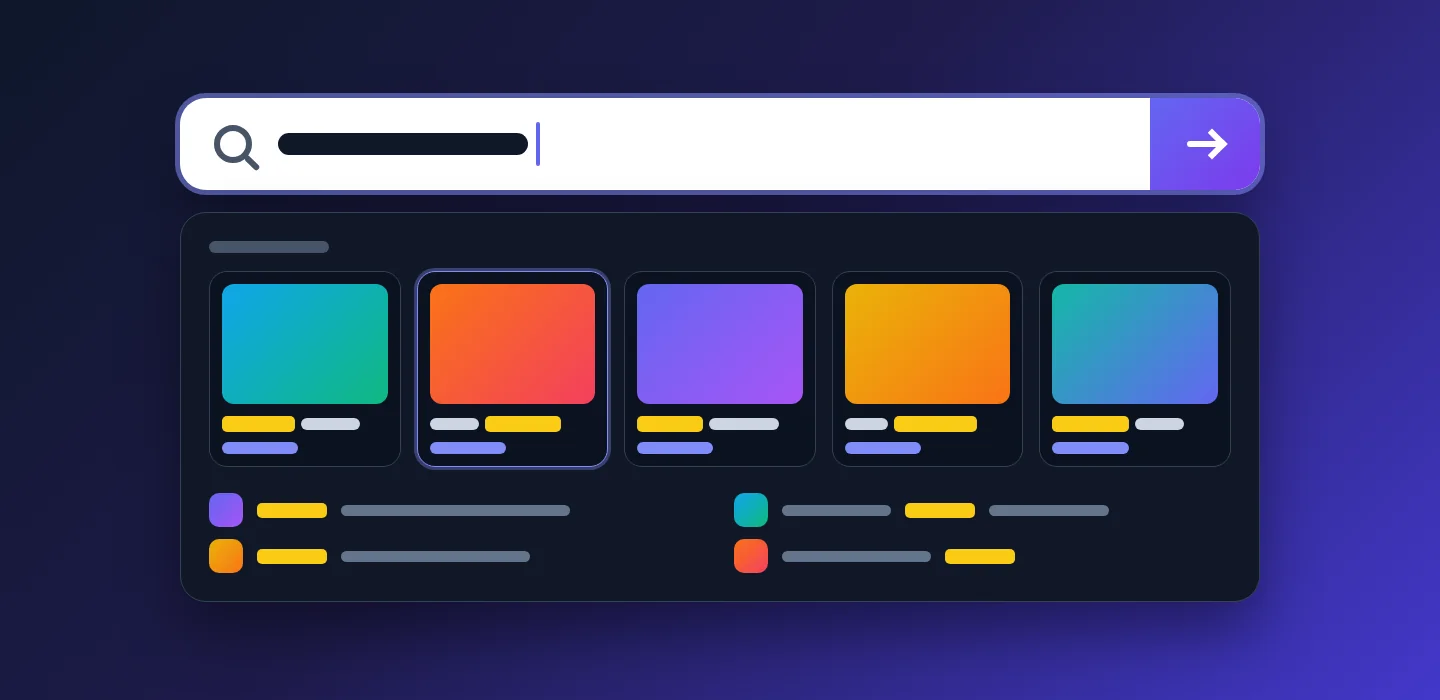
For sites with more products and services than a menu can hold
Once a site has dozens of services and hundreds of products, the menu stops helping: the visitor knows what they need but not which section it lives in. Search is the shortest path from a question to an enquiry.
Visitor
Types a couple of letters and immediately sees products with prices, matching services and articles. Got a word wrong — search suggests the right one and shows the products without making them start over.
Owner
Decides what the empty search window shows: the list of popular searches is set in the admin panel — separately for each language version of the site.
Marketer
New service pages and blog articles appear in the suggestions on their own — nothing has to be added to search by hand.
A hint on where to start — before the first letter
A click on the search icon or Ctrl + K opens the window over the page. While the field is empty it shows two lists: the visitor’s own recent searches and the popular searches chosen by the site owner. One click on any of them and the search is running.
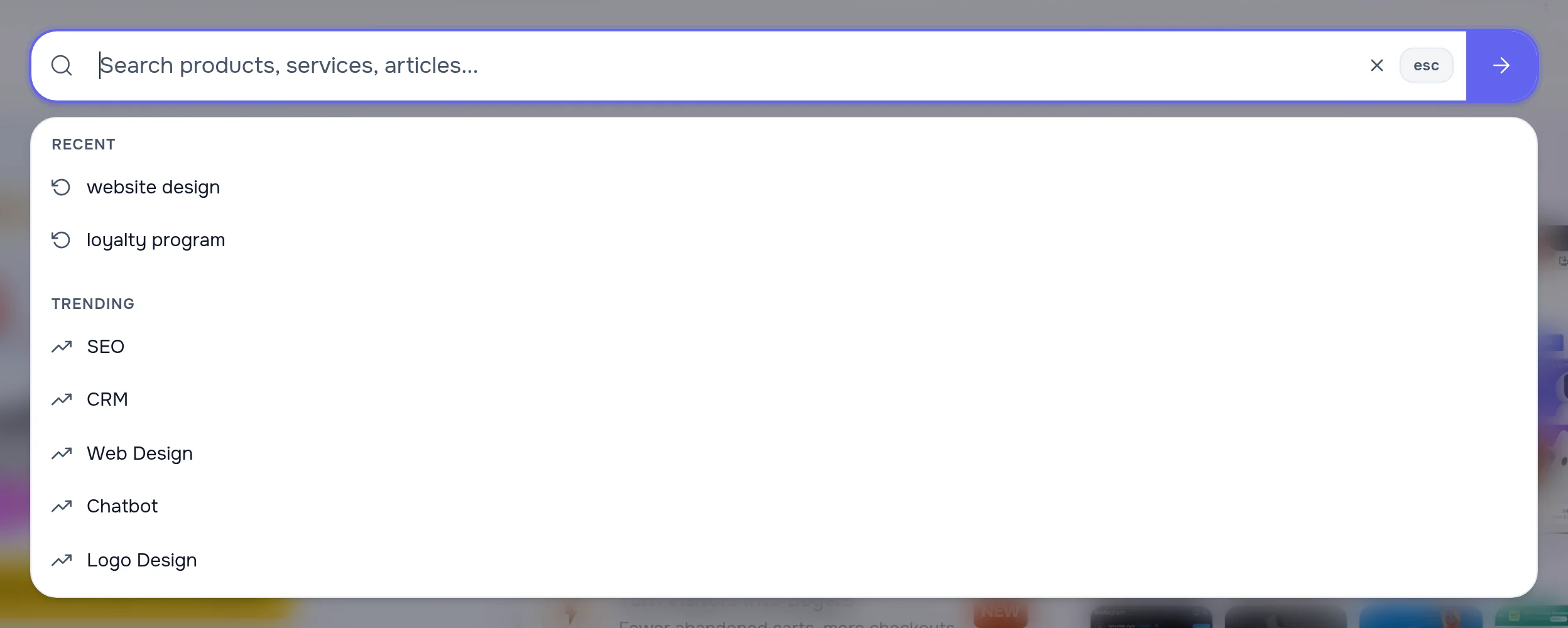
Recent — only on the visitor’s side
The last five searches are kept in the visitor’s own browser and are never sent to the site. Clearing them is one button in the search field.
Popular — from the owner
The list is set in the admin panel rather than collected from whatever visitors typed: neither random junk nor someone else’s ads can get into the window.
Its own for each language
The English and Russian versions of the site have their own popular searches — each speaks its visitor’s language.
Products, services and articles — while the visitor types
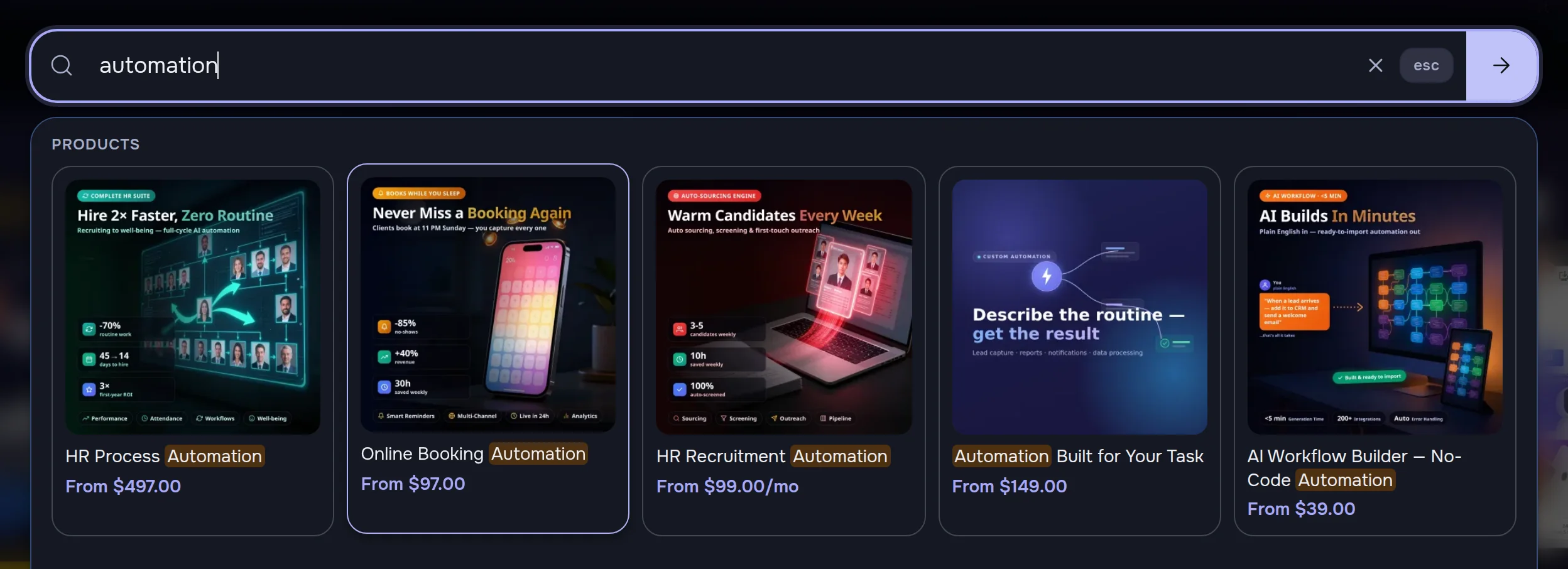
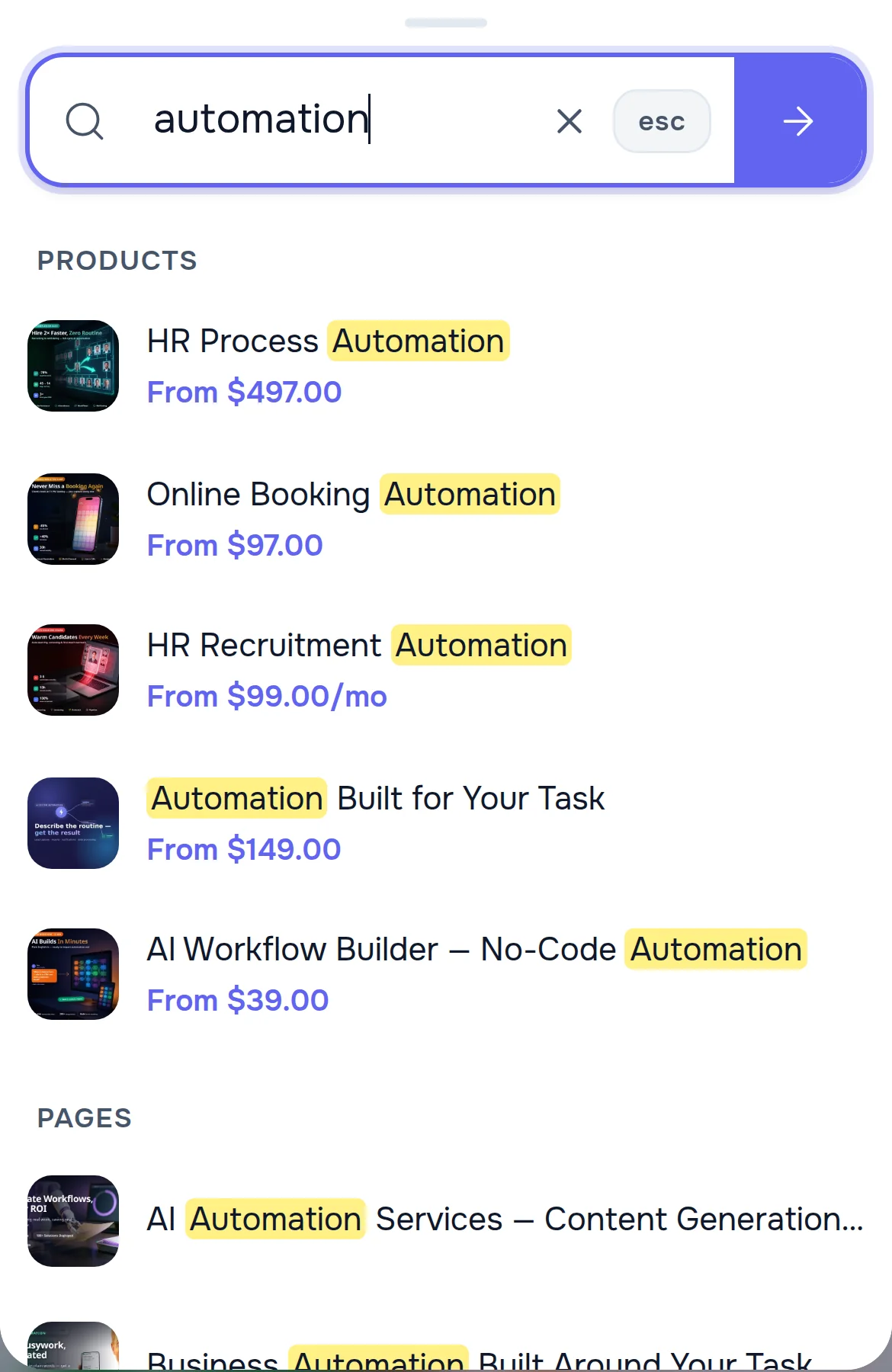
The visitor types “automation” and a split second later sees five products with a picture and a price in dollars. The match is highlighted in every title, and the arrow keys move the selection from card to card: Enter opens the selected one. Below the products the same window lists service pages and blog articles on the topic.
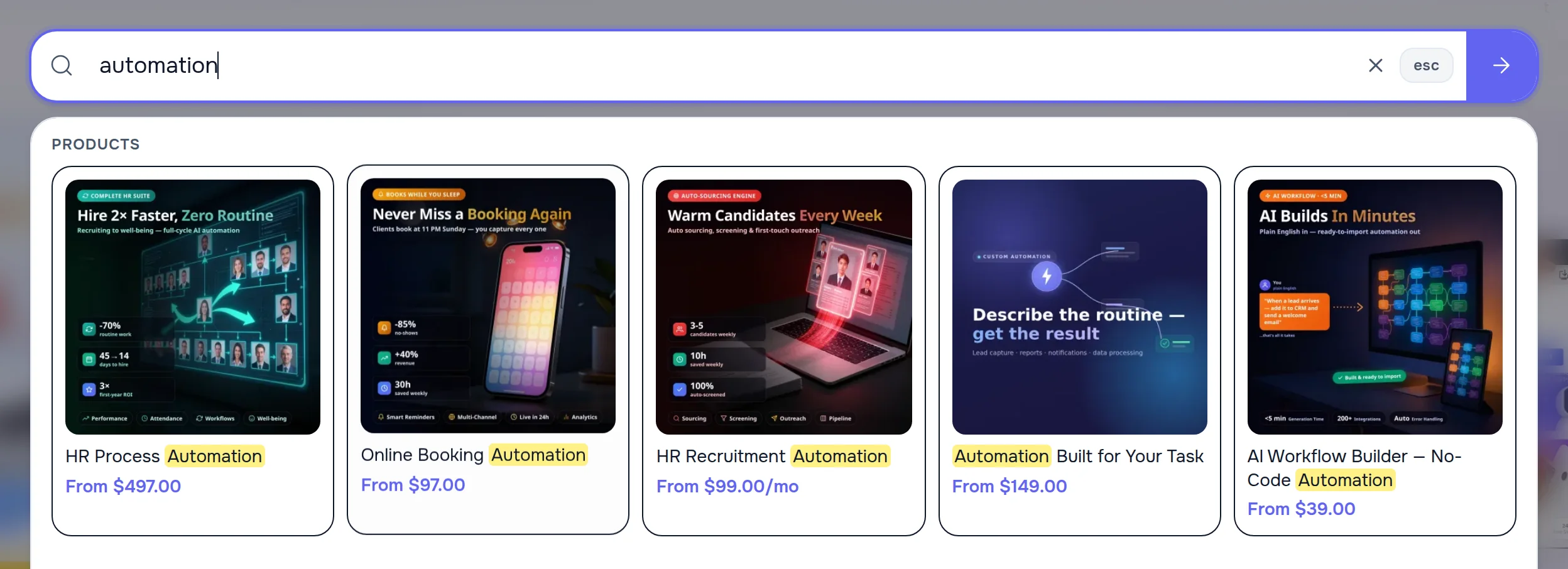
- The price right in the suggestion — in the currency of the site version the visitor is on: dollars on the English one, rubles on the Russian one
- Three groups of results — products, pages and blog articles; how many to show in each is set in the admin panel
- No extra load on the site — search waits for a short pause in typing (0.3 s, set in the admin panel) and only then asks the site; in our measurement suggestions appeared about 0.6 s after the last letter
A word misspelled — and search still found it
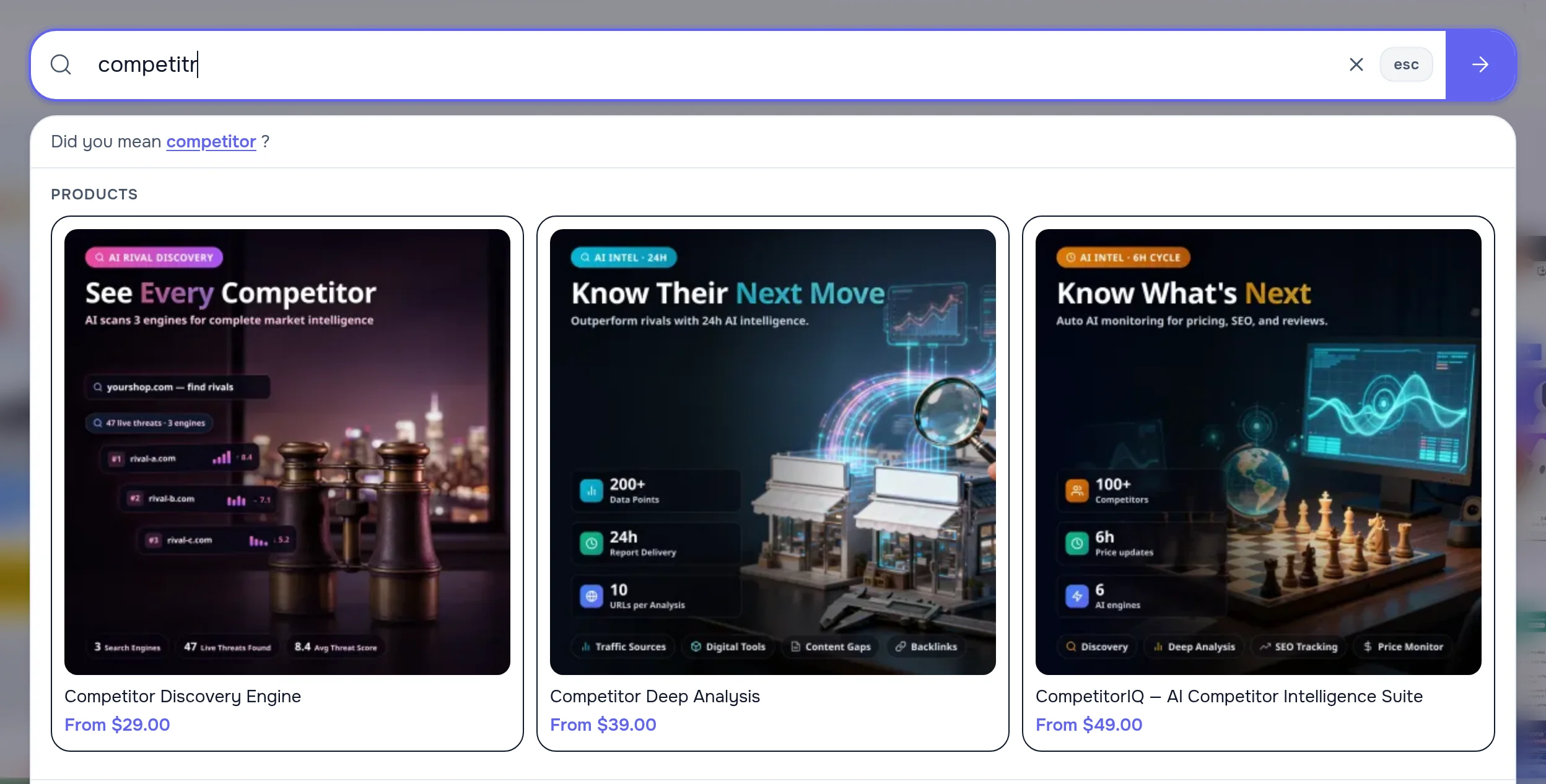
“Competitr” — a typical search would answer “nothing found”. Here the window immediately shows three matching products and offers the right query: “Did you mean competitor?” — one click and the query is fixed.
Only what was asked for
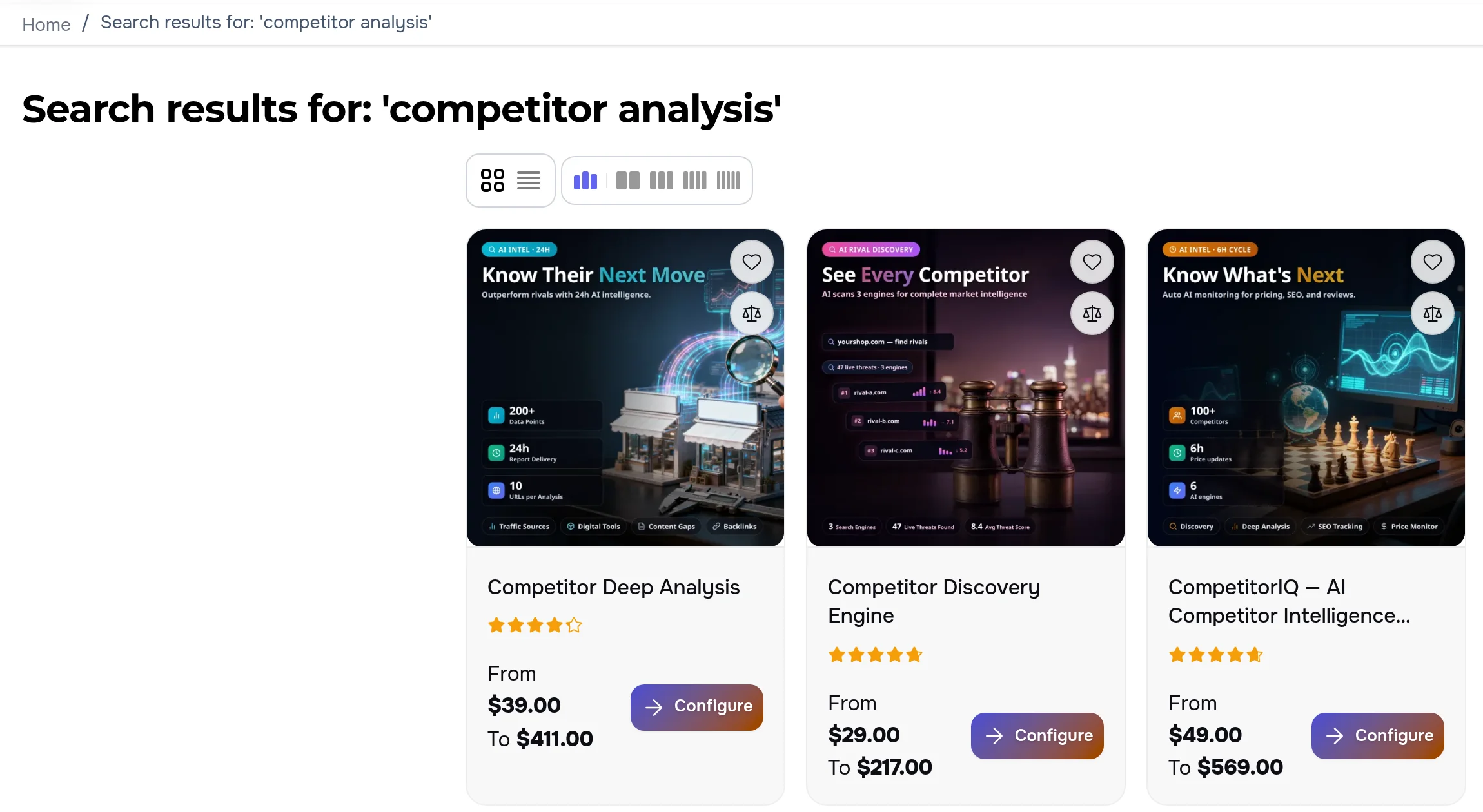
A two-word query often brings back products that contain just one of the words — and random items end up on top. Here the results keep the products that contain every word of the query, and the ones with the words in their title come first.
- Every word of the query — “competitor analysis” brings competitor analysis tools, not everything that mentions “analysis”
- Never an empty page — if no product has all the words, search shows the products with some of them and says so above the list
- Synonyms — “chatbot”, “chat bot” and “chat-bot” find the same thing; your own synonyms are added in the admin panel
Comfortable on any screen
In the dark theme the search window recolors together with the site and the highlighted matches stay easy to spot. On a phone search opens full screen, and the results come as a compact list — with a thumbnail and a price, sized for a thumb.
Search is set up without a developer
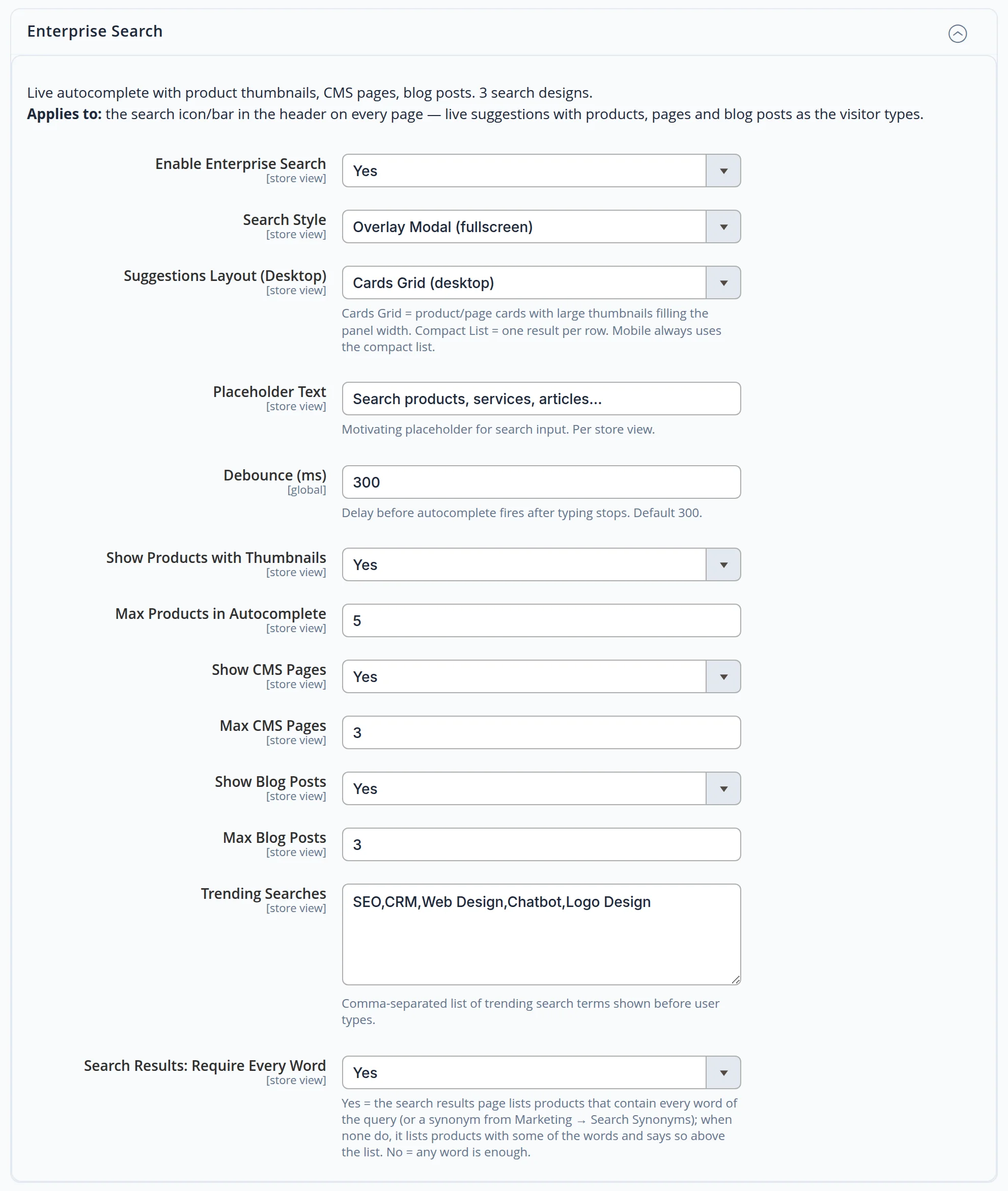
All search settings live in one section of the admin panel, with an explanation under each. Any of them can be set separately for each language version of the site.
- Three search styles — an icon with a dropdown, a bar in the header or a full-screen window
- Cards or a list — how suggestions look on a computer
- What and how much to show — products, pages, articles and how many of each
- Field text and popular searches — in the language of each site version
- The “every word” rule — switched on and off with one field
We searched like a visitor
- On both language versions we opened search with a click and with Ctrl + K, typed queries with and without typos and moved through the suggestions with the arrow keys — in the light and dark theme, on a computer and on a phone. Page errors: zero.
- We timed what the visitor waits for: in the browser, from the last letter to the list on screen — 0.56 to 0.67 s in 9 measurements out of 10 (one took 2.1 s); the site itself answers in 0.24–0.42 s for a new query and 0.14–0.25 s for a repeated one.
- We checked that the visitor’s recent searches never leave their browser in any request.
- Along the way we removed the “related search terms” block from the results page: it showed visitors everything anyone had ever typed into search, unchecked. Hints on where to start now come only from the owner — as the list of popular searches.
Search that visitors don’t leave
We’ll build search for your site that finds products and services from the first letters, forgives typos and never hides what people need behind an empty page.