Edit pages right on the layout — no developer, no fear of breaking anything
Changing a heading on a service page usually means writing to a developer, waiting, and then checking whether the layout slipped. Or opening the page code yourself and hoping nothing else got touched.
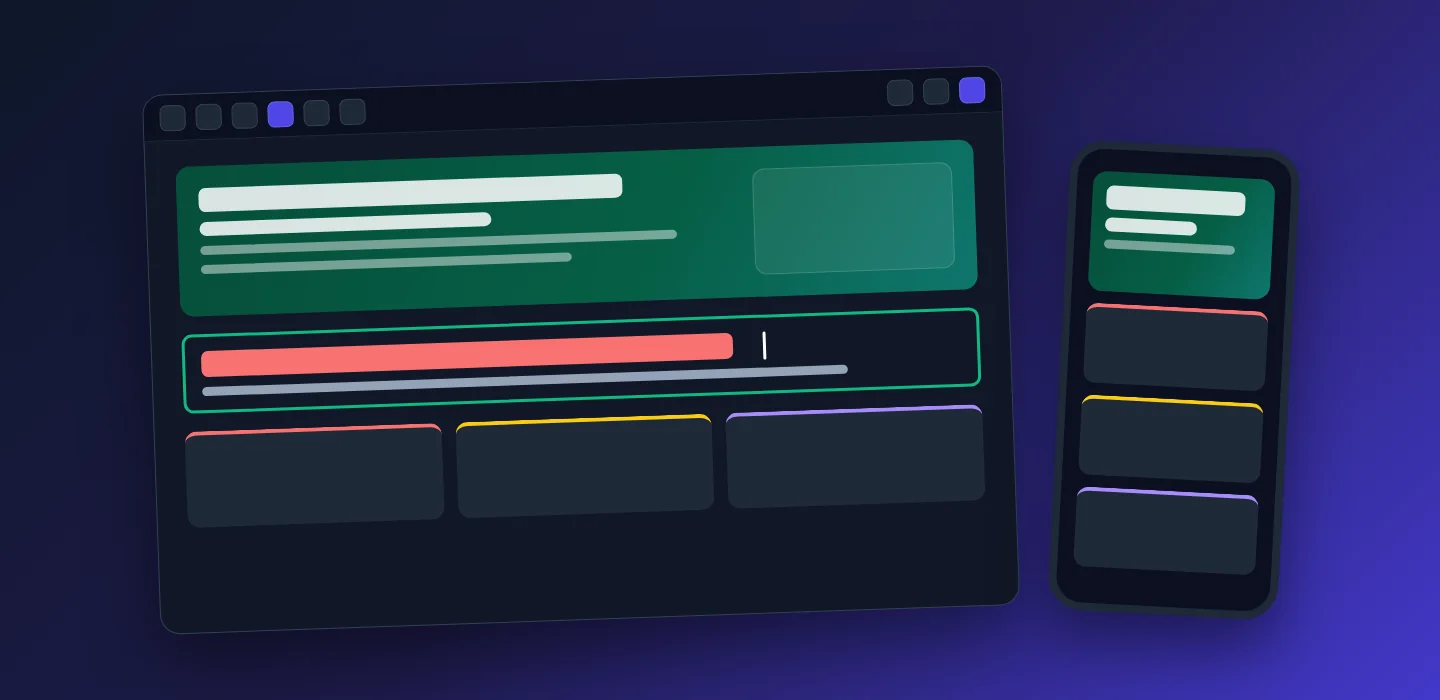
Here a page opens in the admin panel exactly as visitors see it. Text is edited with a double-click right where it stands, an edit is undone in one step, the phone view is one button away, and the edit reaches the site only after “Save”. For those who prefer code, an HTML editor sits next to it.
For teams that run their own website
Copy goes stale every week: new prices, promotions, wording that came out of client calls. The longer the road from idea to edit, the longer yesterday’s text stays online.
Owner
Sees the page the way a customer does and edits it directly — no ticket for a developer, no waiting in a queue.
Marketer
Adjusts headings and descriptions for a campaign, checks how they sit on a phone, and brings the previous version back in one step.
Developer
Opens the page HTML in the code editor, fixes the markup and returns to the visual view with a keyboard shortcut.
The editor shows a page, not a form full of fields
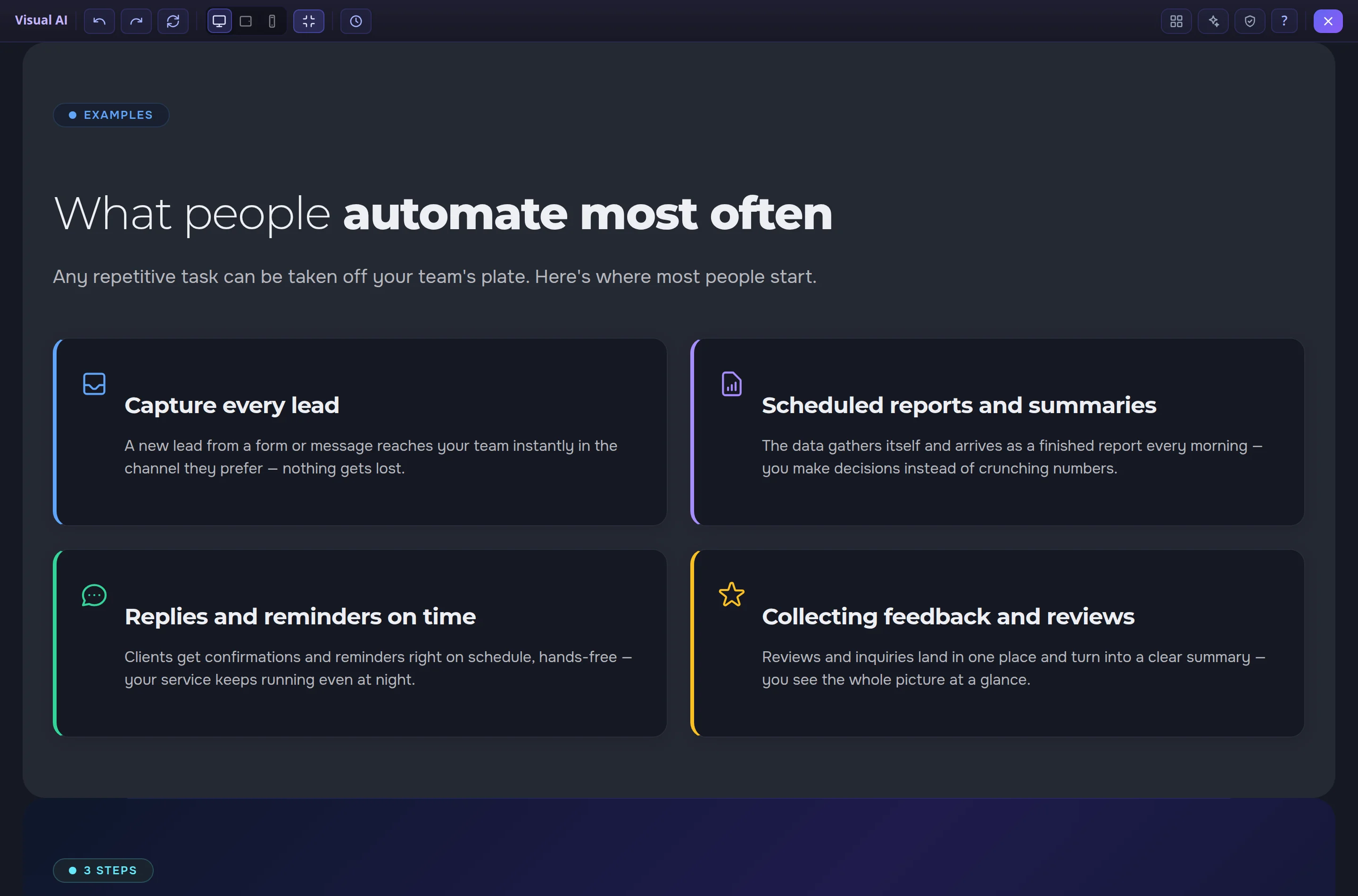
The whole page opens in the admin panel — with its colours, images and block grids, as a visitor sees it. At the top: undo and redo, screen width, version history and shortcuts. Hover over a block to highlight it; a right-click opens the block menu: duplicate, move up or down, copy its code, delete, or ask AI to rewrite the text.
Double-click the text — and type
A heading, a paragraph, a list item or a button label is edited where it stands on the page. Font, colour and spacing stay as they are — you change only the words.
- Undo and redo — Ctrl+Z and Ctrl+Shift+Z, or the buttons at the top
- No accidents — until “Save” is pressed, the site shows the previous text
- Clear what you are editing — the text being edited is outlined
See how the edit sits on a phone — before saving
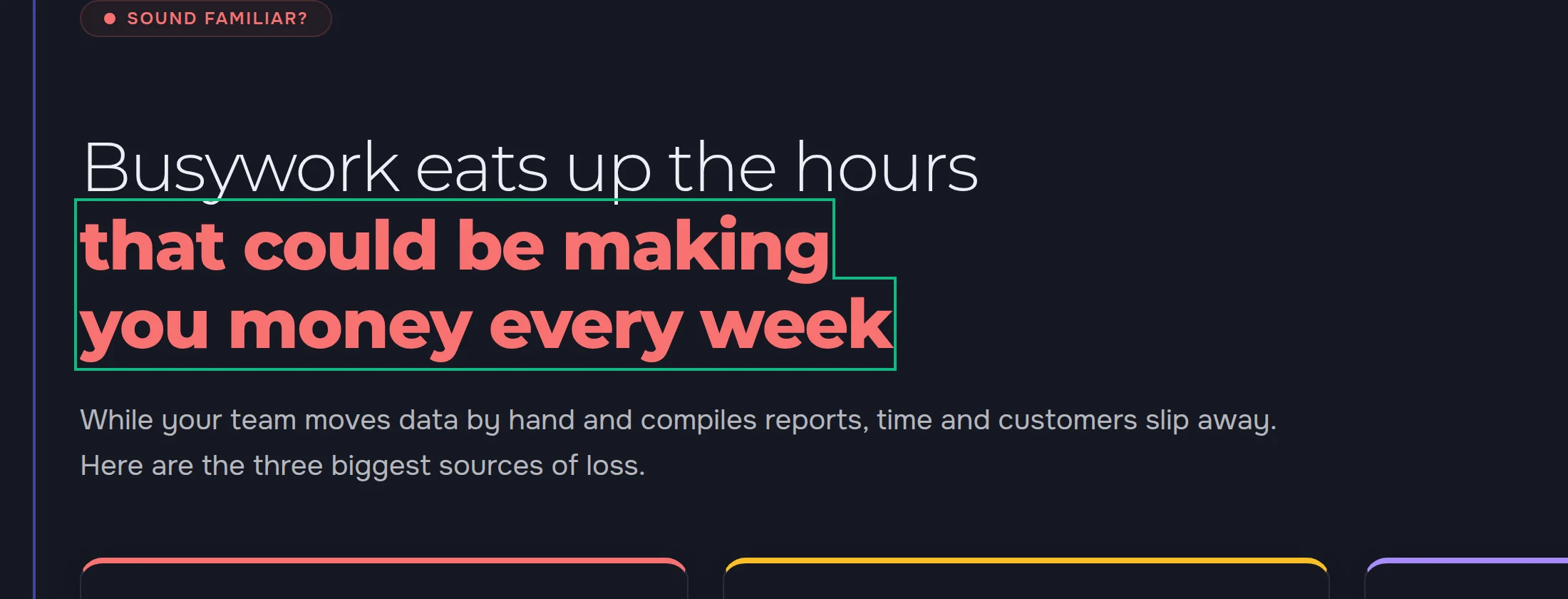
A long heading that fits one line on a desktop can take half the screen on a phone. The “Desktop”, “Tablet” and “Mobile” buttons set the page width in the editor to 100%, 768 px and 375 px — you see the edit on the right screen at once, without publishing and without a second device.
- Three widths — desktop, tablet and phone
- The same page — with all its blocks, images and colours
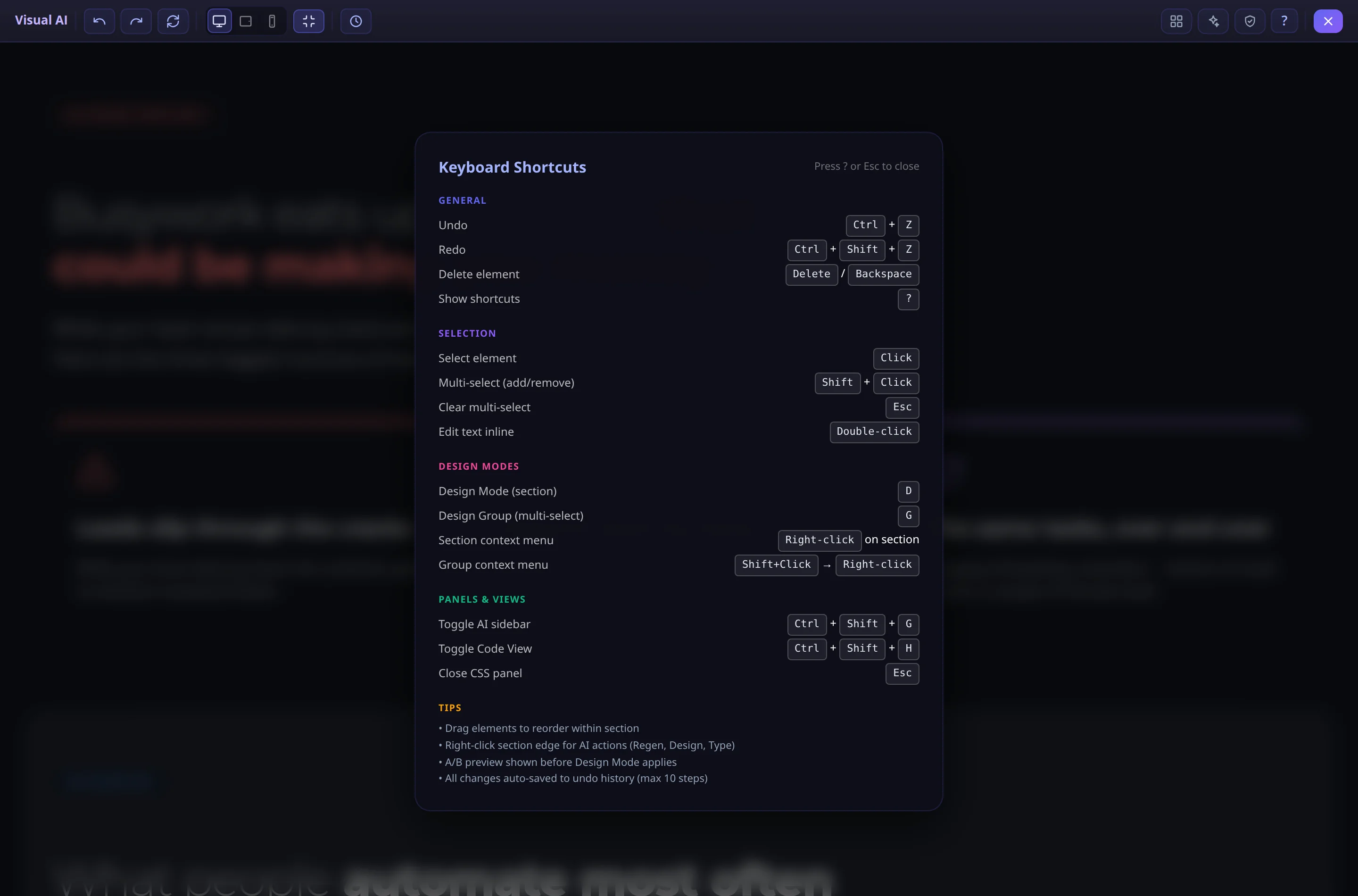
A cheat sheet always at hand
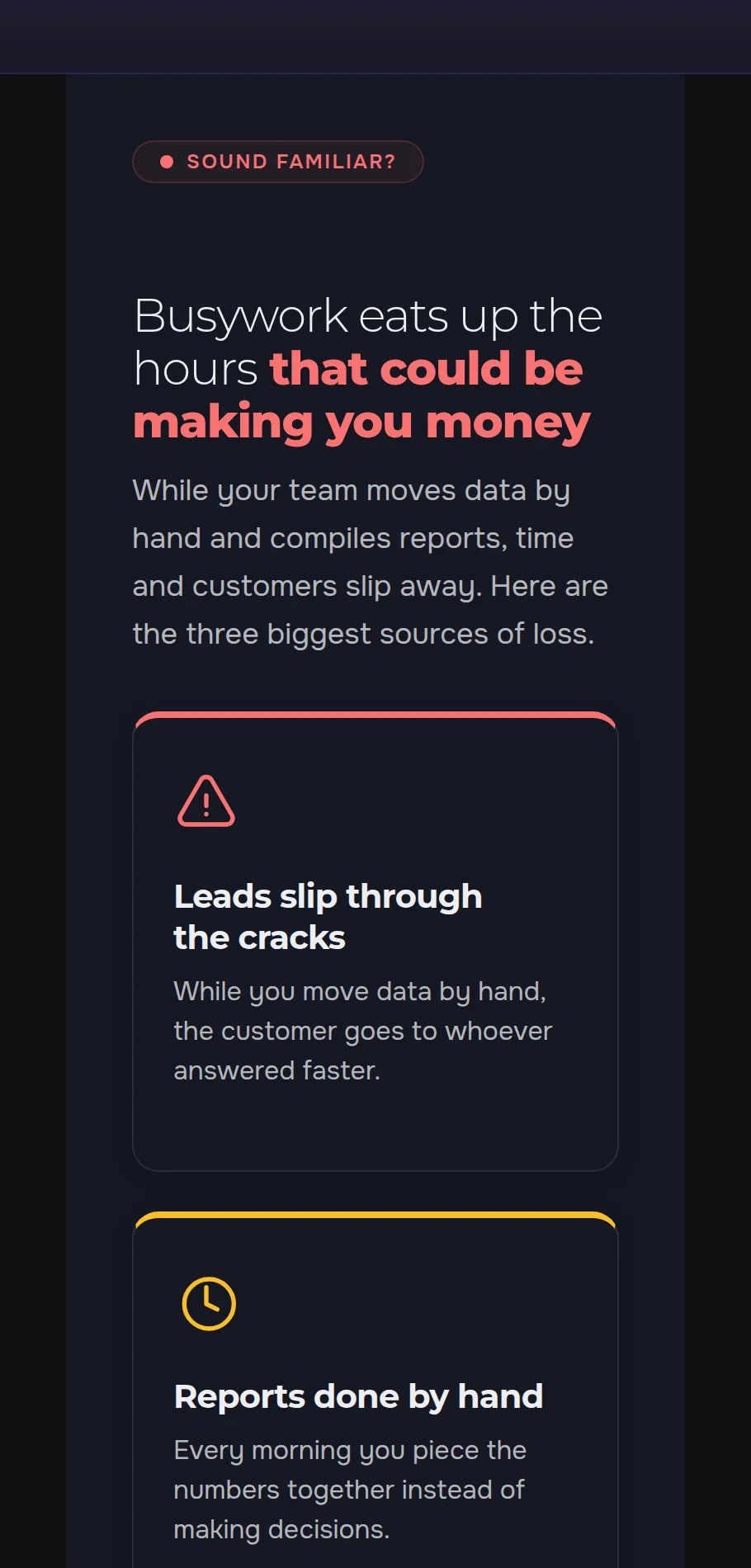
The “?” button in the top bar opens every shortcut and technique of the editor: how to select several elements, how to open a block menu, how to switch to code. Nothing to memorise — the cheat sheet opens with one click.
An HTML code editor in the same panel
The “Code” button opens the page HTML. “Prettify” lays the markup out by level, “Minify” folds it into one line, “Wrap” turns on wrapping of long lines, “Copy” puts the code on the clipboard. Ctrl+Shift+H switches between code and the visual view.
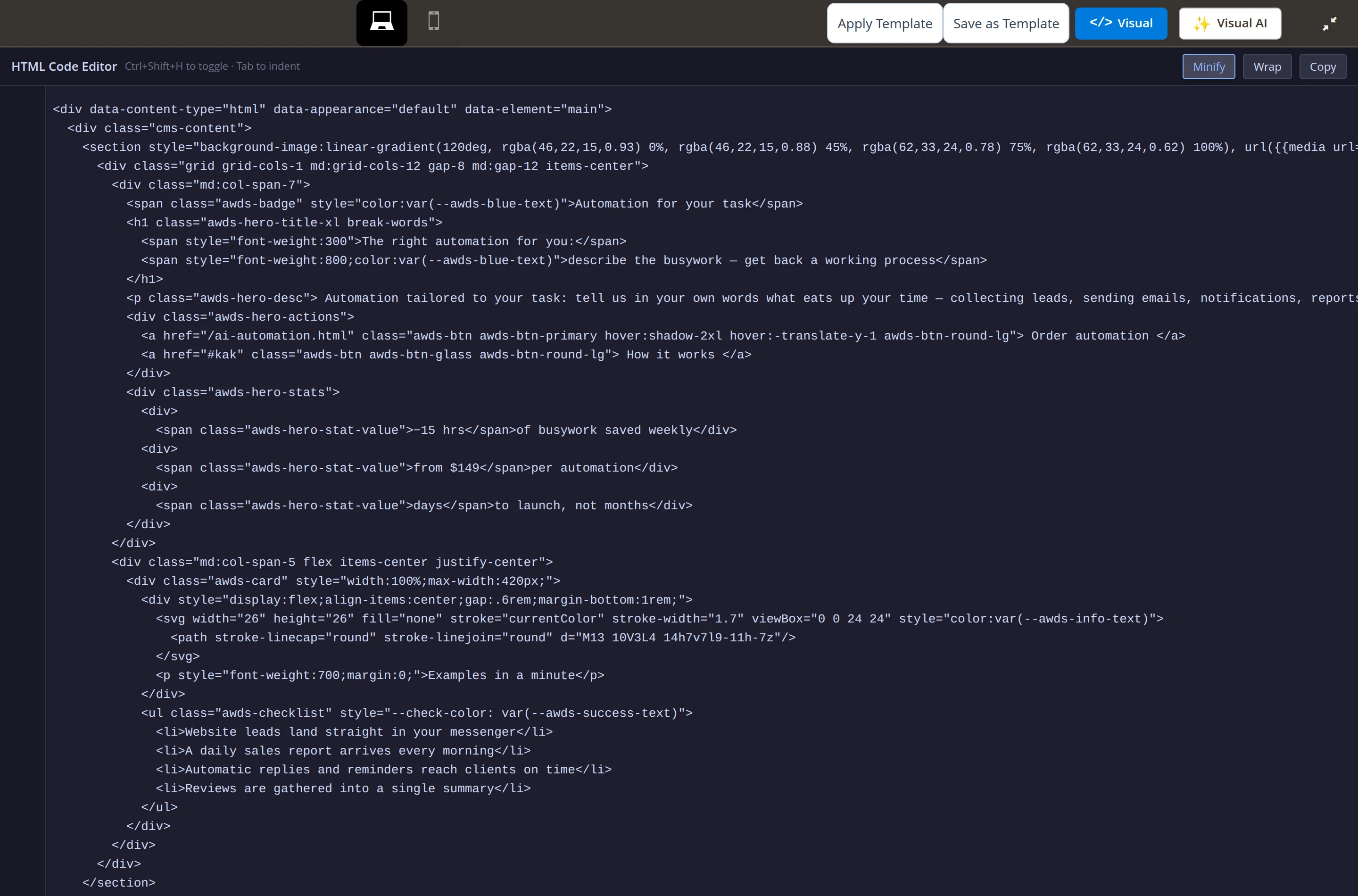
We went through every step as a site editor
- Added words to a heading with a double-click, undid the edit with Ctrl+Z and brought it back with “Redo” — on both language versions.
- While editing, the editor sent not a single change to the site — the live page changes on “Save”. Checked in the code as well: deleting, moving and rewriting a block return a new view of the page to the editor instead of writing it.
- Found and fixed before the case went out: “Minify” in the code editor glued together words separated by a line break, and laying the markup out by level could add an extra space between words. Now switching the code layout does not change a single visible character.
- Editor labels now follow the admin language: section and element names, code-mode buttons and hints for element actions were still in English in the Russian admin — now they are translated.
A website you edit yourself
We will build a site where copy changes in a minute — right on the page, checked on a phone, with no risk of breaking the layout.