Change your site's texts yourself: buttons, labels and messages, no developer needed
“Add to Cart” where a client is ordering a service. A “Product” label on the card people share on social media. An error message that sounds cold. Usually each of these is a ticket for a developer: find the phrase in the files, fix it, deploy.
Here it takes a minute in the site's admin panel. You find the text the way you see it on the site, type your own wording and save — customers see the new version right away. The change applies to the chosen language only, and one button brings the original text back.
For businesses whose words matter as much as their design
Standard captions are written for every shop at once. Your business speaks its own way — and your site should too.
Owner
Sells services, not boxed goods — and changes “Add to Cart” to “Order now” on their own, without waiting for a developer.
Marketer
Tests which button caption works better and changes it the same day the idea comes up.
Second-language editor
Sees the original phrase next to its translation and fixes a clumsy translation in their language only.
Find a text the way you see it on the site
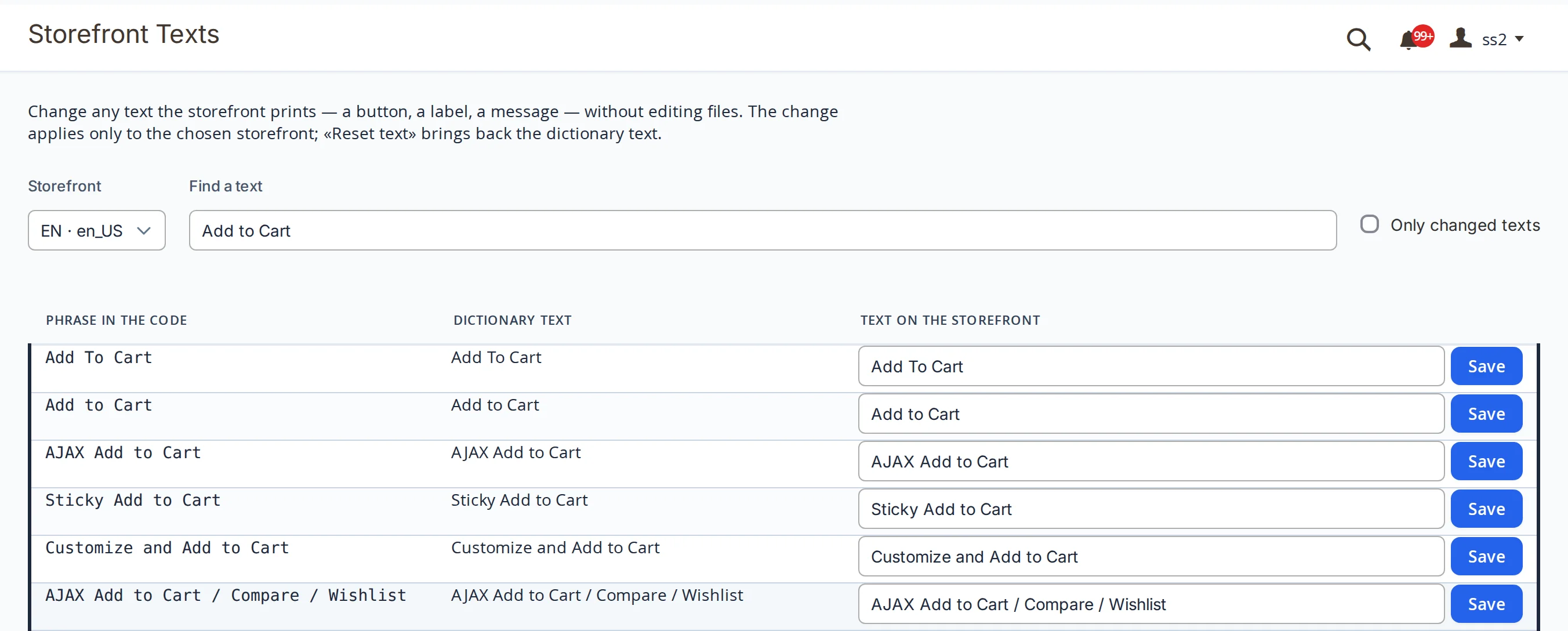
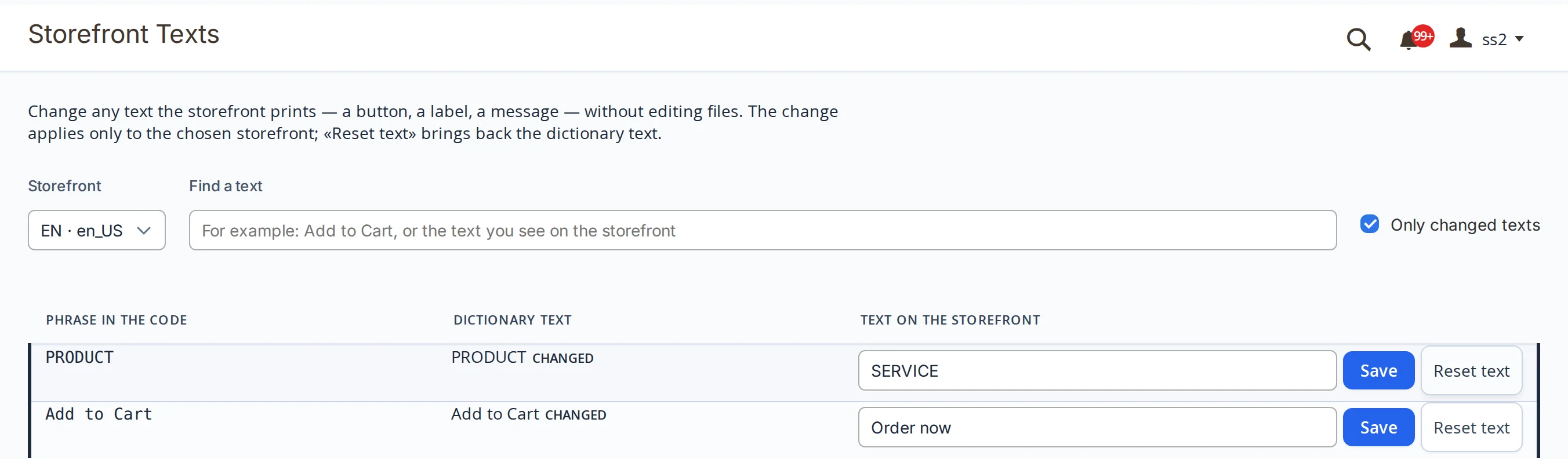
You don't need to know how the phrase is written in the code. Type what you see on the page — “Add to Cart” — and the search lists every phrase that produces this text: the original phrase, the dictionary text and a field with what customers see now.
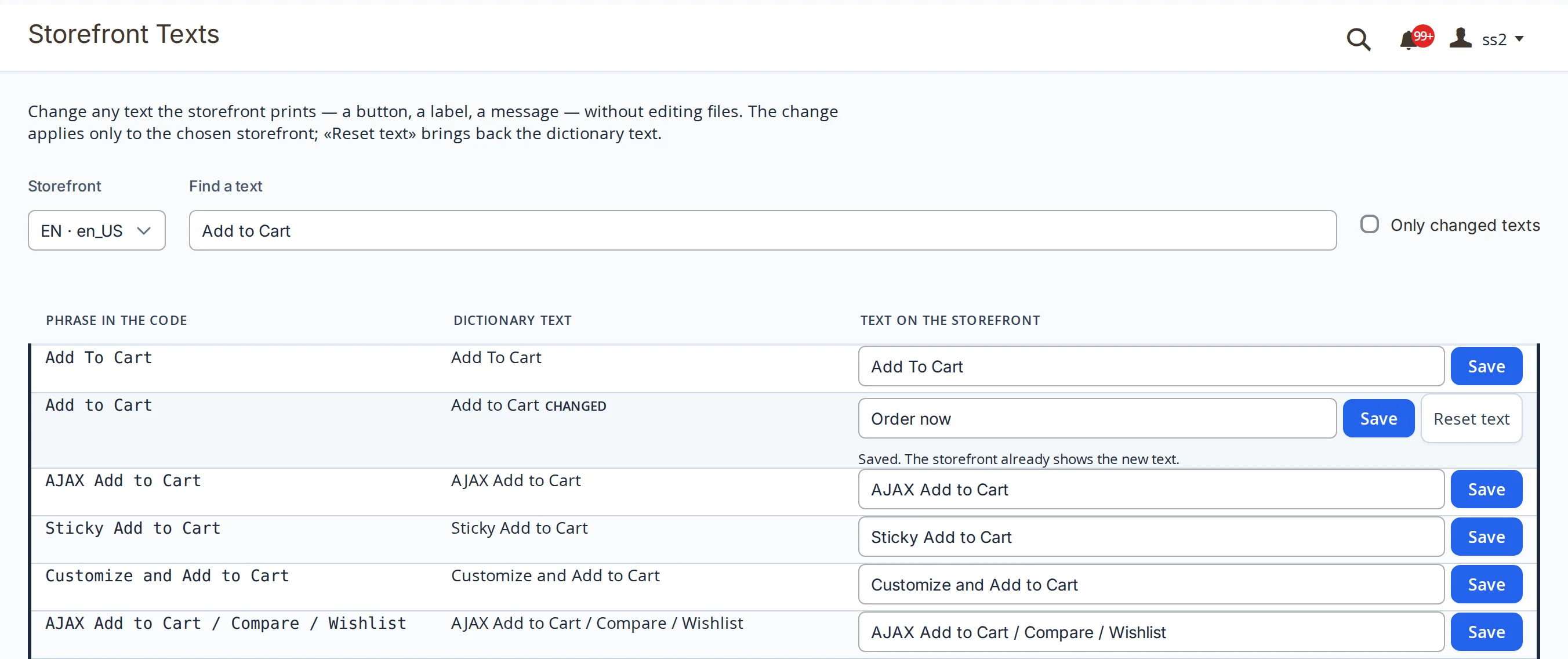
Saved — the site already speaks the new way
Type your wording and press Save. The panel replies “The storefront already shows the new text”, and the phrase gets a “Changed” mark and a “Reset text” button.
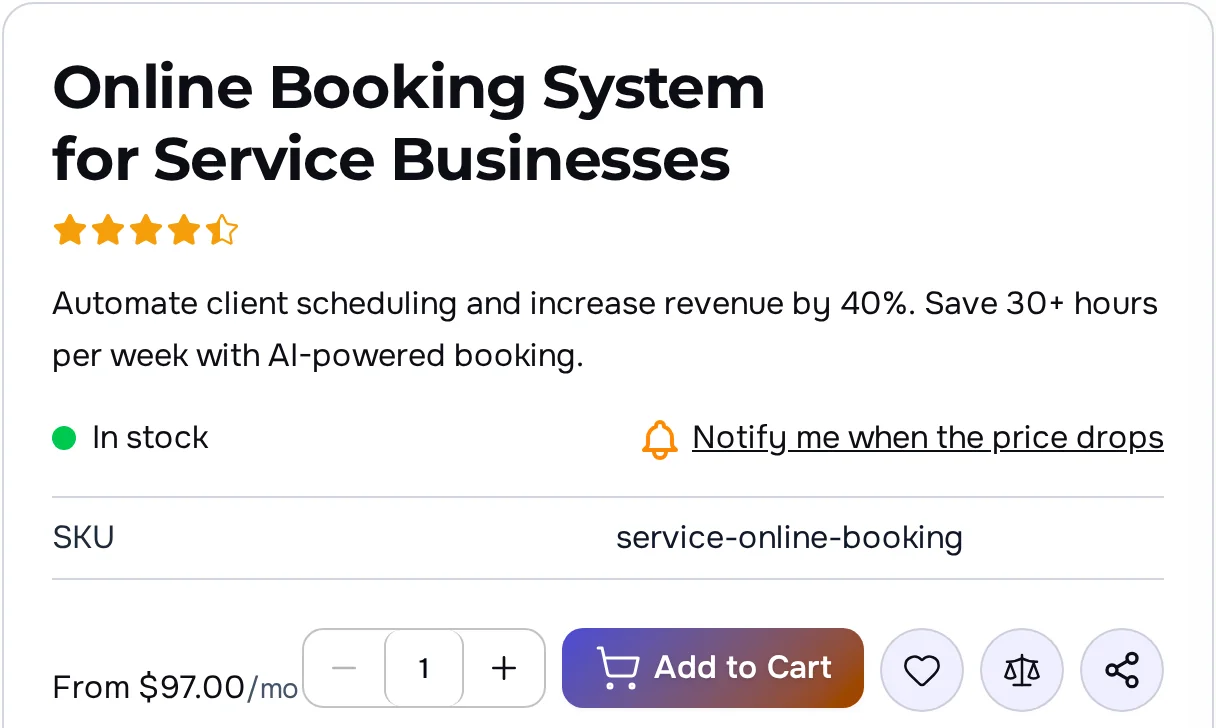
Before: a service card with an “Add to Cart” button.
After: the same card — an “Order now” button.
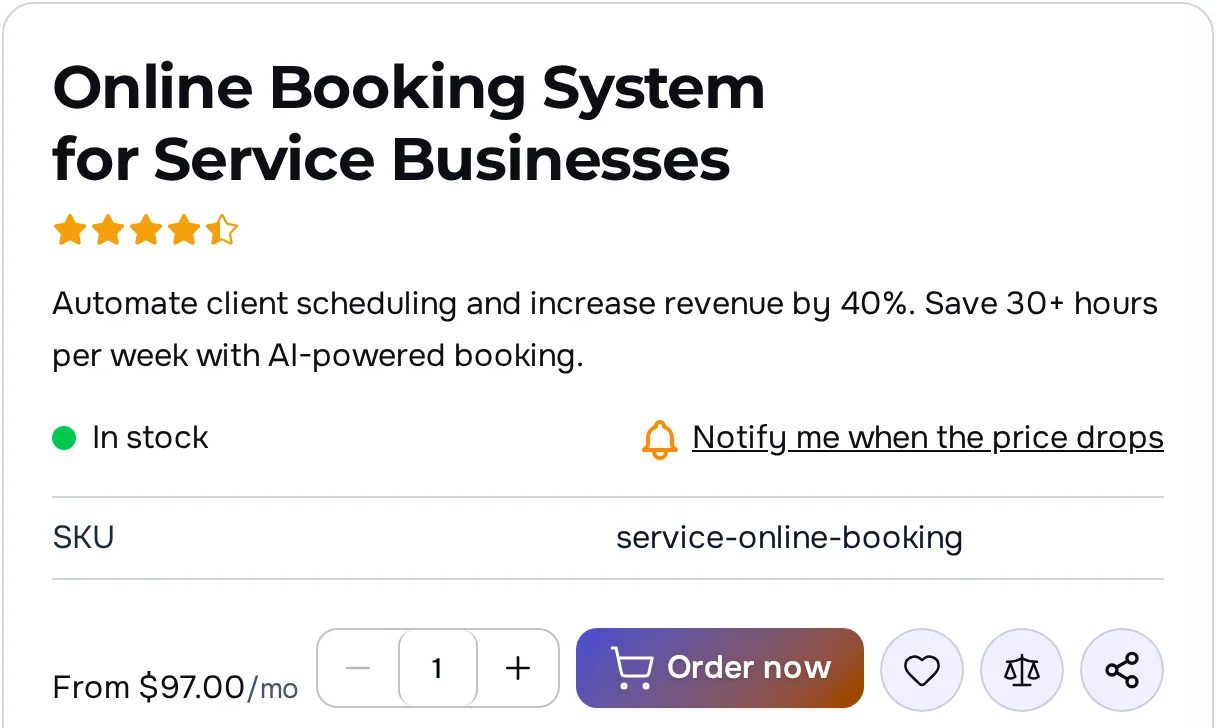
- In the chosen language only. While the English storefront said “Order now”, the Russian version of the same page kept its original button caption.
- Everywhere the phrase appears. One edit changes the button on every page where the site prints this text — on the product card, in lists, in the floating buy bar.
- Text only. Code and markup can't be pasted into the field: the panel rejects such an edit and saves nothing.
Labels on social media cards redraw themselves
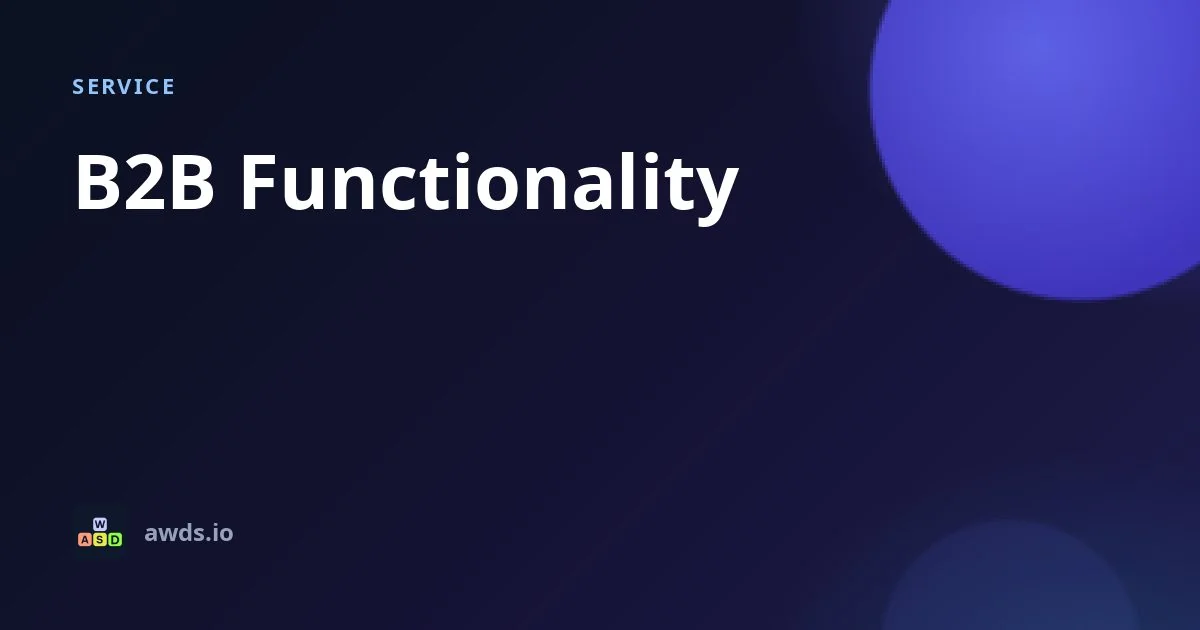
When someone shares a page in a messenger or on social media, the site shows a picture card with a section label. Change the “PRODUCT” label to “SERVICE” — the site redraws the cards of this language in the background. Cards in the other language stay as they were.
Before: the “PRODUCT” label.
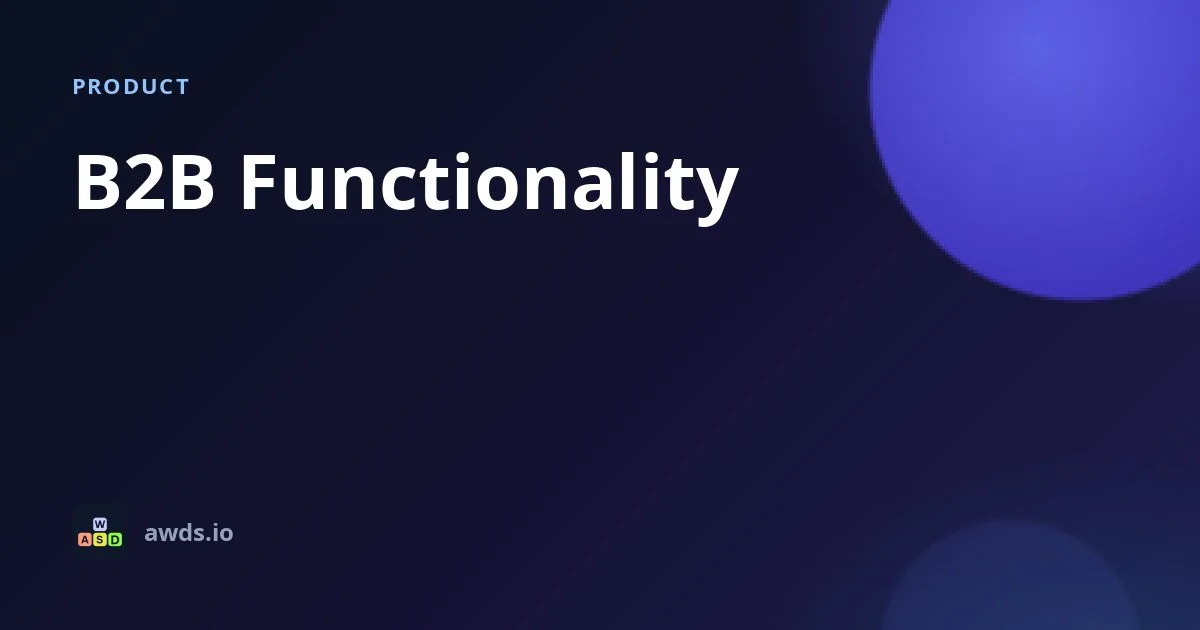
After: the “SERVICE” label.
All edits in one list, undo with one button
The “Only changed texts” box shows everything you have changed in the chosen language. “Reset text” brings back the dictionary text — on the site at once, on social media cards with the next redraw.
- Role-based access: viewing texts and changing them are separate permissions; a team member can see the list without being allowed to edit.
- The admin panel stays the same: edits apply to the storefront only, captions in the panel do not change.
Fix a caption from your phone too
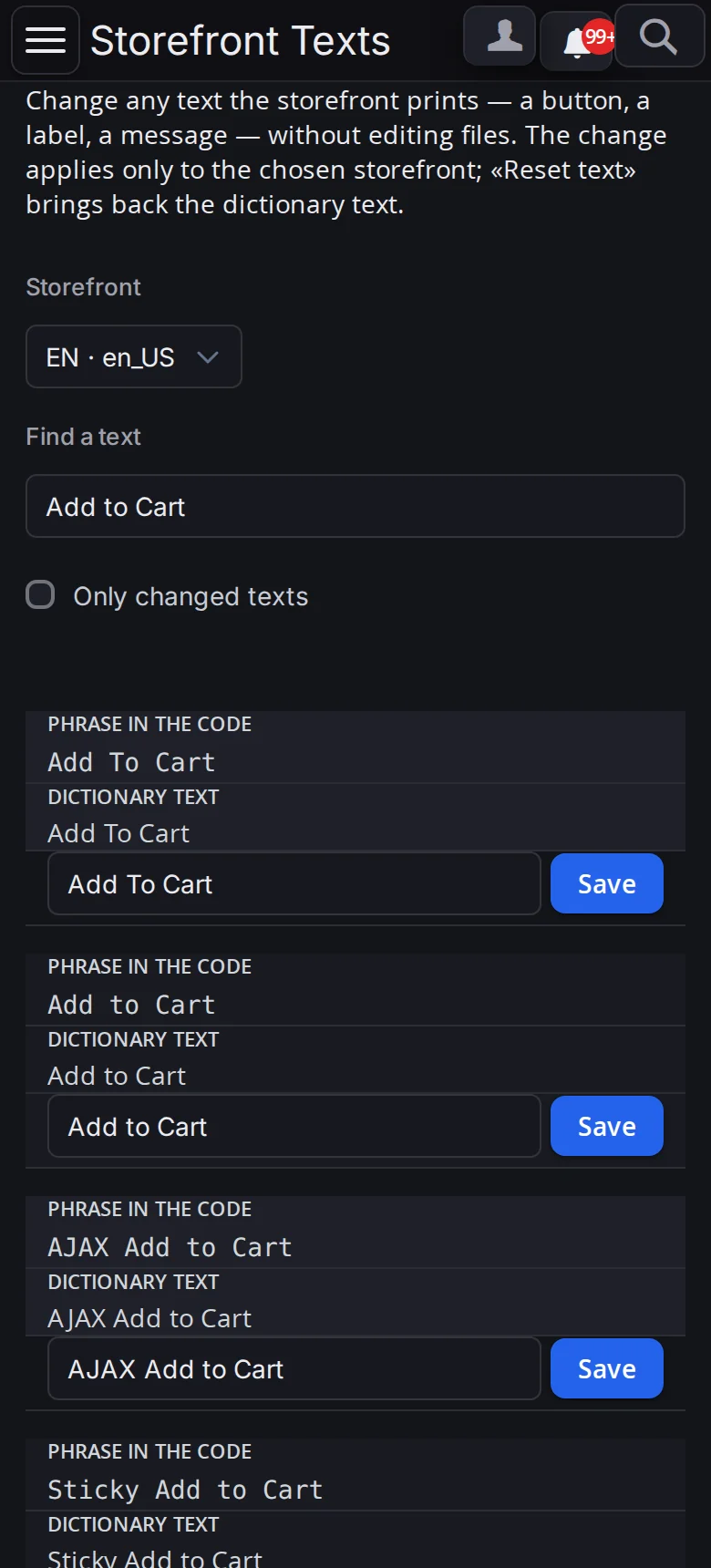
On a narrow screen each phrase becomes a card: the original phrase, the dictionary text and the edit field one below another. In the panel's dark theme it works the same.
What we checked ourselves
The screenshots were taken on our own site. Edits were made with the panel's buttons and reset with the same button after the shoot: the site says “Add to Cart” and “PRODUCT” again, and the social media card is back to its original image, byte for byte.
- Checked that customers see the edit right away: the page was opened in a separate browser without signing in to the panel.
- Made sure the Russian storefront showed its original text meanwhile and its social media cards were not redrawn.
- While shooting the case we found and fixed two things. In the Russian panel the reset button and the page description called the action by different names — now they match. On a phone the page's text and fields touched the screen edge — now they have a margin.
Let your site speak in your words
We'll build a site where you change captions, buttons and messages yourself — for each language separately and without calling a developer.