AI assistants work with your website — exactly as far as you allow
An AI assistant can already research a topic and write an article. The hard part is letting it into the website: one shared admin password, and it can do everything — publish, change prices, delete pages.
Here the site gives every assistant its own key with only the rights it needs. Our content assistant writes an article, and it lands in the admin as a draft: no publish date, on the storefront of its language, waiting for an editor.
For teams that already use an AI assistant and want it to do real work on the site
An assistant that only answers in a chat window leaves the copying to people. One that can open the site does the job itself — as long as it cannot do more than it should.
Owner
Decides what each assistant may touch. No shared passwords: every assistant has its own key, and any key can be withdrawn without affecting the others.
Editor
Gets finished drafts in the usual list of articles — with title, summary, search title and description filled in. Reads, corrects, publishes.
Developer
Connects any assistant or automation that supports the open MCP standard, with an ordinary access key. Every site action with the right permission becomes a tool, with no extra code.
One switch and three safety limits
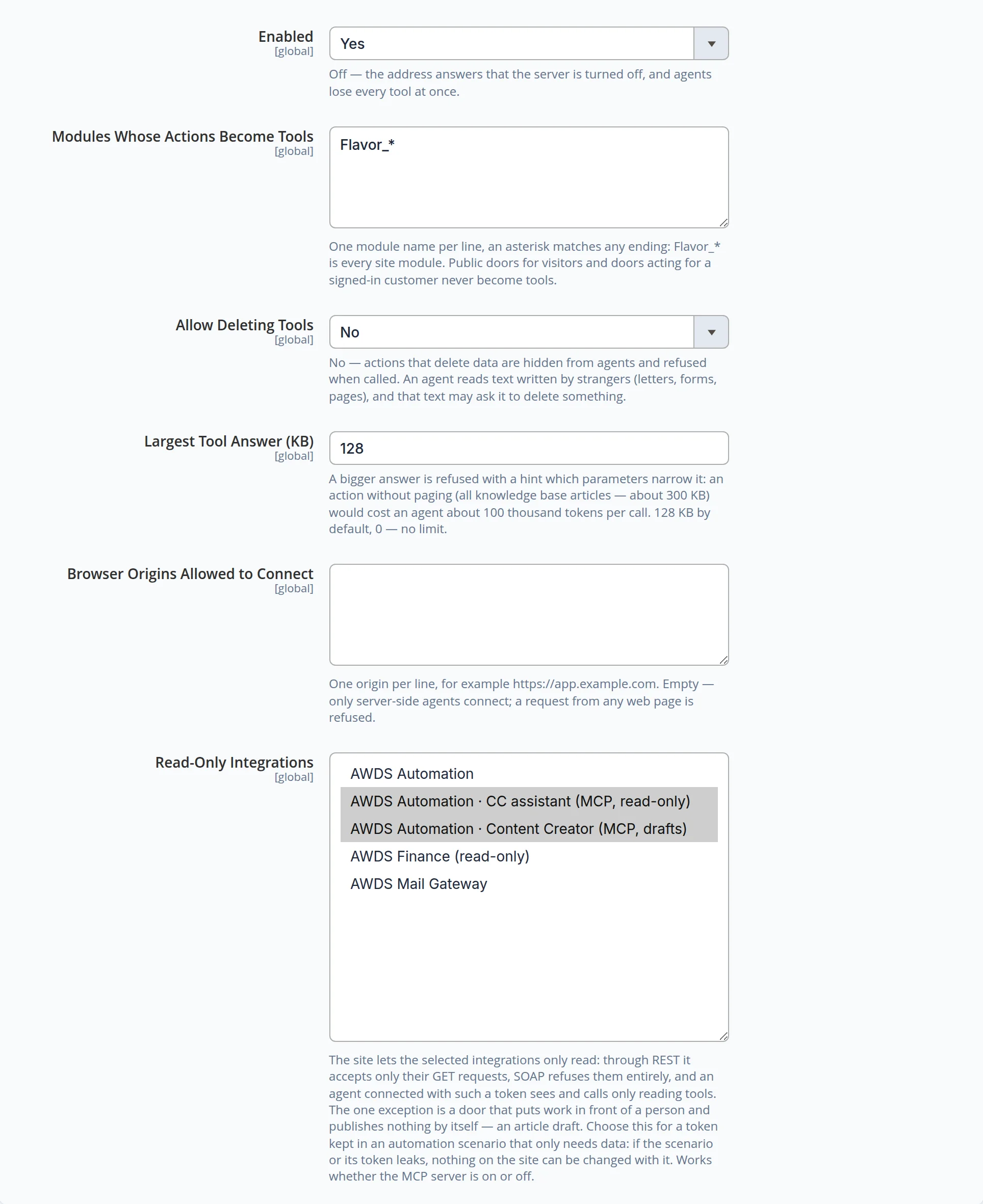
The connection turns on in the site settings. Next to the switch are the limits that hold for every assistant at once.
- Deleting is off by default — an assistant reads letters, forms and web pages written by strangers, and such text may ask it to delete something. Delete actions are hidden from it and refused when called.
- Answers have a size limit — a request that would return the whole knowledge base is refused with a hint how to narrow it, so an assistant does not burn its budget on one call.
- Read-only keys — for a key that sits in an automation and only needs data: if it leaks, nothing on the site can be changed with it.
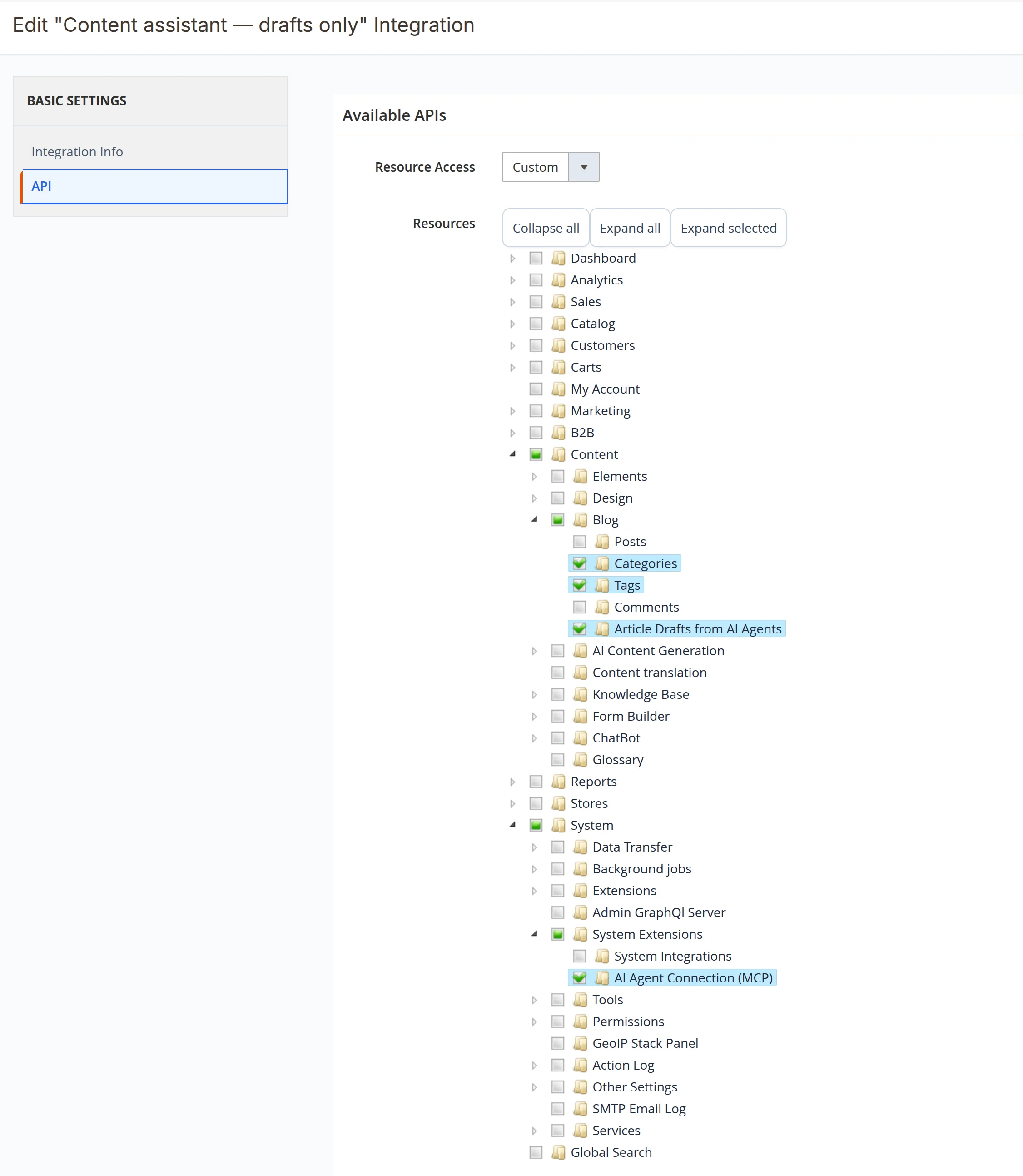
A key for the assistant — with exactly the rights it needs
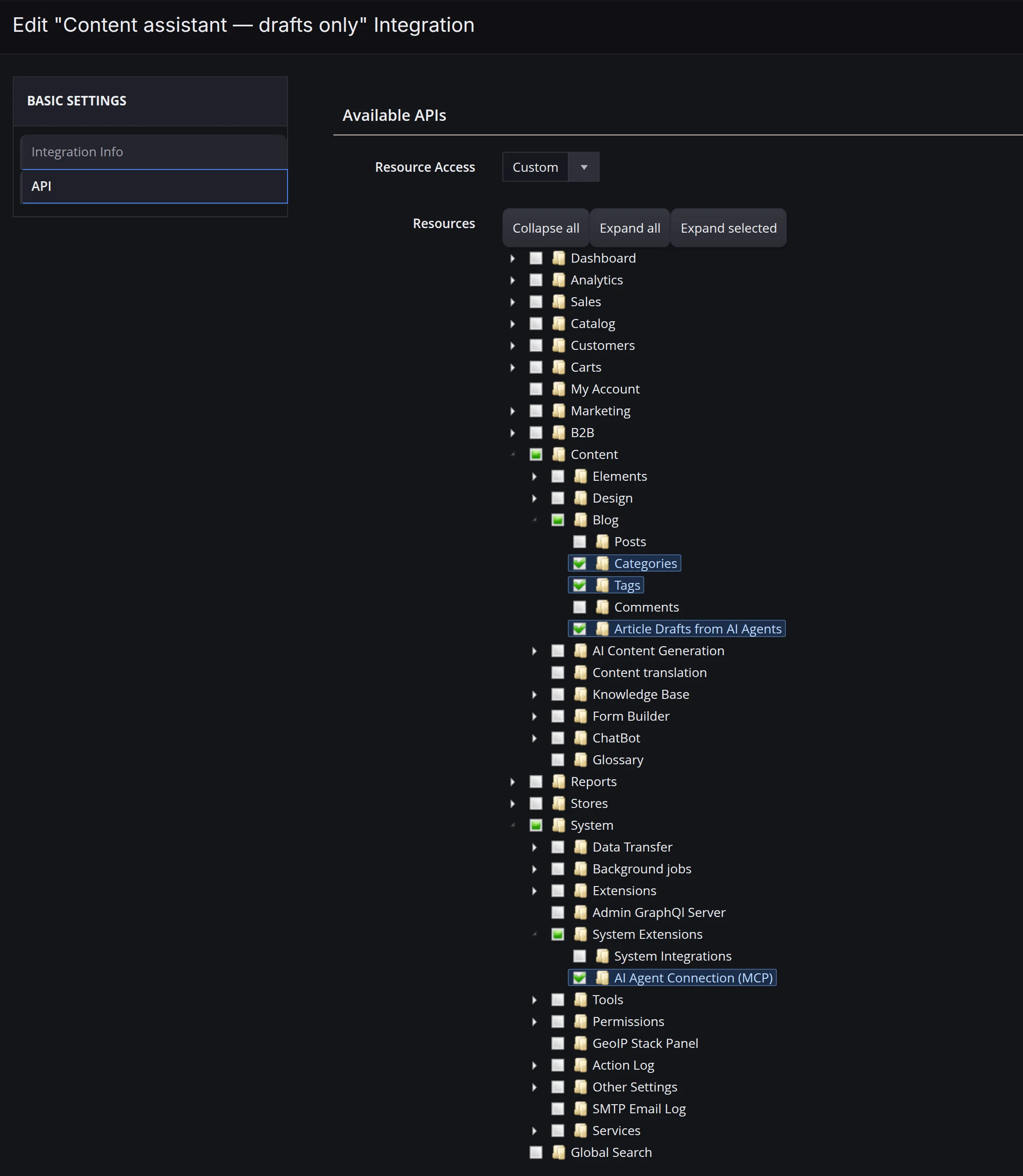
Each assistant gets its own key, and the rights are ticked in the familiar tree of site sections. Our content assistant has three: blog categories, tags and article drafts. It cannot see orders, customers or prices — those tools simply do not exist for it.
- "Article Drafts from AI Agents" — a separate permission from editing posts: text and existing categories only, always a draft, no publish date, no pictures by link, no scripts
The assistant's article arrives as a draft
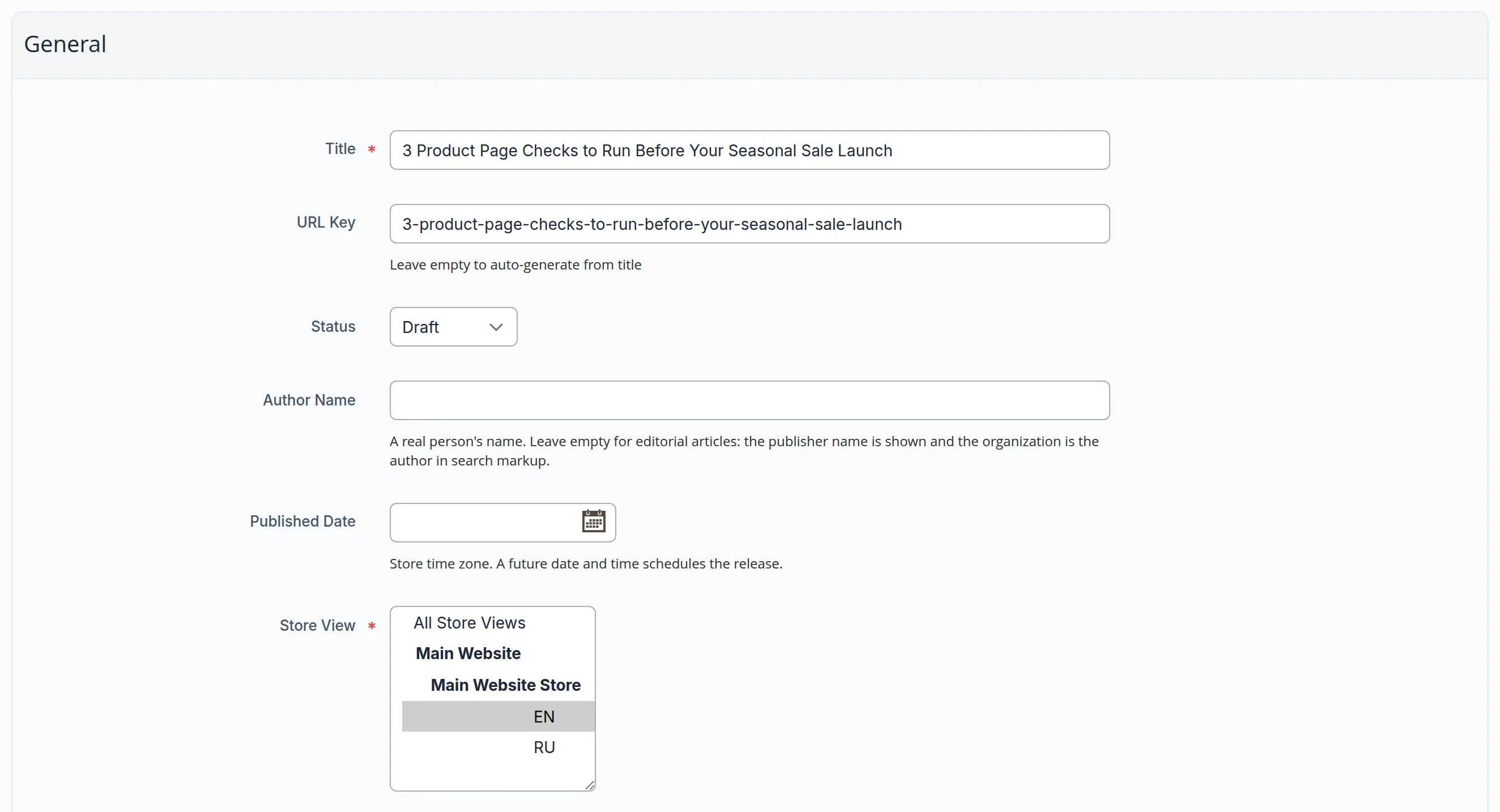
We gave our content assistant two tasks: a short post on three checks for product pages before a seasonal sale, in English, and one on preparing product cards for the sale season, in Russian. It searched the web, wrote both posts and saved them through its key. Both are in the list of posts with the status "Draft" and no publish date — the storefront does not show them.

Nothing goes live without a person
The draft opens in the usual article form: title, address, status "Draft", empty publish date, storefront of the article's language. The assistant also filled in the summary and the search title and description. The editor reads, corrects and publishes — or schedules a date.
- Asked to publish right away, the assistant still saved a draft and replied that an editor publishes drafts in the admin — the key has no right to publish
The same rights tree in the admin's dark theme
Ticked rights stand out in the dark theme too. While shooting this case we found the ticked rows nearly unreadable there — light text on a light highlight — and fixed it in the admin's rights tree itself.
How an assistant gets onto your site
1. What it may do
Together we decide what the assistant should do on the site: write drafts, answer questions from the knowledge base, read the catalogue — and what it must never touch.
2. A key with those rights
We issue a key with exactly those permissions and mark it read-only if the assistant only needs data. The key goes straight into the assistant's settings — never into email or chat.
3. Work as usual
The assistant or your automation scenario uses the site's tools by itself. Drafts wait for the editor, every call is logged, and the key can be withdrawn at any moment.
What we checked with our own hands
The frames come from our own site's admin. The key shown in the rights tree was made for this case and never activated — it never had a token; the tab with integration keys is not in the frames.
- Our content assistant wrote two posts, in English and in Russian: both saved as drafts, each on the storefront of its language, no publish date, no headline duplicated in the text, no scripts or pictures by link — 10 of 10 checks for each
- Access test: the assistant's key creates drafts and nothing else — editing posts, categories, the content plan and deleting are refused, and a key without the drafts permission does not even see the drafts tool — 24 of 24
- All frames — in English and Russian, the rights tree also in the dark theme; nothing was saved during the shoot
Let your AI assistant work on your site — safely
We will connect your assistant or automation to the site with a key that can do exactly what it needs: drafts for the editor, data for answers, nothing to delete.
Another case: the company blog where these drafts are published →