Security and Maintenance: Keeping Your Website Safe

Security & Maintenance:
Keeping Your Website Safe
A hacked website costs real money: lost revenue, data recovery fees, SEO damage, and eroded customer trust. Whether you run a small business site or a large e-commerce store, this guide covers the three fundamentals that prevent 95% of common attacks.
Three Security Essentials
You don't need to be a security expert to protect your site. These three measures, properly implemented, block the overwhelming majority of real-world attacks.
Regular Backups
Backups are your last line of defence. If everything else fails, a clean backup means you can restore your site in minutes rather than starting from scratch.
Extension & Theme Updates
Outdated extensions are the leading cause of website hacks. Security patches are released constantly — delaying updates leaves known vulnerabilities open to automated scanners.
Strong Passwords + 2FA
Brute-force attacks try thousands of password combinations per minute. A 20+ character passphrase plus 2FA makes this attack vector practically impossible.
Setting Up Automated Backups
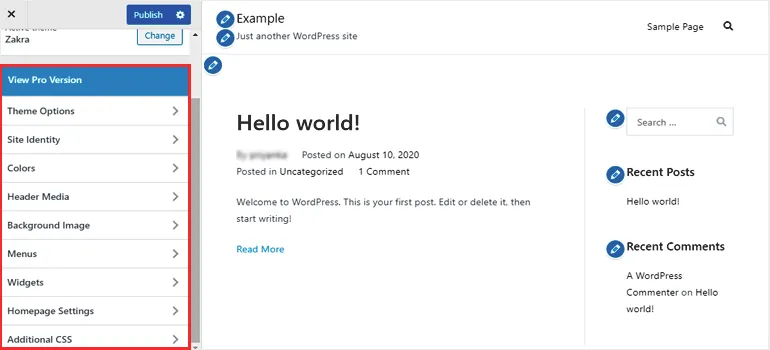
Automated backups are your insurance policy. A properly configured backup system saves your entire site — files and database — on a schedule you control.
Install & Activate
Install a reliable backup solution from your platform's marketplace. Navigate to backup settings and configure your preferences.
Set Backup Frequency
Configure automatic backups: Files: Weekly, Database: Daily. For high-traffic sites, increase to daily files. Keep at least 4 backup copies.
Connect Remote Storage
Connect Google Drive, Dropbox, or Amazon S3 as your backup destination. Never store backups only on your server — if the server is compromised, backups are too.
Test Your Restore
A backup you've never restored is not a backup — it's an assumption. Test the restore process on a staging site at least once per quarter to confirm your backups are valid.
Updating Plugins and Themes
Your platform dashboard alerts you to available updates. Make it a weekly habit to apply all pending security patches.
Back Up First
Always run a manual backup before applying updates. Major version updates can occasionally introduce breaking changes — a fresh backup means you can roll back in seconds.
Update in Batches
Select all available extension updates and apply them. Then check your site's frontend and key functionality. Update the core platform separately — it warrants a dedicated test cycle.
Remove Unused Extensions
Inactive extensions are a security risk — they still run code and contain vulnerabilities. If you're not using it, deactivate and delete it. Fewer extensions = smaller attack surface.
Strong Passwords + Two-Factor Authentication
Credential attacks are the most common entry point for website compromises. Strong passwords and 2FA eliminate this vector entirely.
Use a Password Manager
Generate a unique 20+ character password for your site admin panel and every connected service. Use a reputable password manager — most offer free tiers. Never reuse passwords across sites.
Enable Two-Factor Authentication
Enable two-factor authentication in your admin panel. Require all admin accounts to use an authenticator app. SMS-based 2FA is better than nothing, but authenticator apps are more secure.
Limit Login Attempts
Enable login attempt limiting in your security settings. It blocks an IP after a configurable number of failed attempts (typically 3-5). Stops brute-force attacks automatically.
Rename or Hide the Admin Username
Never use"admin" as your username — it's the first thing attackers try. Create a new admin account with a unique username, then remove the default "admin" account.
Website Security Checklist
Key Takeaway
Website security is not a one-time setup — it's a habit. Weekly updates, daily backups to an external location, and 2FA on every admin account cost you less than an hour per month. A single breach can cost days of recovery time, real money, and your users' trust. The checklist above, consistently followed, keeps your site out of 95% of attack scenarios.
Related Articles
Content Management Guide
Navigate posts, pages, and media like a pro.
SEO Insights for Google
Keywords, speed, and mobile — rank higher organically.
Client Communication After Launch
Stay connected with your team and clients post-launch.
Need Managed Website Security?
Our team handles security monitoring, updates, and backups for every client we manage.
Enquire About Managed Maintenance








Comments (0)
No comments yet. Be the first!